
Gaming · Platform not recorded
Minecraft - Fix Internal Exception: Java.iO.IOException: An Existing connection was forcibly closed
Original source date
Answer
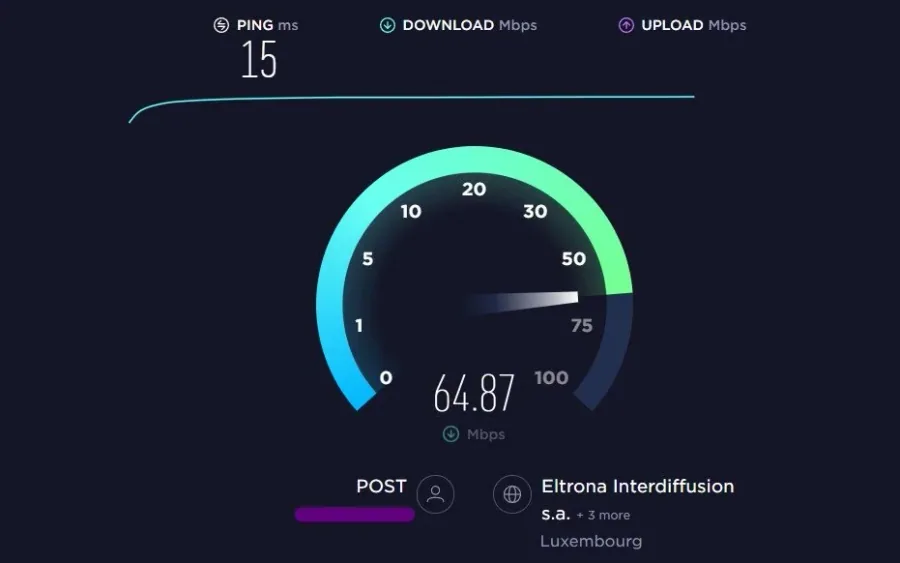
This error message represents an issue with the network connection from your computer to the Minecraft server. This issue is hard to find and even harder to fix since any network provider can cause it that long way between your computer and the server. We suggest making sure that you are using a reliable network connection. Click here to test your connection. Using Speed-Test services to preview the approximate up- & download speed of your connection and the latency to their server can help a lot in figuring out if network-related issues are caused by your connection or by the server you’re trying to connect to. On www.speedtest.net, ensure your latency (ping) averages below 100 ms. A connection with high latency will induce packet loss to the server and create lag and rubber banding while in-game To improve your network connection, use an ethernet cable to connect to your PC. In case you are forced to use a wireless connection, then make sure to restart your router (or modem) if you haven’t done this in a while and reduce the number of devices connected to the same network.
Test your Internet Connection Speed & Latency
This error message represents an issue with the network connection from your computer to the Minecraft server. This issue is hard to find and even harder to fix since any network provider can cause it that long way between your computer and the server. We suggest making sure that you are using a reliable network connection. Click here to test your connection. Using Speed-Test services to preview the approximate up- & download speed of your connection and the latency to their server can help a lot in figuring out if network-related issues are caused by your connection or by the server you’re trying to connect to. On www.speedtest.net, ensure your latency (ping) averages below 100 ms. A connection with high latency will induce packet loss to the server and create lag and rubber banding while in-game To improve your network connection, use an ethernet cable to connect to your PC. In case you are forced to use a wireless connection, then make sure to restart your router (or modem) if you haven’t done this in a while and reduce the number of devices connected to the same network.
End Network-Intensive Processes
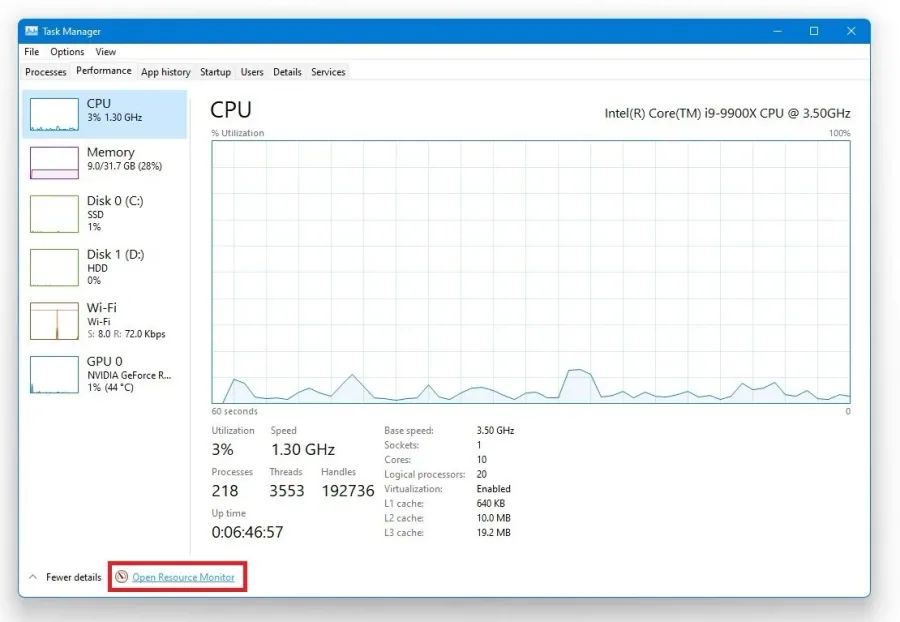
Access your Resource Monitor by opening up your Task Manager. Right-click your taskbar to open up your task manager. Under Performance, select Open Resource Monitor. On the new resource monitor window, open the Network tab, where you must open the Processes with network activity.
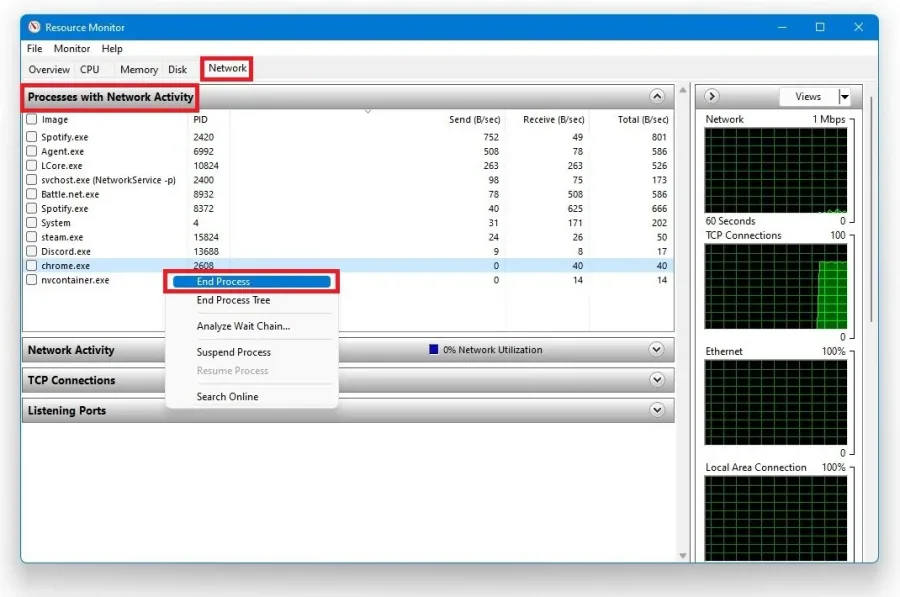
After a few seconds, you will see every process using your network connection on…
After a few seconds, you will see every process using your network connection on your system. This might be your browser running in the background, Steam, or a download bottlenecking your connection. I suggest you only end the processes you know won't break your operating system. In the tab below, you can preview your network utilization in percentage.
Update Java
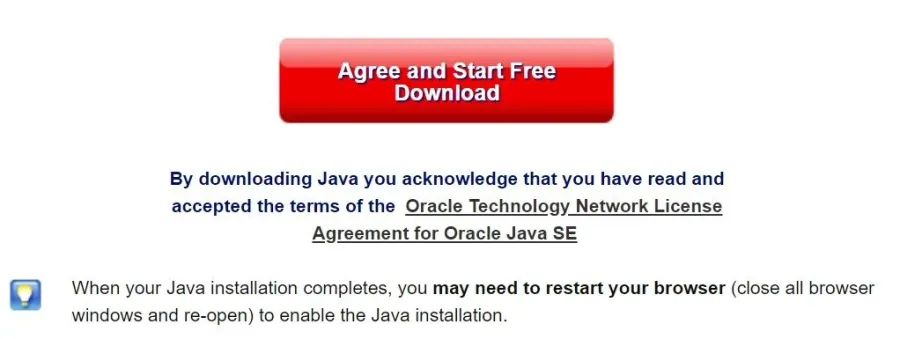
This error can also occur when your player files are corrupted, issues with your Firewall or antivirus application, when Java is not installed or not up to date, or when players are using different game versions to play on the same server. Make sure that your Java version is up to date by visiting this page. Select to download the free 64-bit Java update, which should be installed to your system when trying to play the Minecraft Java Edition.
Change DNS Server Addresses
Next, we will change your DNS server address, in case the error is still caused by your network connection. Use the shortcut Windows Key + R, and in the dialogue box, enter Control and hit enter.
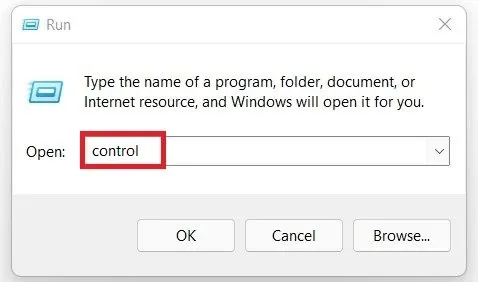
This will open up your control center
This will open up your control center. From there, navigate to Network & Internet, Network & Sharing Center, and here select your connection.
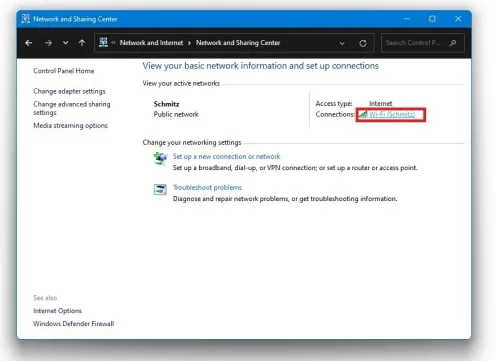
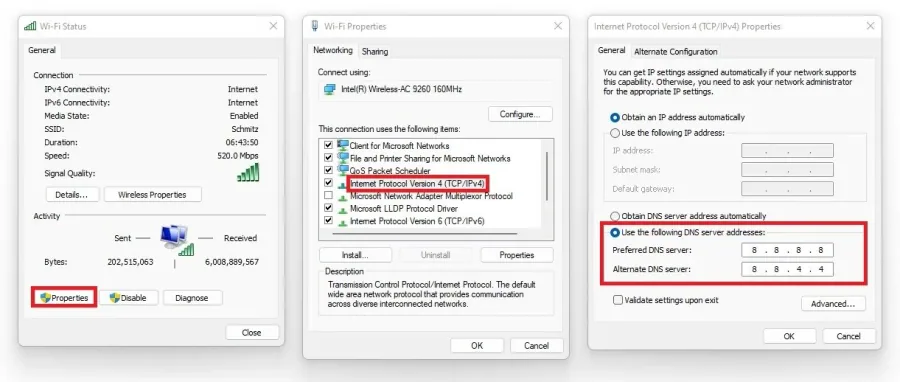
Navigate to Properties and lastly, double-click the Internet Protocol Version 4 a…
Navigate to Properties and lastly, double-click the Internet Protocol Version 4 as you can preview on the screenshot below. Select to Use the following DNS server addresses option, and as your preferred DNS server, use: 8.8.8.8 as your alternate DNS server, use: 8.8.4.4. This will for a lot of users fix the error when joining a server, as these are the official public DNS server addresses from Google, which are safe to use.
New Minecraft Install Version
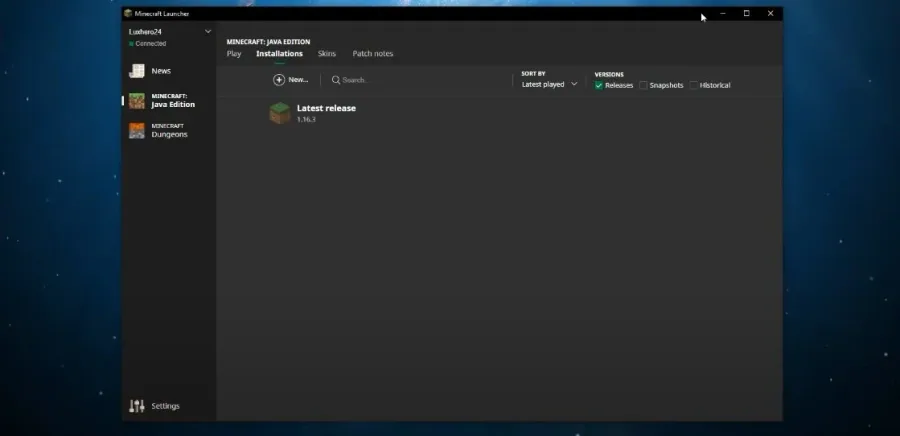
If the problem persists, then your game files might be corrupted. To fix this, open up your Minecraft launcher. Under Installations, select create a new installation with the game version of the server you’re trying to join.
Verify the Minecraft Server Status
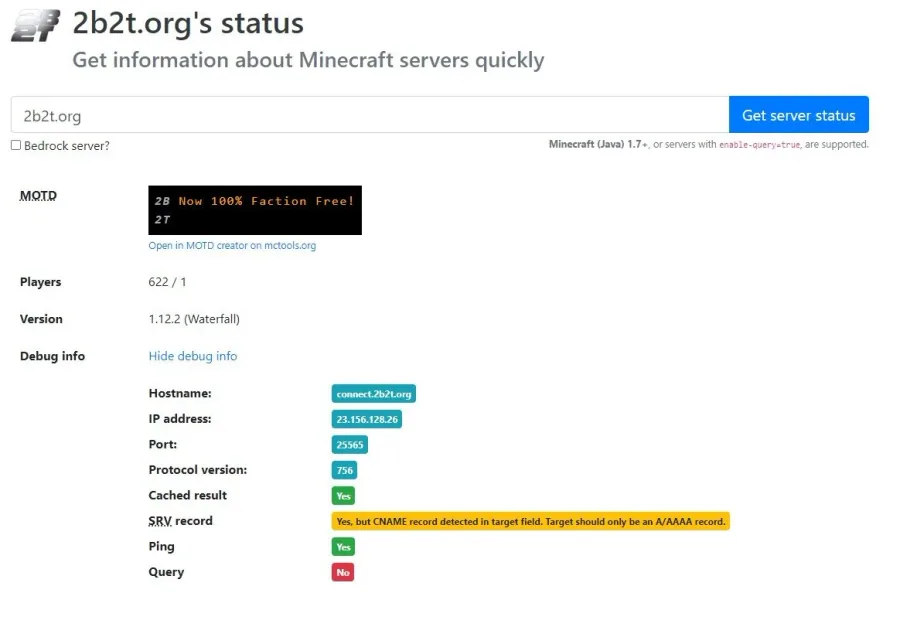
If you’re unsure about the server version, visit this page. Here, you can get trivial information about the server you fail to connect to. Enter the server’s IP address, select Get Server Status, and you’ll be presented with the player counter, current version, etc. This can help you determine if the error is server sided or because of your connection. As a last resort, you should ensure that your anti-virus application is not blocking parts of the software. Troubleshoot this step by turning it off before starting up Minecraft.
Video walkthrough
If it does not work
- If the current interface differs, compare it with the recorded video walkthrough.