
Mac OS · macOS
Manage Location Services for apps on Mac
Source-checked About 10 minutes
Answer
Open System Settings > Privacy & Security > Location Services, authenticate if requested, then turn access on or off for each app.
Check prerequisites and the intended result
Before changing Mac Location Services, identify the exact app or system service, current permission, required feature, and whether the Mac is organization-managed before changing access. Write down the current value before changing it so you can restore only that setting if the intended result does not appear. Keep the relevant account, app, or system version available if official support is needed. Confirm the saved choice after closing and reopening the relevant settings panel.
Use the supported method
Grant or remove location narrowly for the intended app instead of disabling every location-dependent service without reviewing consequences.
Open Location Services
Choose Apple menu > System Settings > Privacy & Security > Location Services.
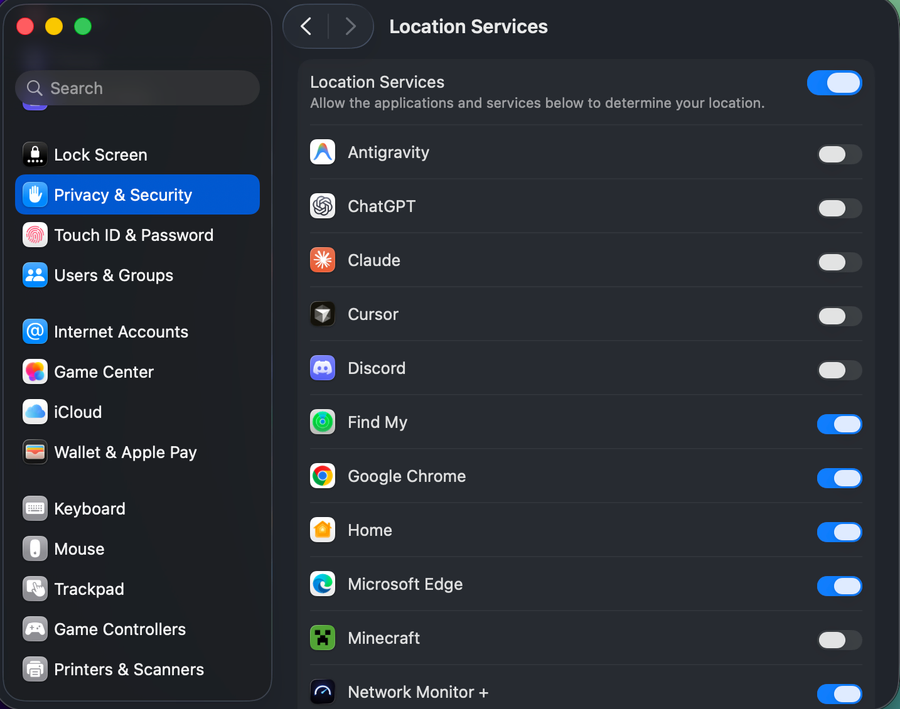
Authenticate if requested
Use Touch ID or the administrator password to unlock changes.
Set app access
Turn location access on only for apps that need it, and turn it off for apps that do not.
Review system services
Open Details beside System Services to review Apple system features that use location.
Check that the change worked
The app's location-dependent action behaves as intended after relaunch while unrelated apps retain their previous permissions.
Troubleshoot Mac Location Services
If the control is locked, an app never requested access, Screen Time or management overrides it, or the app still reports an inaccurate location, stop broad resets and return to the last known state. Capture the exact error, versions, device or account scope, and failed step before using the linked official support channel.
Video walkthrough
Sources and verification
Checked against official documentation on . Scope: macOS.
Follow the linked first-party guidance if labels differ after a platform or app update.