
Mac OS · macOS
Manage Camera and Microphone Permissions on Mac
Source-checked About 10 minutes
Answer
Open System Settings > Privacy & Security > Camera or Microphone and enable only apps that have requested and genuinely need access.
Open privacy controls
Choose Apple menu > System Settings > Privacy & Security.
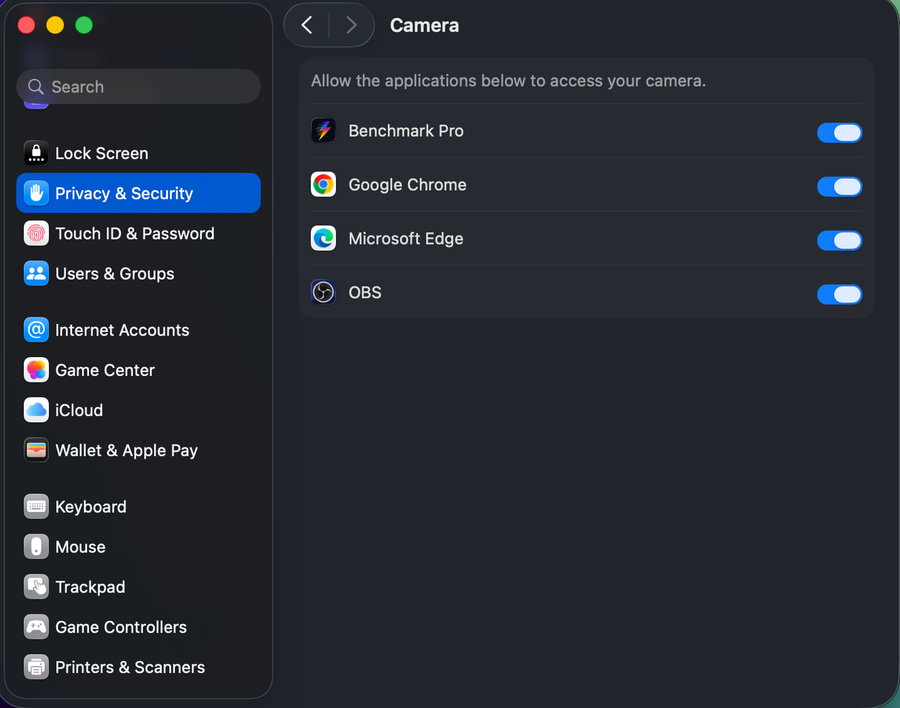
Review Camera access
Select Camera and turn access on or off for each listed third-party app.
Review Microphone access
Select Microphone and apply the same least-access rule; relaunch an app after changing permission.
Handle websites separately
In Safari, use Settings > Websites for site-specific camera and microphone permission.
Video walkthrough
If it does not work
- If “Manage Camera and Microphone Permissions on Mac” remains unresolved, identify the first numbered step that produces a different result and preserve that screen, file, log, or message. Recheck the specific account, permission, storage, connection, source-media, or hardware prerequisite above, then follow only the matching Apple Support recovery path; do not combine unrelated resets, bypasses, unofficial installers, or third-party repair tools.
Sources and verification
Checked against official documentation on . Scope: macOS.
Reviewed against the linked first-party guidance; interface labels can vary by current app, service, or operating-system version.