
iOS · iPhone & iPad
Keep an iPhone Screen On Longer
Source-checked About 10 minutes
Answer
Choose a longer Auto-Lock interval in Display & Brightness. Low Power Mode, device policy, temperature, and other safeguards can still turn it off.
Before you start
Choose a duration that balances the need to keep content visible with battery life and privacy. A longer or Never setting leaves information exposed when the phone is unattended, and Low Power Mode or device policy can limit the available choices.
Open Auto-Lock settings
Go to Settings > Display & Brightness > Auto-Lock. Open Display & Brightness > Auto-Lock and note the current duration before changing it.
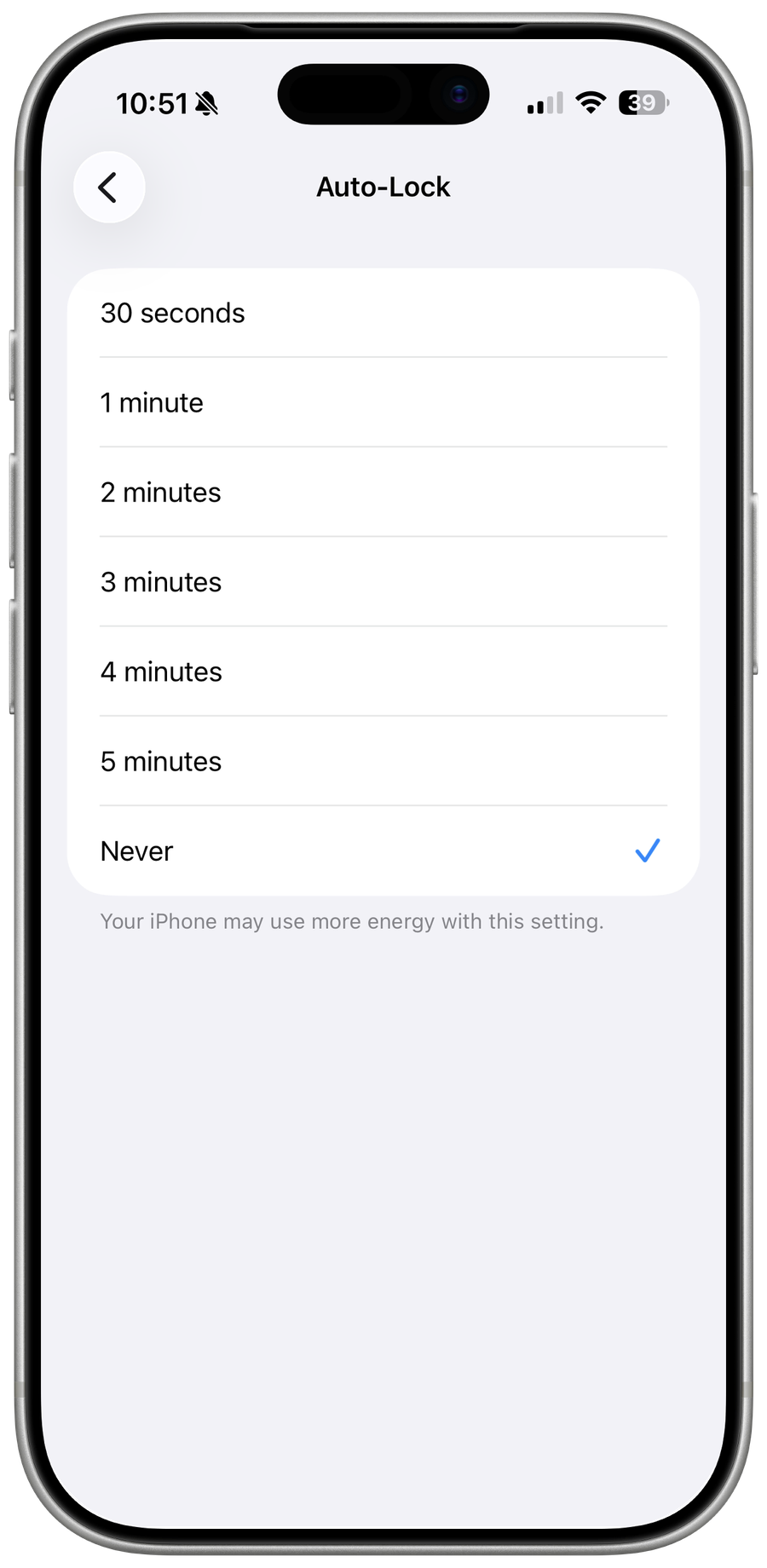
Choose a longer time
Choose the longest suitable time available for your device and use case. Choose a longer supported interval or Never only when that option is present and appropriate; Always-On Display is a separate feature on supported models.
Check power-saving conditions
Turn off Low Power Mode if Auto-Lock options are limited, and remember that iPhone can still darken the display in certain conditions. Check Low Power Mode, Guided Access, navigation, video, and managed-device conditions that may temporarily change display behaviour without altering Auto-Lock.
Verify the result
Leave the iPhone untouched for longer than the old interval and confirm the display follows the new setting, then lock it manually with the side button to verify that security still works.
Troubleshoot iPhone Auto-Lock
If Auto-Lock is greyed out, turn off Low Power Mode and check management restrictions. If the display still turns off during overheating or very low power, let the device recover; those safeguards are not bypassed by Never. If the iPhone is used as a kiosk or reference display, use Guided Access or the app's supported presentation mode when that better limits access than leaving the whole phone unlocked.
Video walkthrough
Sources and verification
Checked against official documentation on . Scope: iPhone & iPad.
Follow the linked first-party guidance if labels differ after a platform or app update.