
Mac OS · macOS
Fix Websites Not Loading on Mac or Safari
Source-checked About 10 minutes
Answer
Test another site and browser, check the network and date, disable content blockers for the affected site, and clear only that site's Safari data before broader resets.
Define the scope
Test several sites and another browser. If all fail, troubleshoot the Mac's network rather than Safari alone.
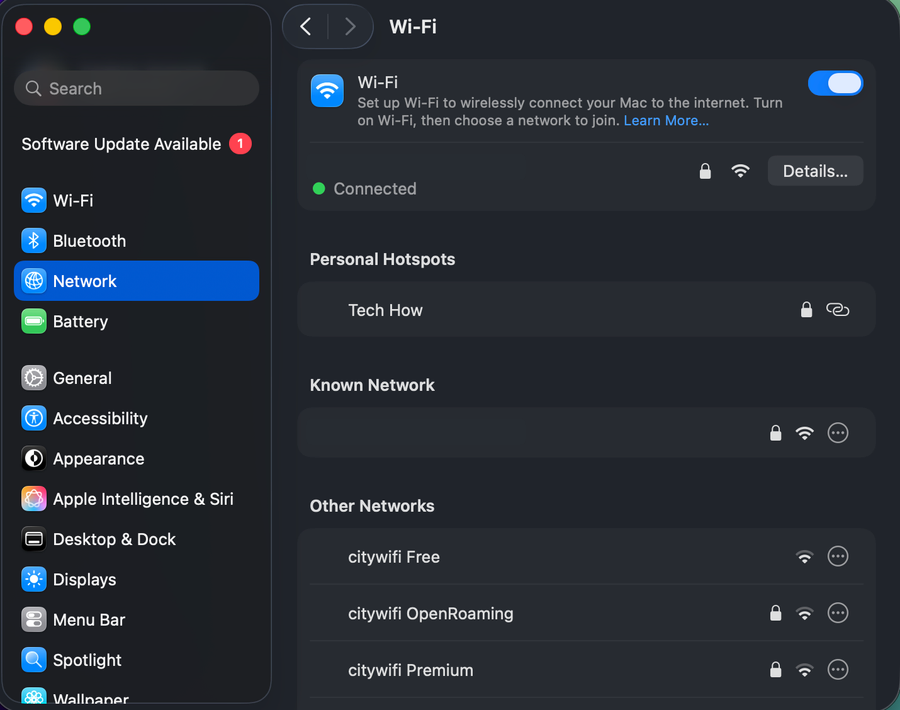
Check basic causes
Confirm date and time, reconnect Wi-Fi, complete any captive-portal login, and temporarily disconnect a VPN for testing.
Test Safari controls
Reload without content blockers, test a private window, and remove website data only for the affected site.
Respect security warnings
Do not bypass certificate warnings. If one site fails everywhere, contact its owner or wait for the service.
Video walkthrough
If it does not work
- If “Fix Websites Not Loading on Mac or Safari” remains unresolved, identify the first numbered step that produces a different result and preserve that screen, file, log, or message. Recheck the specific account, permission, storage, connection, source-media, or hardware prerequisite above, then follow only the matching Apple Support recovery path; do not combine unrelated resets, bypasses, unofficial installers, or third-party repair tools.
Sources and verification
Checked against official documentation on . Scope: macOS.
Reviewed against the linked first-party guidance; interface labels can vary by current app, service, or operating-system version.