Mac OS · macOS
How To Fix Mouse or Trackpad Not Working on Mac OS
Original source date
Answer
In case you’re unable to use your Mac because your trackpad is not working, then plug in a USB mouse or connect a Bluetooth mouse until this problem is resolved. Next, click on the Apple icon on the top left of your screen and select System Settings. On this window, navigate to the General section and select Software Update. I suggest updating your Mac to the latest macOS version. After downloading the OS, you will be prompted to restart your Mac. A system restart can, in many cases, fix temporary trackpad and USB connection problems.
Check Mac OS Version
In case you’re unable to use your Mac because your trackpad is not working, then plug in a USB mouse or connect a Bluetooth mouse until this problem is resolved. Next, click on the Apple icon on the top left of your screen and select System Settings. On this window, navigate to the General section and select Software Update. I suggest updating your Mac to the latest macOS version. After downloading the OS, you will be prompted to restart your Mac. A system restart can, in many cases, fix temporary trackpad and USB connection problems.

Unplug All Peripherals
After updating your device, unplug your other peripherals, such as an external keyboard, mouse, camera, and monitor.
Trackpad Settings
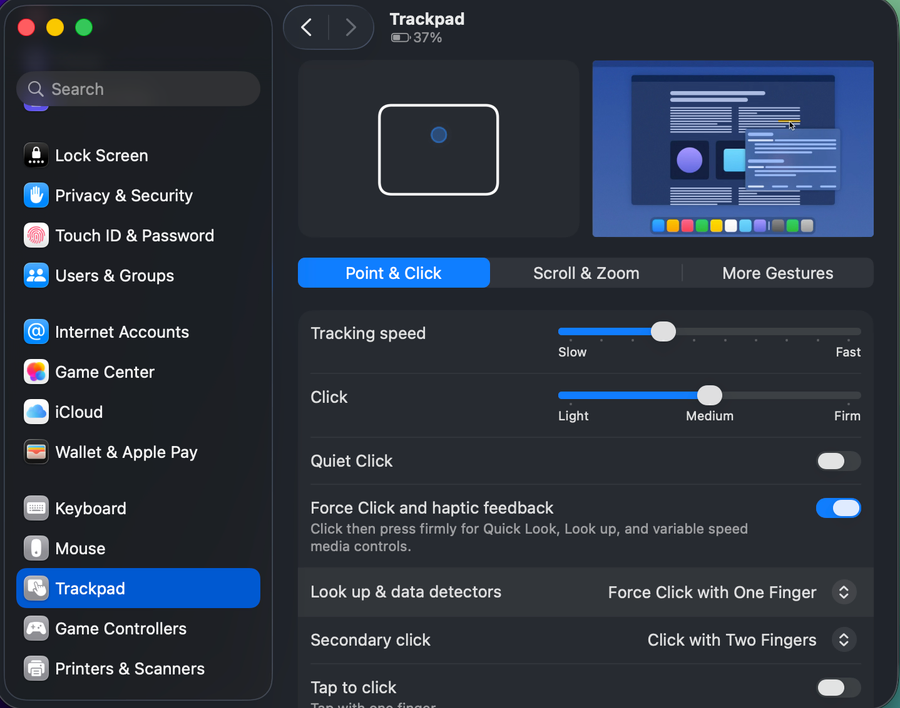
In the Trackpad section of your settings, make sure that you’re in the Point & Click tab and slightly decrease and increase your tracking speed as well as the click speed. Below, temporarily disable the Force Click and haptic feedback option. This can also fix the problem when your trackpad is not responding or not allowing you to left and right-click.

The options below allow you to change how you look up and right-click
The options below allow you to change how you look up and right-click. Ensure these are not turned off if you intend to use your trackpad properly. The last trackpad option should be enabled, allowing you to use Tap to click. This will help you determine if your trackpad is faulty and not allowing you to use the physical click.

Pointer Control Settings
After taking a look at your trackpad settings, navigate to the Accessibility section of your settings. Under Pointer Control, make sure that the Mouse Keys, Alternative pointer actions as well as the Head pointer options are disabled.

Close Background Apps
You can then close your settings and other applications running on your Mac. Some apps can cause mouse and trackpad issues, especially if those apps run in fullscreen mode or change your display resolution.

Test for Faulty Device
Lastly, if nothing seems to help, your trackpad or mouse might be faulty. Test your external mouse or trackpad on a different device to ensure it’s not broken.
Video walkthrough
If it does not work
- What could be causing my mouse or trackpad to not work on Mac OS?. There could be several reasons, including a software update that caused a compatibility issue, a malfunctioning mouse or trackpad, or a damaged cable.
- Can I still use my Mac if my mouse or trackpad isn't working?. Yes, you can still use your Mac if your mouse or trackpad isn't working. You can use the keyboard to navigate and perform tasks, or connect a wired mouse to your computer as a temporary solution.