Mac OS · macOS

How To Fix Mac OS Bluetooth Connection Issues

Original source date

Answer

First, click on the Bluetooth icon in your menu bar to see a list of previously connected devices. In case you’re unable to see the Bluetooth icon, then click on the control center icon, which should display your Bluetooth devices and settings as well. Toggle the Bluetooth option off and on. Restarting the Bluetooth task on your Mac can, in some cases, fix pairing issues with devices.

Toggle Bluetooth On & Off

First, click on the Bluetooth icon in your menu bar to see a list of previously connected devices.

Menu bar > Bluetooth

In case you’re unable to see the Bluetooth icon, then click on the control center…

In case you’re unable to see the Bluetooth icon, then click on the control center icon, which should display your Bluetooth devices and settings as well. Toggle the Bluetooth option off and on. Restarting the Bluetooth task on your Mac can, in some cases, fix pairing issues with devices.

Toggle Bluetooth On & Off

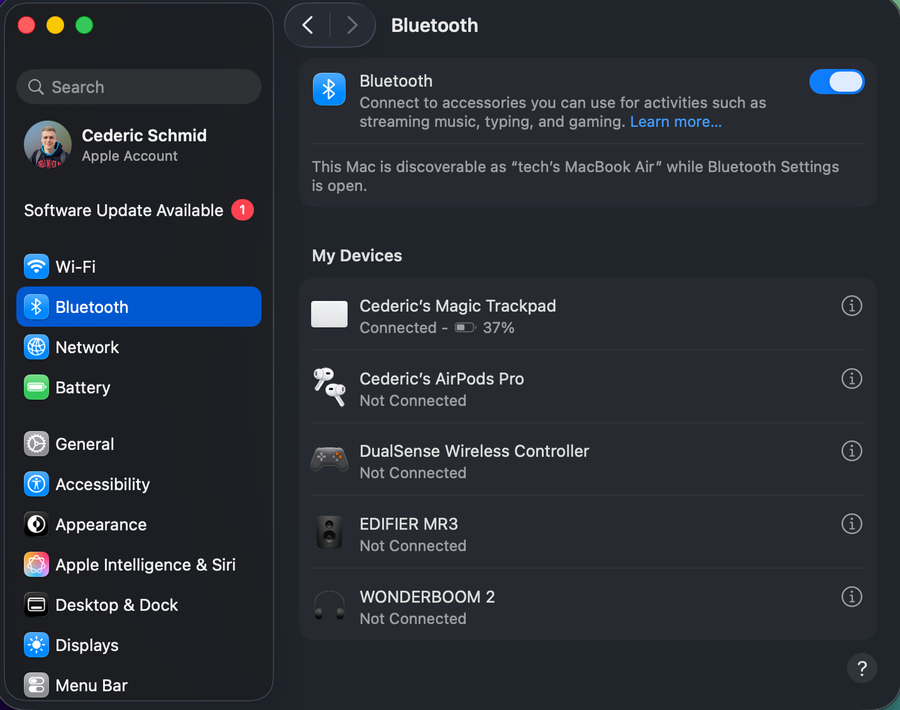
Mac Bluetooth Settings

Next, click on Bluetooth Settings. If these settings look a bit different on your device, then ensure that your Mac is running the latest software update.

System Settings > Bluetooth

Forget Bluetooth Device

In your Bluetooth settings, click on the “i” icon next to the Bluetooth device you’re trying to connect. Here, click on Forget This Device. It might take a second for your Mac to remove the device from your Bluetooth device list. You should next restart the pairing process with your Bluetooth device. Sometimes, this means holding the Bluetooth button pressed for a couple of seconds.

System Settings > Bluetooth > Forget This Device…

In your Bluetooth settings, under Nearby Devices, it should show up again, ready…

In your Bluetooth settings, under Nearby Devices, it should show up again, ready to be paired with your Mac.

System Settings > Bluetooth > Nearby Devices

Mac OS Software Update

In case the problem persists, then navigate to your General settings and click on Software Update. Here, make sure that you’re running the latest macOS version. Download the latest update before restarting your Mac to install the update.

System Settings > General > Software Update

Reset Bluetooth Module

As a last resort, you will have to reset your Bluetooth module on your Mac. Hold the Shift and Option keys pressed while clicking on the Bluetooth icon in your menu bar. This will show you additional information regarding your Bluetooth devices. Click on Reset Bluetooth Module in case this option is available to you. You will be required to restart your Mac, and you can then restart the Bluetooth connection process with your device.

Reset Bluetooth Module

Video walkthrough

If it does not work

  • What could be causing my Mac's Bluetooth to disconnect frequently?. There could be various reasons for Bluetooth disconnections, such as outdated software, interference from other devices, or hardware malfunctions.
  • How do I troubleshoot my Mac's Bluetooth connection issues?. You can troubleshoot Bluetooth connection issues on your Mac by resetting the Bluetooth module, checking for software updates, or deleting and re-pairing the devices in question.
  • What can I do if my Mac's Bluetooth is not discovering any devices?. If your Mac is not discovering any Bluetooth devices, you may need to check the Bluetooth settings, reset the Bluetooth module, or even restart your Mac.