
Mac OS · macOS
Change the Mac Lock Screen Appearance and Login Message
Source-checked About 10 minutes
Answer
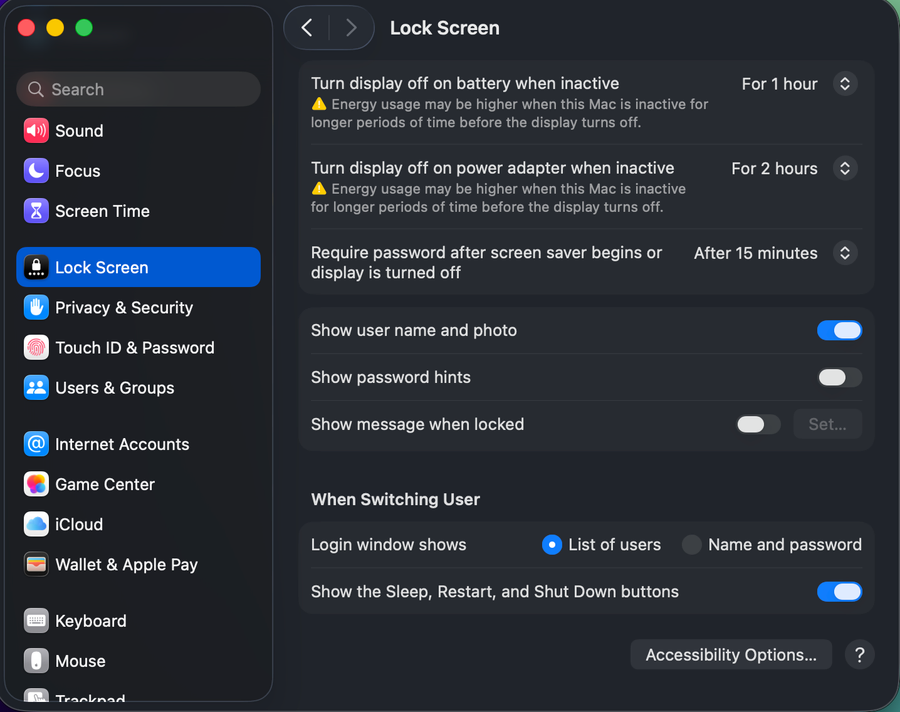
Current macOS manages the login background. Change the wallpaper or screen saver for the lock-screen look, and use Lock Screen settings for the login message and user-list options.
Choose a supported lock-screen change
Confirm the exact account, ownership, billing, age, region, recovery method, and any organization or family restrictions. Never share passwords, verification codes, recovery keys, payment images, cookies, or session tokens with supposed support. Begin by confirming this task-specific prerequisite: macOS does not provide a general setting for an arbitrary separate login-window background; updates can overwrite unsupported file replacements.
Know the supported boundary
macOS does not provide a general setting for an arbitrary separate login-window background; updates can overwrite unsupported file replacements.
Change the visible lock-screen look
Choose a wallpaper and screen saver in System Settings, then lock the Mac to preview the supported result.
Customize login controls
Open System Settings > Lock Screen to set the login message, user list or name-and-password fields, and sleep or restart buttons.
Avoid system-file hacks
Do not replace protected system images or disable security controls for a cosmetic change.
Lock and restart the Mac to verify
Repeat the intended action with a harmless test and confirm this final condition: Do not replace protected system images or disable security controls for a cosmetic change. Reopen the relevant settings, destination, account, project, device, or output and compare it with the recorded starting state before deleting an original or relying on the change.
Respect the managed login-window boundary
If login options or the message are unavailable, check whether the Mac is managed or FileVault is showing its pre-boot screen. Do not replace protected system images or disable FileVault to force a custom background; ask the administrator or use Apple’s supported settings.
Video walkthrough
If it does not work
- If “Change the Mac Lock Screen Appearance and Login Message” remains unresolved, identify the first numbered step that produces a different result and preserve that screen, file, log, or message. Recheck the specific account, permission, storage, connection, source-media, or hardware prerequisite above, then follow only the matching Apple Support recovery path; do not combine unrelated resets, bypasses, unofficial installers, or third-party repair tools.
Sources and verification
Checked against official documentation on . Scope: macOS.
Follow the linked first-party guidance if labels differ after a platform or app update.