
Gaming · Platform not recorded
Lost Ark - How To Show VRAM, RAM, GPU & CPU Utilisation
Original source date
Answer
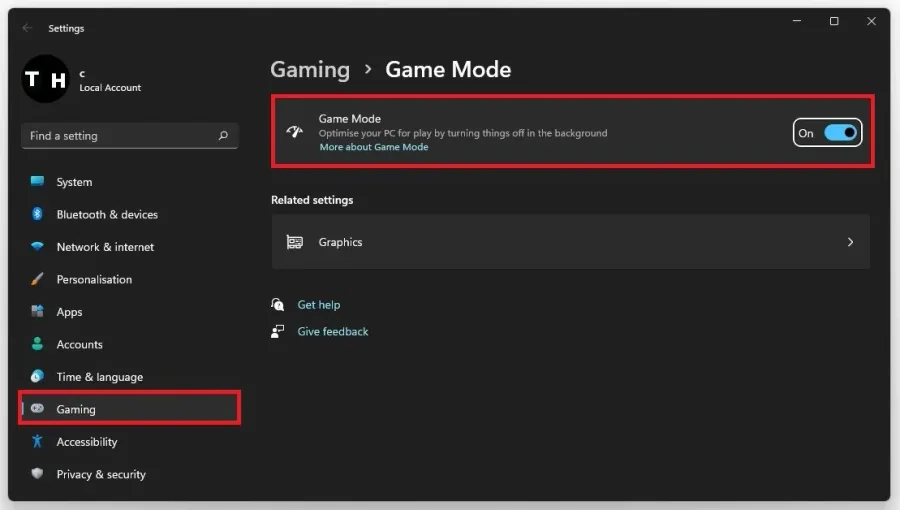
While playing Lost Ark, use the Windows key + G shortcut. This will toggle the Windows Game Mode overlay. If this is not the case, then make sure to enable Game Mode in your Windows settings. Under Gaming, navigate to Game Mode and enable this option.
Enable Windows Game Mode for Lost Ark
While playing Lost Ark, use the Windows key + G shortcut. This will toggle the Windows Game Mode overlay.
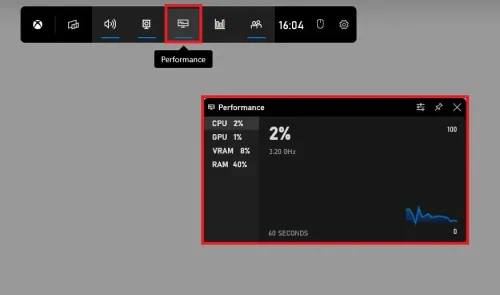
If this is not the case, then make sure to enable Game Mode in your Windows settings
If this is not the case, then make sure to enable Game Mode in your Windows settings. Under Gaming, navigate to Game Mode and enable this option.
Use the Performance Widget
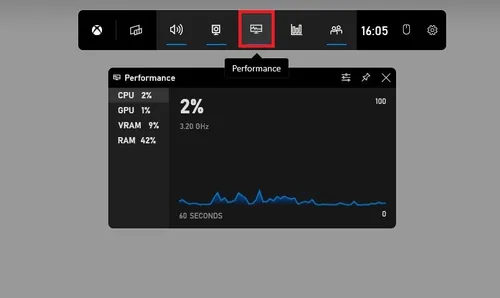
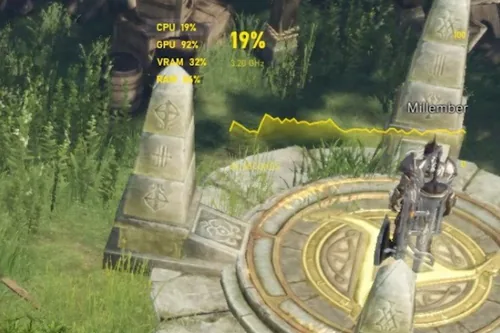
Back in Lost Ark, use the shortcut, and then you can preview some of these panels that are here by default. In your top menu, make sure to enable the Performance window. This window will have a transparent background when pinned, and you can preview your utilization while playing Lost Ark.
Before pinning the window and selecting the best location, open up your performan…
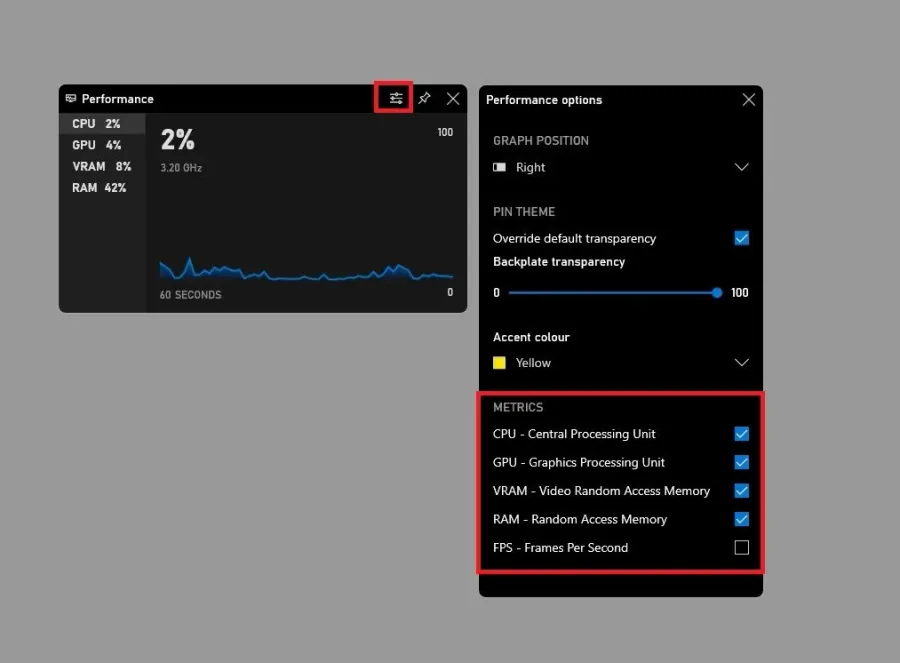
Before pinning the window and selecting the best location, open up your performance Preferences. Choose the best graph position; we like to use a transparency of 100%, and below, enable or disable some of the metrics you wish to see. You can also change the overlay color. Make sure to use a bright color to see it while in-game.
You can then pin the window to your preferred location and then head back to the…
You can then pin the window to your preferred location and then head back to the game in order to see it properly.
How To Show the Ping to Lost Ark Servers
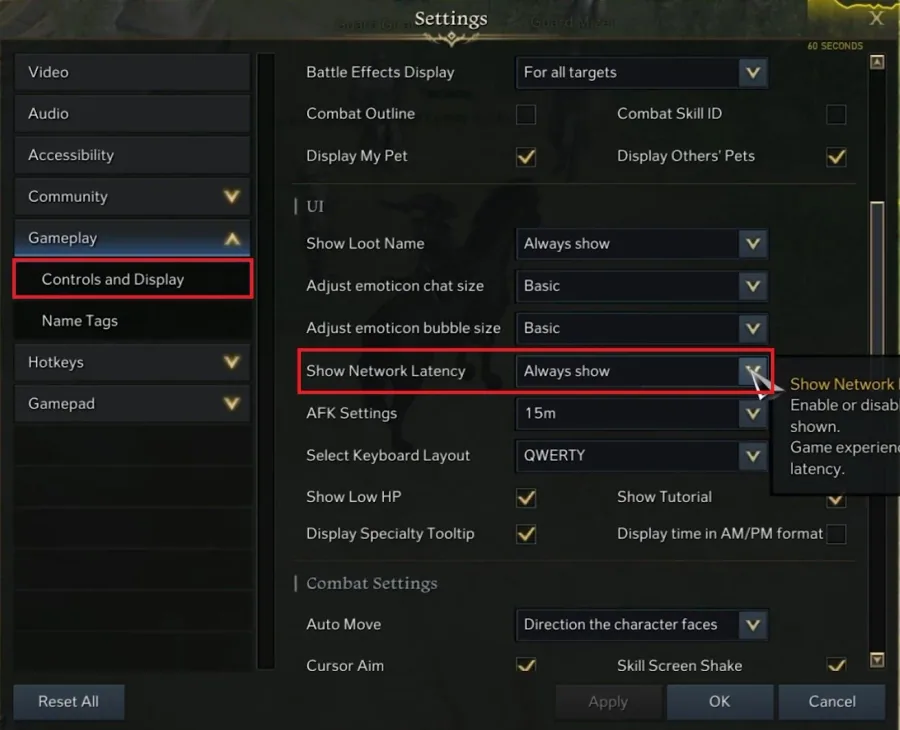
If you want to see the latency or ping to your current server, then navigate to your in-game settings. In the Gameplay tab, under Controls and Display, make sure to scroll down to the UI section and change the Show Network Latency setting. When setting this option to Always show, you can preview the ping or latency to the server you are playing on.
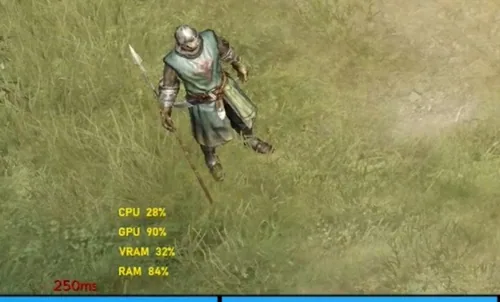
By default, it will show up at the bottom left of your screen
By default, it will show up at the bottom left of your screen.
Video walkthrough
If it does not work
- If the current interface differs, compare it with the recorded video walkthrough.