
Gaming · Platform not recorded
How To Show FPS in Lost Ark
Original source date
Answer
Many programs can show an FPS counter, such as MSI Afterburner, NVIDIA Shadowplay, XSplit, Fraps, or the Steam overlay FPS counter. Open Steam, and click on Steam in the top left corner. Navigate to your Settings, and in the In-Game tab, set the In-game FPS counter to one of your four screen corners, and below, you can enable the high contrast color option, which will display the FPS counter in a bright green color. The next time you launch Lost Ark, you will notice an FPS counter in one of the screen corners you selected.
Steam FPS Counter Overlay
Many programs can show an FPS counter, such as MSI Afterburner, NVIDIA Shadowplay, XSplit, Fraps, or the Steam overlay FPS counter. Open Steam, and click on Steam in the top left corner.
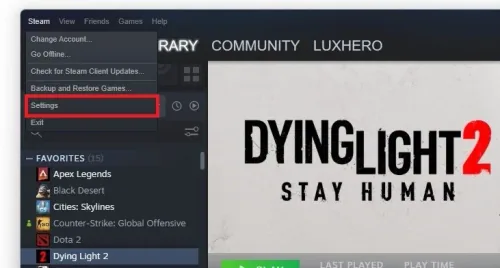
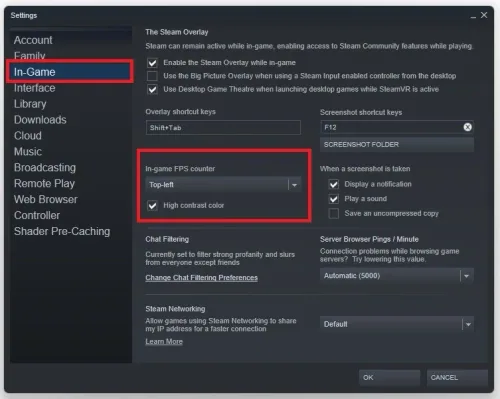
Navigate to your Settings, and in the In-Game tab, set the In-game FPS counter to…
Navigate to your Settings, and in the In-Game tab, set the In-game FPS counter to one of your four screen corners, and below, you can enable the high contrast color option, which will display the FPS counter in a bright green color. The next time you launch Lost Ark, you will notice an FPS counter in one of the screen corners you selected.
Show your CPU & GPU Utilization when playing Lost Ark
If you prefer to use a more detailed FPS counter, which will in addition, show your CPU and GPU utilization as well as your VRAM and RAM usage, then you should consider using the integrated Xbox game mode overlay.
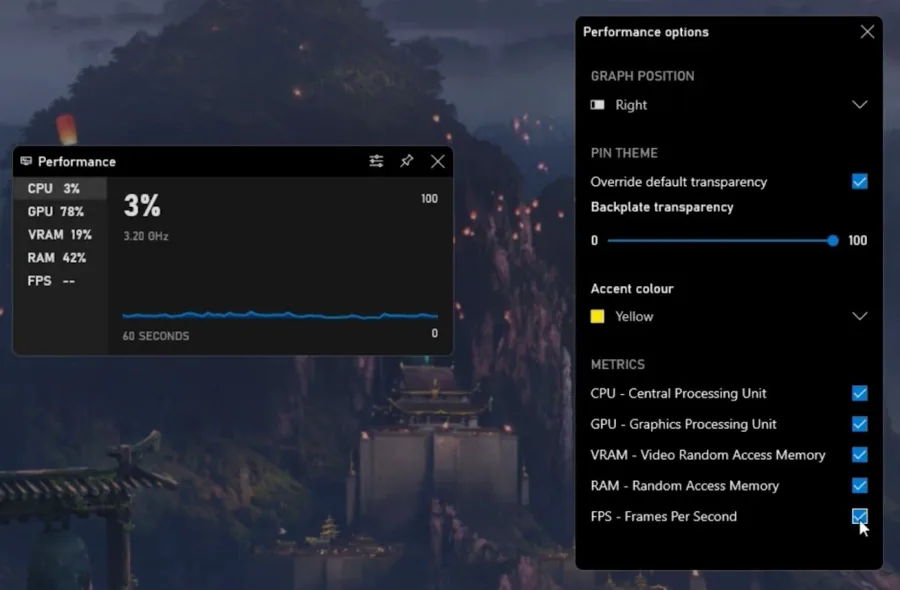
To enable it,use the Windows key & G shortcut on your Windows PC
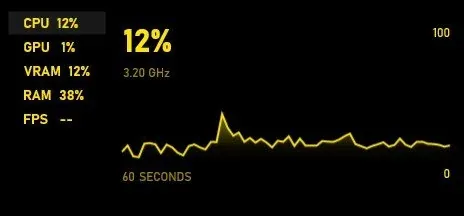
To enable it,use the Windows key & G shortcut on your Windows PC. You can pin the performance window to your desired location. In your performance options, change how this Performance Window will look, including the size, which statistics to show, or the overlay color.
Video walkthrough
If it does not work
- If the current interface differs, compare it with the recorded video walkthrough.