
Windows 11 · Windows
Fix a Logitech Mouse or Controller Not Working on Windows 11
Source-checked About 10 minutes
Answer
Check power and the USB or Bluetooth connection, test another port, remove and pair the device again, then install Windows and Logitech firmware updates for the exact model.
Prepare the correct account, device, files, and recovery path
Confirm the exact Windows edition, active account, device ownership, hardware model, current updates, and full error before changing apps, drivers, permissions, activation, networking, or system settings. Save important work and create an appropriate recovery route. Use Microsoft or the hardware maker's exact supported package; avoid activation scripts, generic drivers, registry cleaners, permission takeovers, and commands copied for a different symptom.
Check power and mode
Charge the device or replace the battery, turn it on, and select the correct Bluetooth, receiver, or wired mode.
Test the connection
Reconnect the cable or receiver directly to another USB port, avoid an unpowered hub, and test the device on another computer.
Pair Bluetooth again
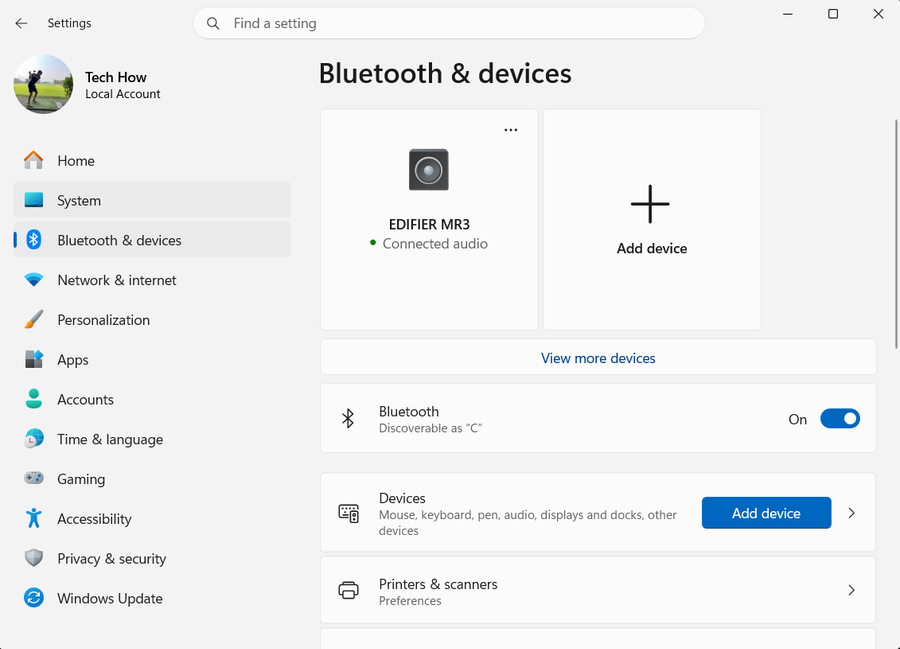
In Settings > Bluetooth & devices, remove only the affected Logitech device, restart it in pairing mode, and add it again.
Update supported software
Install Windows optional driver updates and use Logitech Options+, G Hub, or the model's support page only when that product is supported there.
Separate mouse and controller issues
Check the model in Device Manager and in the game or app. A controller may work in Windows but require the correct input mode or in-game mapping.
Verify the result before making broader changes
Repeat the exact task described in “Fix a Logitech Mouse or Controller Not Working on Windows 11” and confirm the intended account, device, file, app, or service now behaves as described in the Answer. Check any changed setting again after one restart or fresh session where appropriate, and preserve the original data until the result is stable. If only one app, account, network, or file remains affected, keep the next recovery step limited to that scope.
Video walkthrough
If it does not work
- If the mouse remains unavailable, test another port, receiver, battery, and computer and use the exact Logitech model support. Avoid generic driver packages.
Sources and verification
Checked against official documentation on . Scope: Windows.
Follow the linked first-party guidance if labels differ after a platform update.