
Windows 11 · Windows
Fix Lenovo Wi-Fi not working in Windows 11
Source-checked About 10 minutes
Answer
Restart the Lenovo PC and router, run the Windows network troubleshooter, then reinstall the Lenovo-approved Wi-Fi driver if the adapter remains unavailable.
Identify the exact symptom and scope
Before changing Lenovo Wi-Fi, record the Lenovo model, Windows version, adapter name, current driver version, and whether Wi-Fi is missing or merely cannot connect. Write down the exact error, affected device or app, and when it occurs; retest that same symptom after each change. Keep the model, version, and last successful state available for official support.
Match the repair to the symptom
Separate a disabled adapter, airplane mode, saved-network problem, driver problem, and router outage before reinstalling anything.
Check Wi-Fi and restart
Turn Wi-Fi on, disable Airplane mode, then restart both the Lenovo PC and the router.
Run the network troubleshooter
Open Get Help and run the Network and Internet troubleshooter before changing adapter settings.
Check the adapter
Open Device Manager > Network adapters. Enable the Wi-Fi adapter if disabled, or uninstall it and restart Windows.
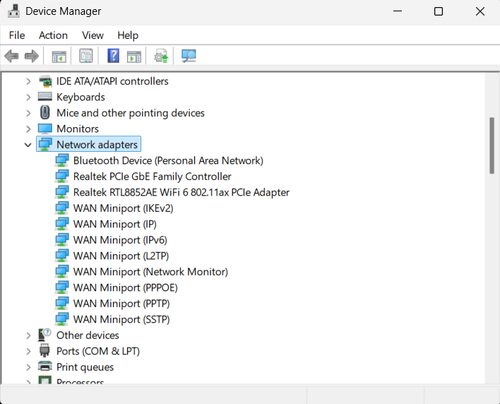
Install the Lenovo driver
Use Lenovo Support with the exact serial number to install the current network driver. Use Network reset only as a final software step.
Retest the original symptom
The intended network appears and reconnects after restart while another device still reaches the same router.
Troubleshoot Lenovo Wi-Fi
If the adapter vanishes from Device Manager, the manufacturer driver will not install, or only this PC repeatedly drops the connection, stop broad resets and return to the last known state. Capture the exact error, versions, hardware or account scope, and failed step before using the linked official support channel.
Video walkthrough
Sources and verification
Checked against official documentation on . Scope: Windows.
Follow the linked first-party guidance if labels differ after a platform or app update.