
Gaming · Platform not recorded
How to fix Random FPS Drops in LEGO Star Wars: The Skywalker Saga
Original source date
Answer
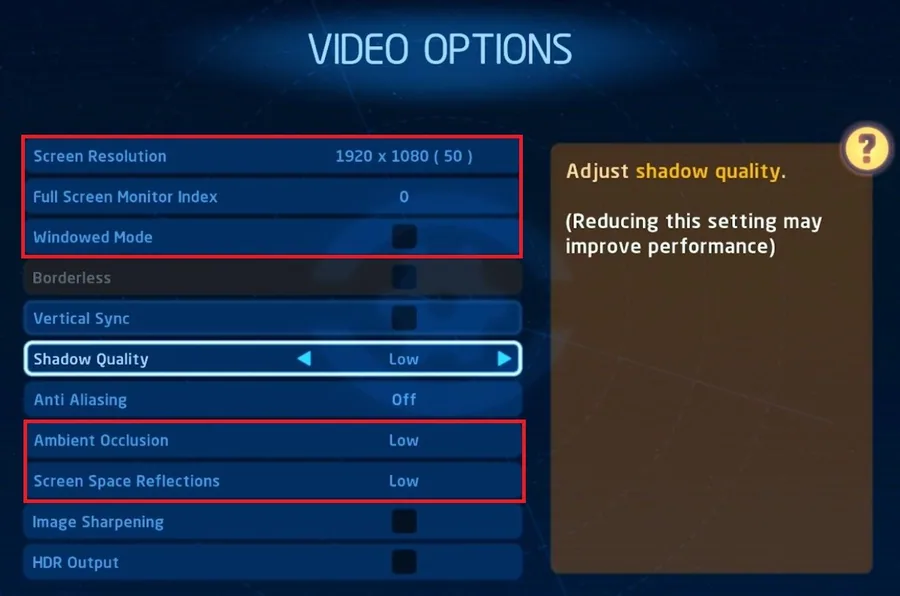
Launch The Skywalker Saga and navigate to your Settings. Ensure to set the Screen Resolution option to your native monitor resolution. Below, disable the Window Mode and Borderless options to get the most performance. You should set the Ambient Occlusion and Screen Space Reflections to low and disable Image Sharpening, which will otherwise require a high-end graphics card to run smoothly. The HDR Output option should be disabled by default.
LEGO Star Wars: The Skywalker Saga In-Game Display Settings
Launch The Skywalker Saga and navigate to your Settings. Ensure to set the Screen Resolution option to your native monitor resolution. Below, disable the Window Mode and Borderless options to get the most performance. You should set the Ambient Occlusion and Screen Space Reflections to low and disable Image Sharpening, which will otherwise require a high-end graphics card to run smoothly. The HDR Output option should be disabled by default.
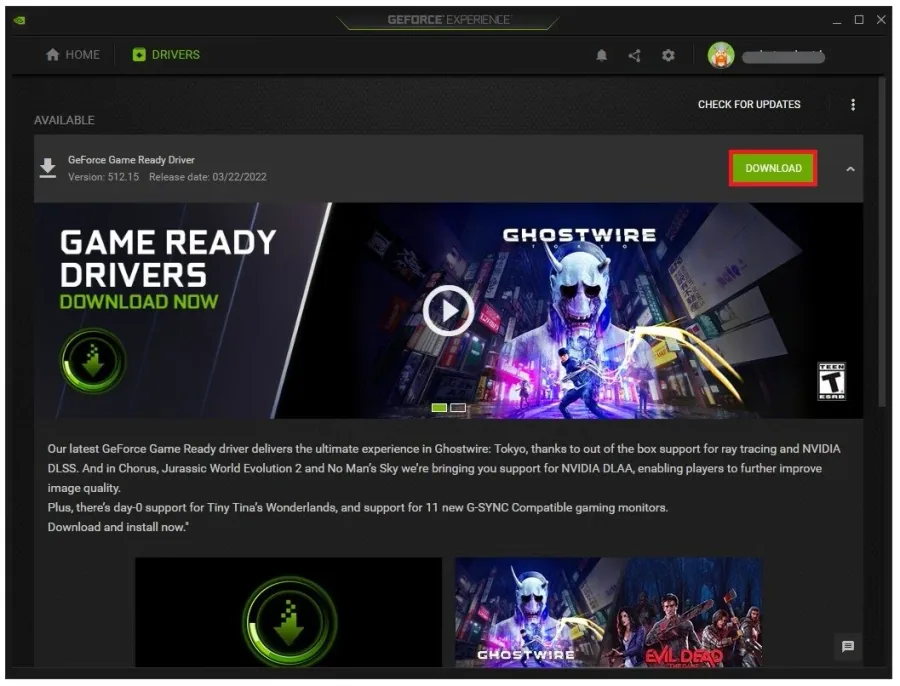
Update Graphics Driver
After applying your changes, you can close the game and ensure your graphics driver is up to date. It’s suggested to use the GeForce Experience application for an NVIDIA GPU, but you can also use the AMD driver suite. In the Drivers tab, simply click on Download and the application will automatically download and install the latest driver. In case the problem is related to your system performance, then you might need to lower your in-game graphics settings.
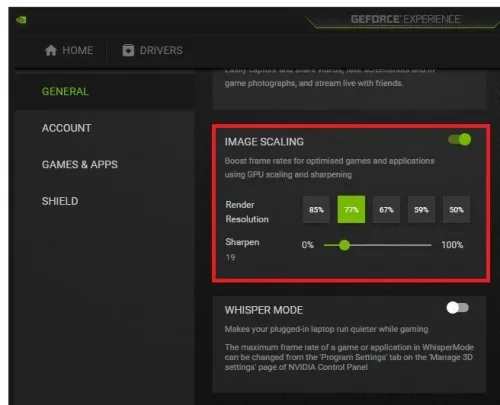
Enable NVIDIA Image Scaling
Next, I suggest enabling NVIDIA Image Scaling, which will increase your performance by a lot. To do so, you should use the GeForce Experience application. In your Settings, scroll down and enable the Image Scaling option. This will boost your overall frame rates when playing a game on your PC.
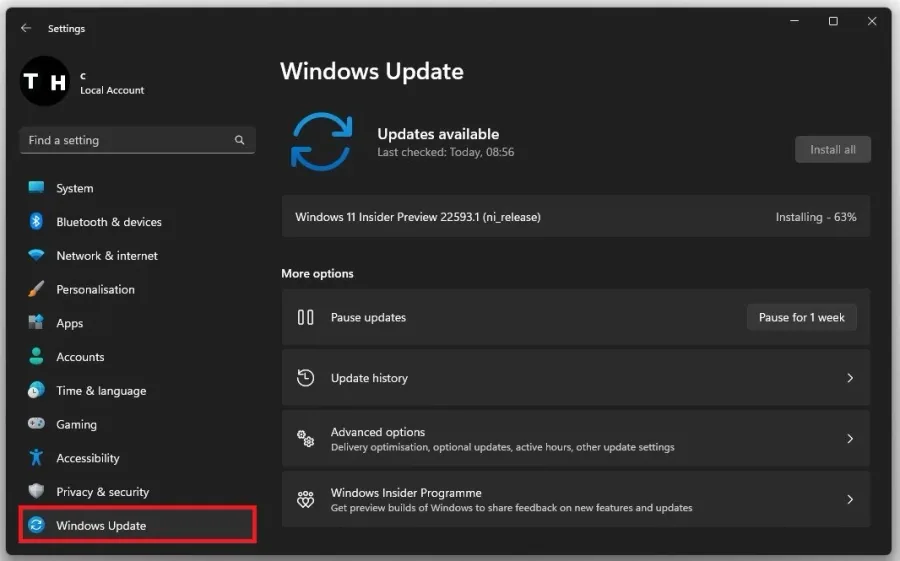
Update Windows Version
Search for Update to open up your Check for updates system settings window. Click on Check for updates, and after downloading the latest OS update, restart your PC.
Disable Fullscreen Optimizations
Open up your File Explorer and navigate to the drive on which you saved the game on Program Files > Steam > steamapps > common > The Skywalker Saga here, right-click the Star Wars application, and go to its Properties.
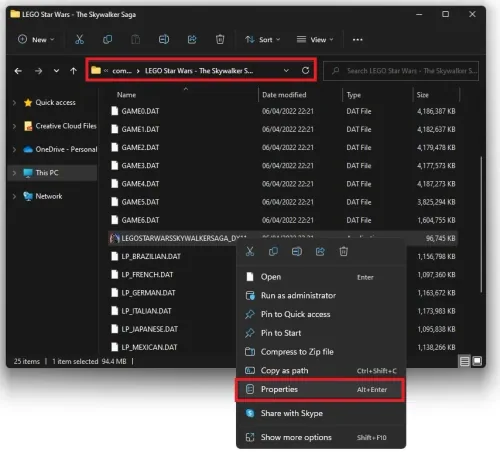
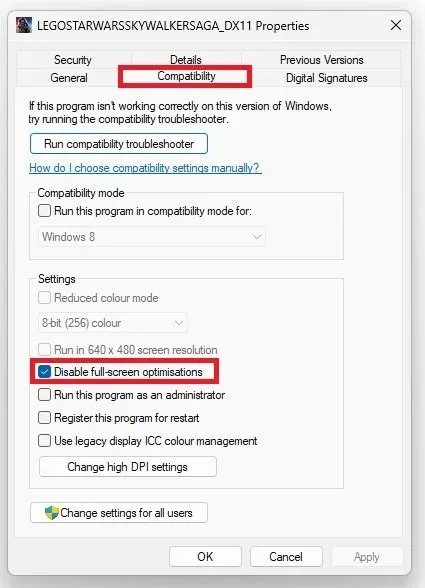
Ensure you’re in the Compatibility tab and select Disable Fullscreen Optimization…
Ensure you’re in the Compatibility tab and select Disable Fullscreen Optimizations and apply your changes.
Windows Display Settings
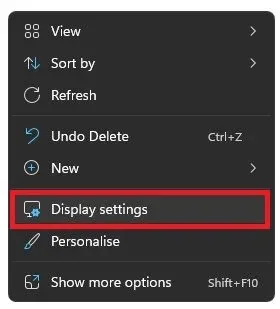
Right-click your desktop and select Display Settings.
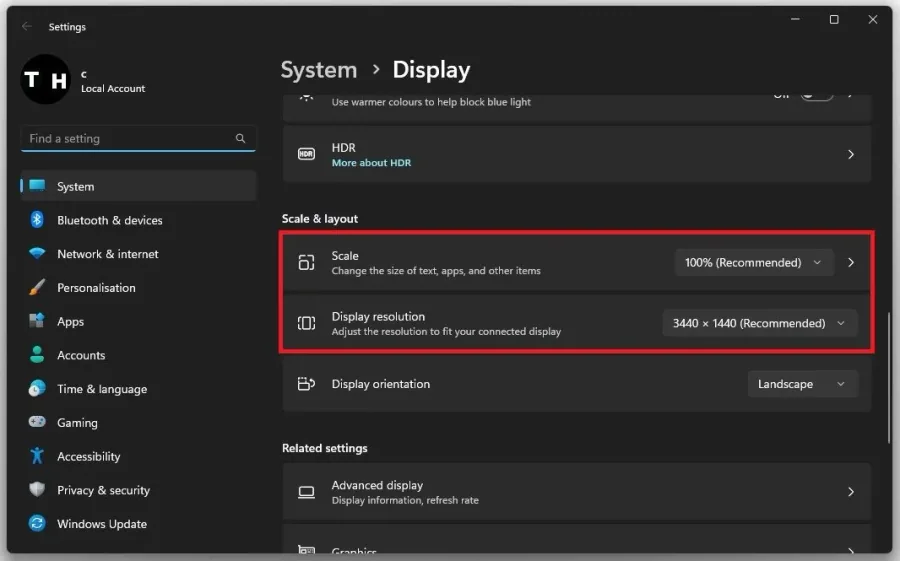
Ensure the scaling is set to 100% and you use a standard native resolution
Ensure the scaling is set to 100% and you use a standard native resolution. In your in-game graphics settings, set the window mode to Fullscreen.
Video walkthrough
If it does not work
- What causes FPS drops in LEGO Star Wars: The Skywalker Saga?. FPS drops can be caused by a variety of factors, such as outdated graphics drivers, background processes, overheating, or other performance issues with your system.
- How do I know if I'm experiencing FPS drops?. You may notice a sudden decrease in the smoothness of your gameplay or stuttering during certain scenes. You can also use a third-party FPS counter to monitor your FPS in real-time.
- Do I need to have a high-end gaming PC to fix FPS drops?. Not necessarily. While having a high-end PC can certainly help, there are several things you can do to optimize performance even on lower-end systems.
- Can changing the game settings help fix FPS drops?. Yes, tweaking the in-game graphics settings such as resolution, shadows, and anti-aliasing can help improve performance and reduce FPS drops.