
Gaming · Windows
League of Legends - Ultimate Settings Guide for Low-End PC
Original source date
Answer
Join a custom game and navigate to your Options. In the Video section, set your Resolution to your native monitor resolution. This should be the best option for you unless you are using an abnormal aspect ratio. To get the most performance and the highest framerate, it’s always suggested to play the game in Fullscreen window mode. Below, enable Color blind mode in case you’re color blind, and Hide eye candy will disable ambient critters and effects, which can improve your performance and be less distracting while playing the game. I prefer to disable the Enable screen shake option.
Optimized LoL Video Settings
Join a custom game and navigate to your Options. In the Video section, set your Resolution to your native monitor resolution. This should be the best option for you unless you are using an abnormal aspect ratio. To get the most performance and the highest framerate, it’s always suggested to play the game in Fullscreen window mode. Below, enable Color blind mode in case you’re color blind, and Hide eye candy will disable ambient critters and effects, which can improve your performance and be less distracting while playing the game. I prefer to disable the Enable screen shake option.
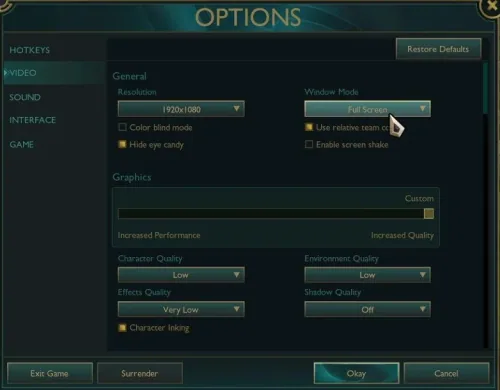
League of Legends Graphics Options for your PC
Set your Graphics slider to Increased Performance for a low-end PC. This will come down to your graphics card. If you have some performance to spare, then set it to Medium or Low. Changing this setting will also change the settings below. Reduce the Effects and Shadow Quality option to a minimum to get the most performance.
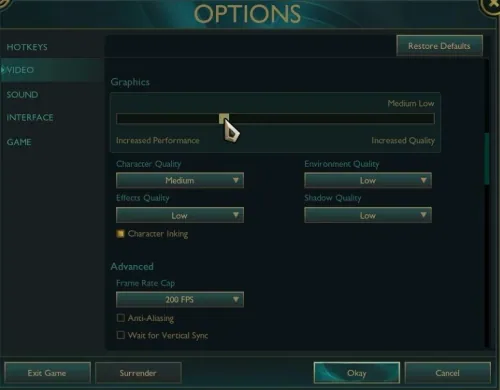
League of Legends Advanced Video Options
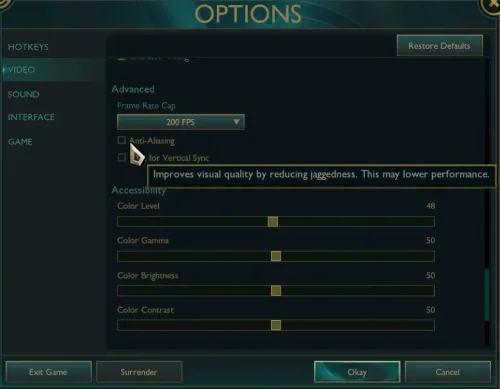
In your Advanced Video Options, cap your framerate to a value above your screen’s refresh rate, but below the maximum FPS, you can steadily hold. Below, disable Anti-Aliasing and V-Sync. Set your Accessibility settings to your liking, as these will not impact your overall performance.
Video walkthrough
If it does not work
- If the current interface differs, compare it with the recorded video walkthrough.