iOS · iPhone & iPad
WhatsApp Notifications Disabled or Not Working on iPhone Fix
Original source date
Answer
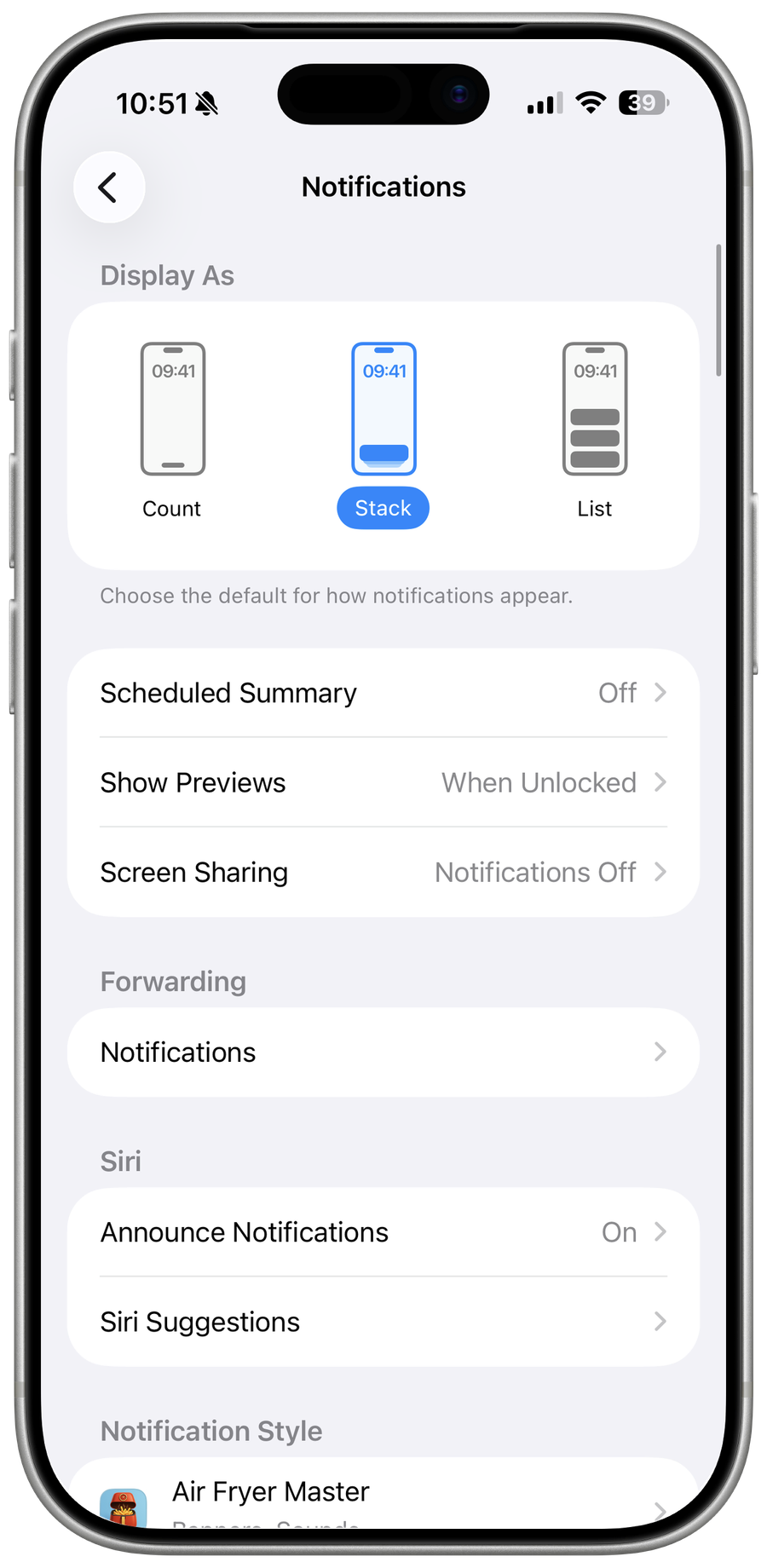
Close WhatsApp and open up your device settings. Here, tap on Notifications and scroll down until you find WhatsApp and select it. Make sure that you allow WhatsApp to send notifications. Below, you can choose a Banner Style, and enable or disable Sounds and Badges.
iPhone Notification Settings
Close WhatsApp and open up your device settings. Here, tap on Notifications and scroll down until you find WhatsApp and select it. Make sure that you allow WhatsApp to send notifications. Below, you can choose a Banner Style, and enable or disable Sounds and Badges.

WhatsApp Notification Settings
Next, tap on WhatsApp Notification Settings, which will open up your settings within WhatsApp. Here, enable the app to show notifications and select the notification sound. After going through these settings, verify if your WhatsApp notifications are still not working. If this is the case, then ensure that you are using a reliable network connection.

Test Network Connection
Visit a site on your favorite browser or use a speed testing site or application to verify that you have a stable network connection.

Log Out Linked Devices
If this is the case, then you should log out of your WhatsApp account on all other devices. You can do so in your WhatsApp settings. Tap on Linked Devices, and select to Log Out each device manually.

Disable Communication Limits
If the problem persists, then this issue could be caused by Screen Time restrictions set on your device. Back in your iPhone settings, tap on Screen Time.

Select Communication Limits and make sure that you allow communication to everyon…
Select Communication Limits and make sure that you allow communication to everyone during screen time and during downtime.

Enable & Disable WhatsApp iCloud
Next, tap on your Apple ID name and then select iCloud. Here, scroll down until you can find WhatsApp. Toggle this option off and on, as your iCloud can cause WhatsApp issues.

Restart iPhone
Lastly, make sure to restart your device. Restarting your iPhone can, in a lot of cases, fix notification issues for apps.

Video walkthrough
If it does not work
- What causes WhatsApp notifications to stop working on my iPhone?. There could be various reasons why WhatsApp notifications stop working on your iPhone. It could be due to an outdated app, network issues, or a problem with your iPhone's software. Our article will help you diagnose and fix the problem.
- How do I know if my WhatsApp notifications are disabled on my iPhone?. If your WhatsApp notifications are disabled, you'll no longer receive any alerts or banners when someone messages you. You can check your notification settings to see if they are enabled.
- Can I fix the WhatsApp notifications not working issue on my iPhone without technical knowledge?. Absolutely! Our article provides step-by-step instructions that are easy to follow, even if you're not tech-savvy.
- Can a software update fix the WhatsApp notifications not working issue on my iPhone?. Sometimes, updating your iPhone's software can resolve issues with your WhatsApp notifications. In our article, we'll guide you through the process of checking for software updates and updating your iPhone if needed.
- Why do I sometimes receive WhatsApp notifications late on my iPhone?. There could be several reasons for this, such as network connectivity issues, high network traffic, or a problem with the WhatsApp server.