
iOS · iPhone & iPad
Update All Apps on iPhone Manually or Automatically
Source-checked About 10 minutes
Answer
Open the App Store account page and choose Update All, or enable App Updates in App Store settings for automatic updates.
Refresh the App Store update list
Protect irreplaceable local data first: confirm what is already synced or backed up, preserve originals, record available storage, and avoid deleting, signing out, restoring, or reinstalling until the supported checks are complete. For this task, begin by confirming the supported prerequisite: Open App Store, tap the account picture, and pull down to refresh the pending updates list.
Open available updates
Open App Store, tap the account picture, and pull down to refresh the pending updates list.
Update all or selected apps
Tap Update All, or update important apps individually when you want to review release notes and permissions first.
Enable automatic updates
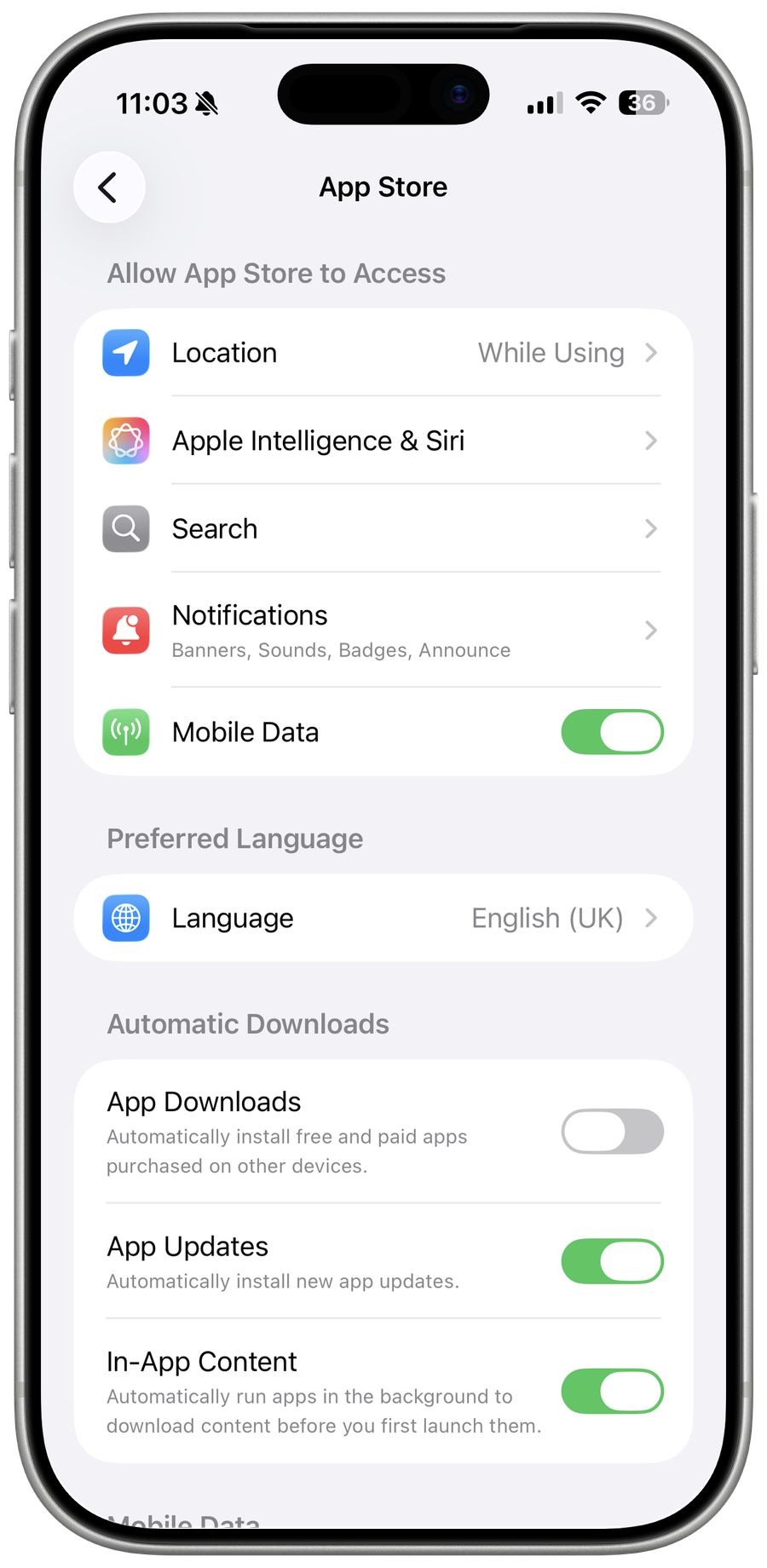
Open Settings > Apps > App Store and enable App Updates for future releases.
Fix one failed update separately
Check storage, network, billing and compatibility; do not delete an app with unsynced local data just to update it.
Confirm every pending update completed
Repeat the intended action with a harmless test and confirm this final condition: Check storage, network, billing and compatibility; do not delete an app with unsynced local data just to update it. Reopen the relevant settings or destination and compare the result with the recorded starting state before relying on it or deleting an original.
Resolve an app that will not update
If one app remains pending, open its App Store page and read the compatibility, billing, or account message. If every app is stuck, confirm the Apple Account, payment issue, network, free storage, and iOS version before contacting Apple; do not delete an app containing unsynced data.
Video walkthrough
If it does not work
- If “Update All Apps on iPhone Manually or Automatically” remains unresolved, identify which numbered step first produces a different result and preserve that screen or message. Recheck the account, permission, storage, connection, or device prerequisite described above, then follow only the matching Apple Support recovery path; do not combine unrelated resets, bypasses, or third-party repair tools.
Sources and verification
Checked against official documentation on . Scope: iPhone & iPad.
Follow the linked first-party guidance if labels differ after a platform or app update.