
iOS · iPhone & iPad
Reconnect a Forgotten Bluetooth Device to iPhone
Source-checked About 10 minutes
Answer
A forgotten Bluetooth device cannot be restored from a list. Put it in pairing mode and pair it again from iPhone Settings > Bluetooth.
Before you start
Charge the accessory, keep it close, and find its manufacturer's pairing instructions. Forgetting removes the saved pairing from iPhone; there is no undo list, so the accessory must advertise itself again.
Prepare the accessory
Charge and turn on the accessory, then put it into its manufacturer-provided pairing mode. Put the accessory into its actual pairing mode and watch for its indicator rather than merely turning it on.
Pair it again
Open Settings > Bluetooth on iPhone and select the accessory when it appears under Other Devices. Open Settings > Bluetooth, keep Bluetooth enabled, and select the correct name under Other Devices; approve a code only when it matches the accessory.
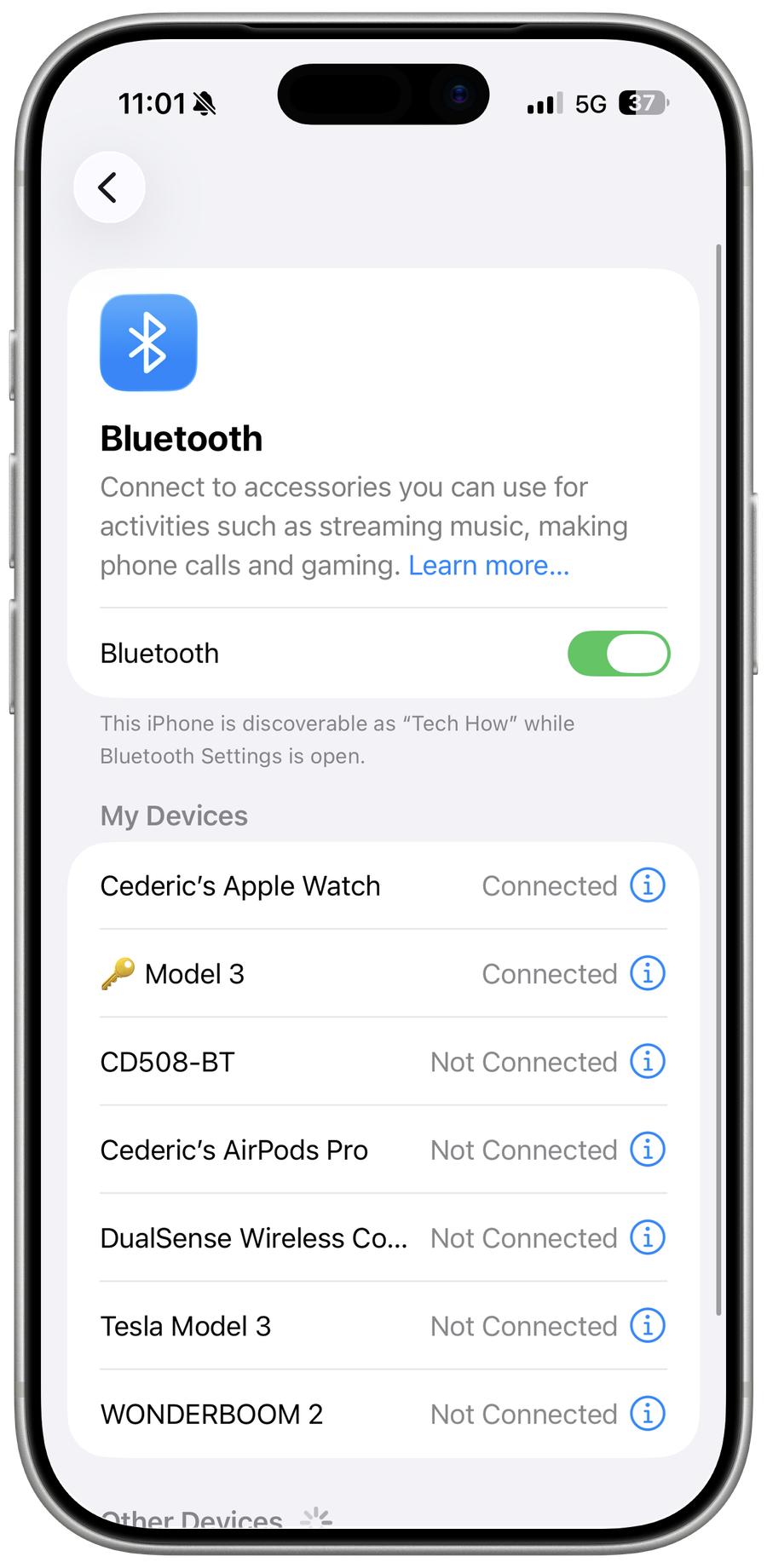
Resolve another-device pairing
If it does not appear, disconnect or unpair it from another nearby device and repeat the pairing process. If absent, disconnect it from another nearby phone or computer and reset only the accessory's pairing state according to its manual.
Verify the result
Use the accessory for its real task, then disconnect and reconnect once to confirm the pairing persists. Check battery level and any companion-app permissions separately.
Troubleshoot re-pairing a forgotten Bluetooth device
If it never appears, test the accessory with another supported device and update iOS. If no Bluetooth device can pair, use Apple support. Do not reset all network settings until simpler isolation shows an iPhone-wide problem. Some accessories require deleting an old pairing from both devices or holding a dedicated reset combination before they advertise again.
Video walkthrough
Sources and verification
Checked against official documentation on . Scope: iPhone & iPad.
Follow the linked first-party guidance if labels differ after a platform or app update.