
iOS · iPhone & iPad
How To Fix “Unable to Verify Security Response” Error on iPhone - iOS 16.4.1
Original source date
Answer
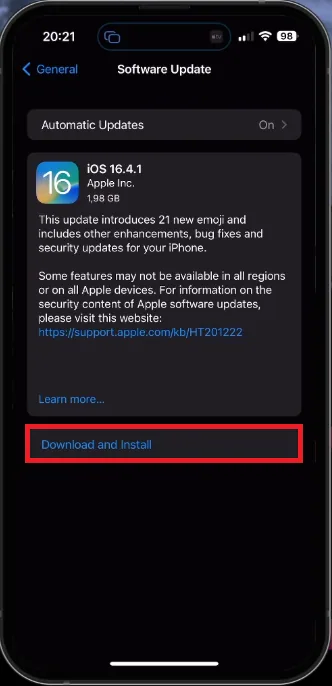
Often, the "Unable to Verify Security Response" error on your iPhone springs from issues linked to the frequent Rapid Security Response updates, integral to fortifying your device's security. One practical solution lies in a simple act of redownloading the update. For instance, head to your iPhone's 'Settings,' followed by 'General,' and then tap on 'Software Update.' If an update is available, click on 'Download and Install.' There's a strong chance that this hiccup is temporary, and a fresh download of the update can effectively clear up the error, getting your iPhone back on track.
Re-Download the Update
Often, the "Unable to Verify Security Response" error on your iPhone springs from issues linked to the frequent Rapid Security Response updates, integral to fortifying your device's security. One practical solution lies in a simple act of redownloading the update. For instance, head to your iPhone's 'Settings,' followed by 'General,' and then tap on 'Software Update.' If an update is available, click on 'Download and Install.' There's a strong chance that this hiccup is temporary, and a fresh download of the update can effectively clear up the error, getting your iPhone back on track.
Ensure a Reliable Network Connection
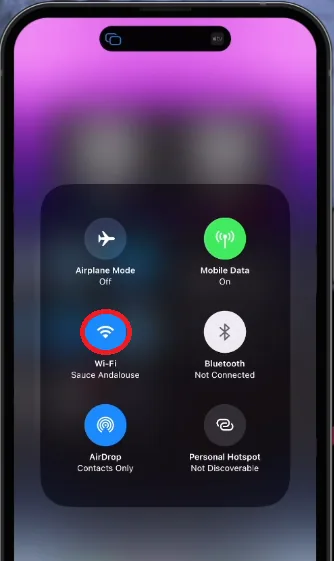
A stable network connection forms the backbone of successful software updates, including Rapid Security Response updates on your iPhone. Thus, if the "Unable to Verify Security Response" error still lingers, consider changing your network source. For instance, if you're on WiFi, try switching to cellular data, or the other way round. It's important to ensure that your connection is not just active, but also robust. A sluggish or erratic network could be the root cause of this issue.
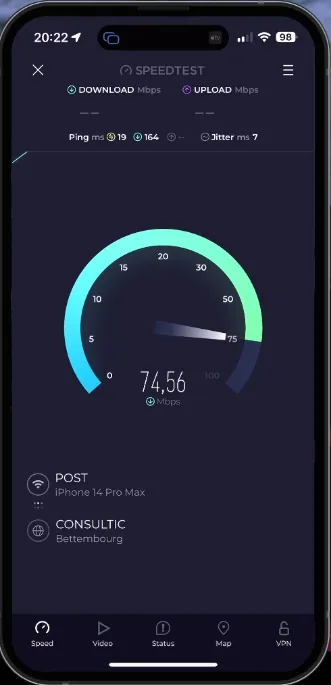
To ascertain your network's health, consider utilizing a reliable speed-testing t…
To ascertain your network's health, consider utilizing a reliable speed-testing tool, like Speedtest, which can provide real-time data on your connection's performance. Furthermore, if you're using a VPN or proxy, consider disabling it temporarily. These services, although crucial for online privacy, may occasionally meddle with the smooth flow of the update process, potentially triggering errors.
Adjust your Date and Time Settings
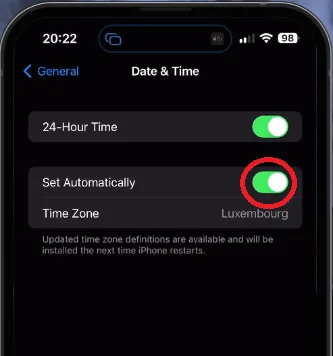
Ensuring accurate date and time settings on your iPhone is an often-overlooked, yet essential step in resolving many software-related issues, including the "Unable to Verify Security Response" error. Incorrect date and time settings can mislead the system, causing it to stumble during updates. To rectify this, head over to your device's settings. In the "General" tab, you'll find the "Date and Time" option. Once you're there, ensure the "Set automatically" toggle is switched on. This feature allows your iPhone to adjust its clock based on your current location, ensuring seamless synchronization with the global time standard. After making this adjustment, try downloading the update again.
Ensure Enough Device Storage
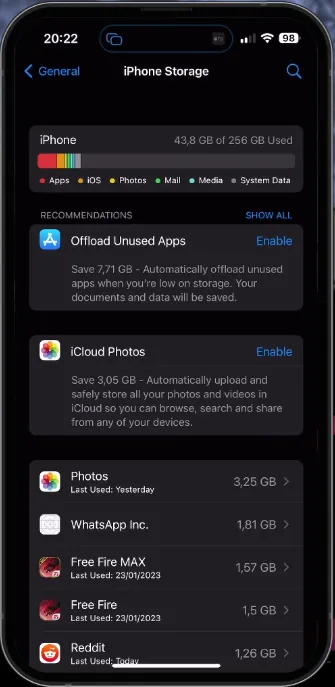
Storage space is another critical factor that often comes into play when dealing with software updates, including Rapid Security Response updates. If your iPhone doesn't have sufficient free space, the update may fail, giving rise to the "Unable to Verify Security Response" error. To check your device's storage availability, head into your iPhone settings and select "iPhone Storage". Ensure there's ample room for the update to be downloaded and installed. If space is running low, consider freeing up some by offloading seldom-used applications or removing large files like movies, music albums, or extensive photo libraries that you've already backed up elsewhere. By managing your device storage effectively, you're setting the stage for a smoother update process.
Reset your Network Settings
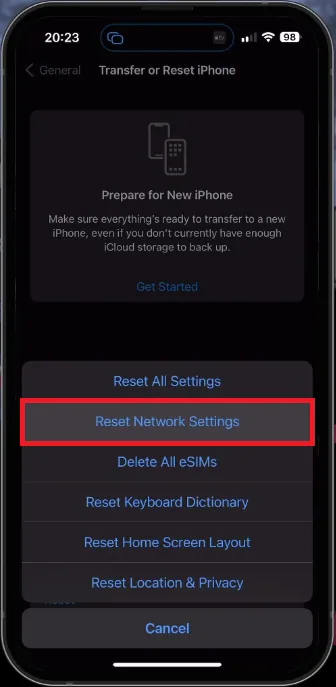
If the "Unable to Verify Security Response" error on your iPhone stubbornly persists, it may be necessary to hit the reset button on your network settings. To do this, navigate through your device's settings as follows: General Settings > Transfer or Reset iPhone > Reset > Reset Network Settings. Take note that this action will wipe out all your network-related data, including saved WiFi passwords and VPN connections, so ensure you have these details at hand for re-entry. Following a device restart, this reset process often clears up any hidden glitches, enabling the successful downloading of your iOS 16.4.1 update without encountering the frustrating verification error.
Video walkthrough
If it does not work
- Why am I getting the "Unable to Verify Security Response" error on my iPhone during an update?. This error often occurs due to issues with the Rapid Security Response updates, which provide crucial security fixes. It can be related to a temporary glitch in the download, a weak or unstable network connection, incorrect date and time settings, or insufficient device storage.
- How can I fix the "Unable to Verify Security Response" error on my iPhone?. There are several strategies you can use to resolve this error. Try redownloading the update, switching your network connection, ensuring your device's date and time are set correctly, verifying sufficient storage on your device, and resetting your network settings.
- How do I reset my network settings to fix the "Unable to Verify Security Response" error?. Navigate to General Settings > Transfer or Reset iPhone > Reset > Reset Network Settings. This will erase all your network configurations, including saved WiFi passwords and VPN connections, so make sure you have these details handy for re-entry.
- How can a slow or unstable network connection cause the "Unable to Verify Security Response" error on my iPhone?. A slow or unstable connection can interrupt the update process, potentially causing this error. Changing your connection type or disabling VPN/proxy settings can help.
- What does the "Set Automatically" option in the "Date and Time" settings do, and how does it help with the "Unable to Verify Security Response" error?. The "Set Automatically" option ensures that your device's time and date match the time and date of your current time zone. This is important because discrepancies can interfere with the update verification process and lead to errors.