
iOS · iPhone
Fix an iPhone that cannot install an iOS update
Source-checked About 10 minutes
Answer
Confirm the iPhone supports the offered update, connect it to power and reliable Wi-Fi, free enough storage, then remove and download the update again.
Identify the exact symptom and scope
Before changing an iPhone software update, record the current iOS version, offered version, model compatibility, free storage, battery and power, network, and verified backup. Write down the exact error, affected device or app, and when it occurs; retest that same symptom after each change. Keep the model, version, and last successful state available for official support.
Match the repair to the symptom
Follow the currently offered compatible update rather than targeting obsolete iOS 16 specifically, and do not interrupt an installation already in progress.
Check compatibility and power
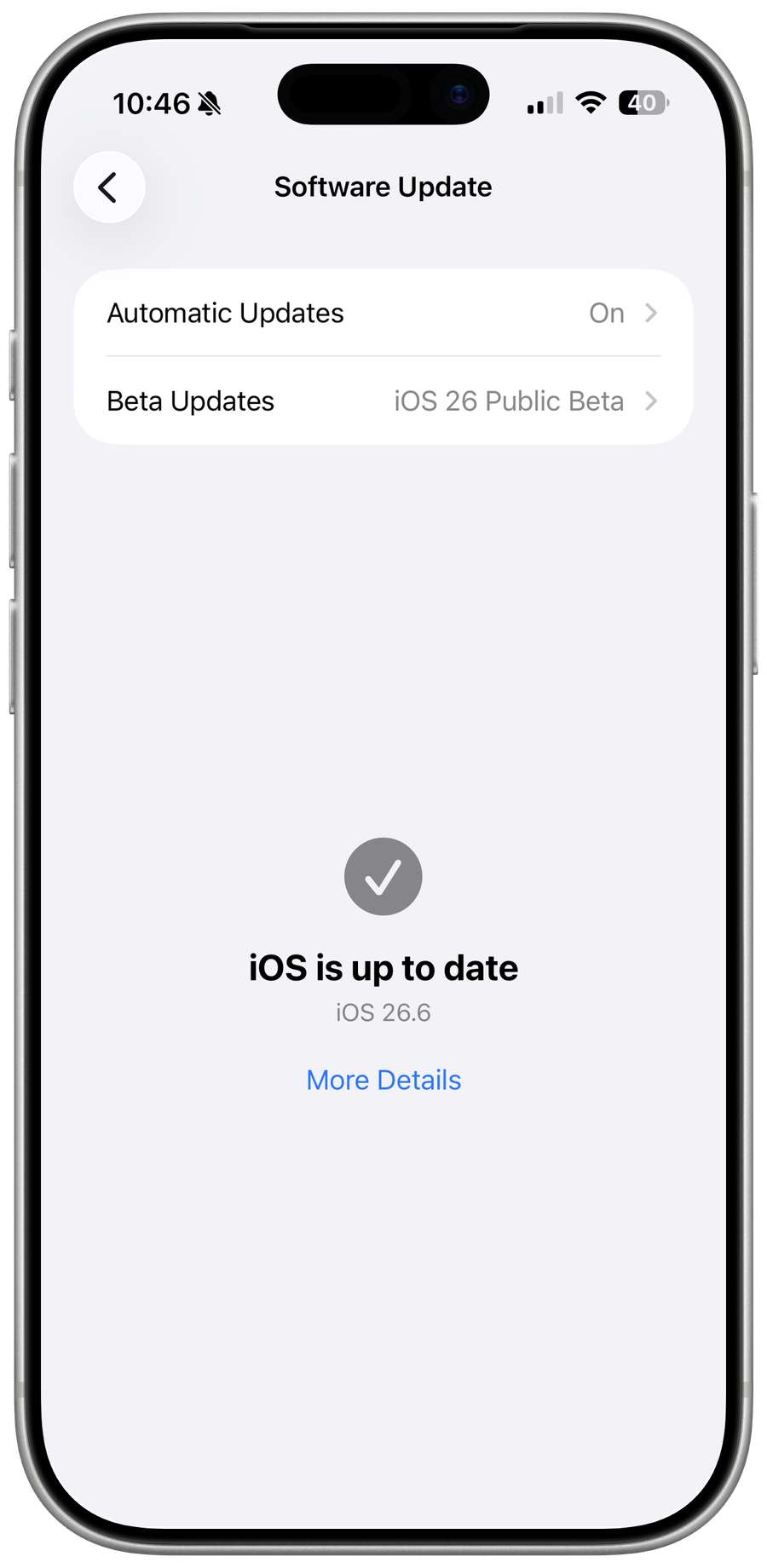
Install only the update offered in Settings > General > Software Update. Connect the iPhone to power and keep the battery sufficiently charged.
Use reliable Wi-Fi
Connect directly to a stable Wi-Fi network and disable VPN software temporarily if it interferes with Apple services.
Free storage
Open Settings > General > iPhone Storage and remove or offload content you can safely download again.
Remove and redownload the update
In iPhone Storage, select the downloaded iOS update, delete it, then return to Software Update and download it again.
Update with a Mac
Connect the iPhone to a trusted Mac, select it in Finder, back it up, then use Check for Update.
Retest the original symptom
Settings reports the intended current version after restart and core calls, messages, storage, and network access still work.
Troubleshoot an iPhone software update
If the update is not offered, verification fails, storage remains insufficient, installation loops, or a managed or beta profile controls availability, stop broad resets and return to the last known state. Capture the exact error, versions, device or account scope, and failed step before using the linked official support channel.
Video walkthrough
Sources and verification
Checked against official documentation on . Scope: iPhone.
Follow the linked first-party guidance if labels differ after a platform or app update.