iOS · iPhone & iPad

Unable To Change Time on iPhone - Date & Time Greyed Out Fix

Original source date

Answer

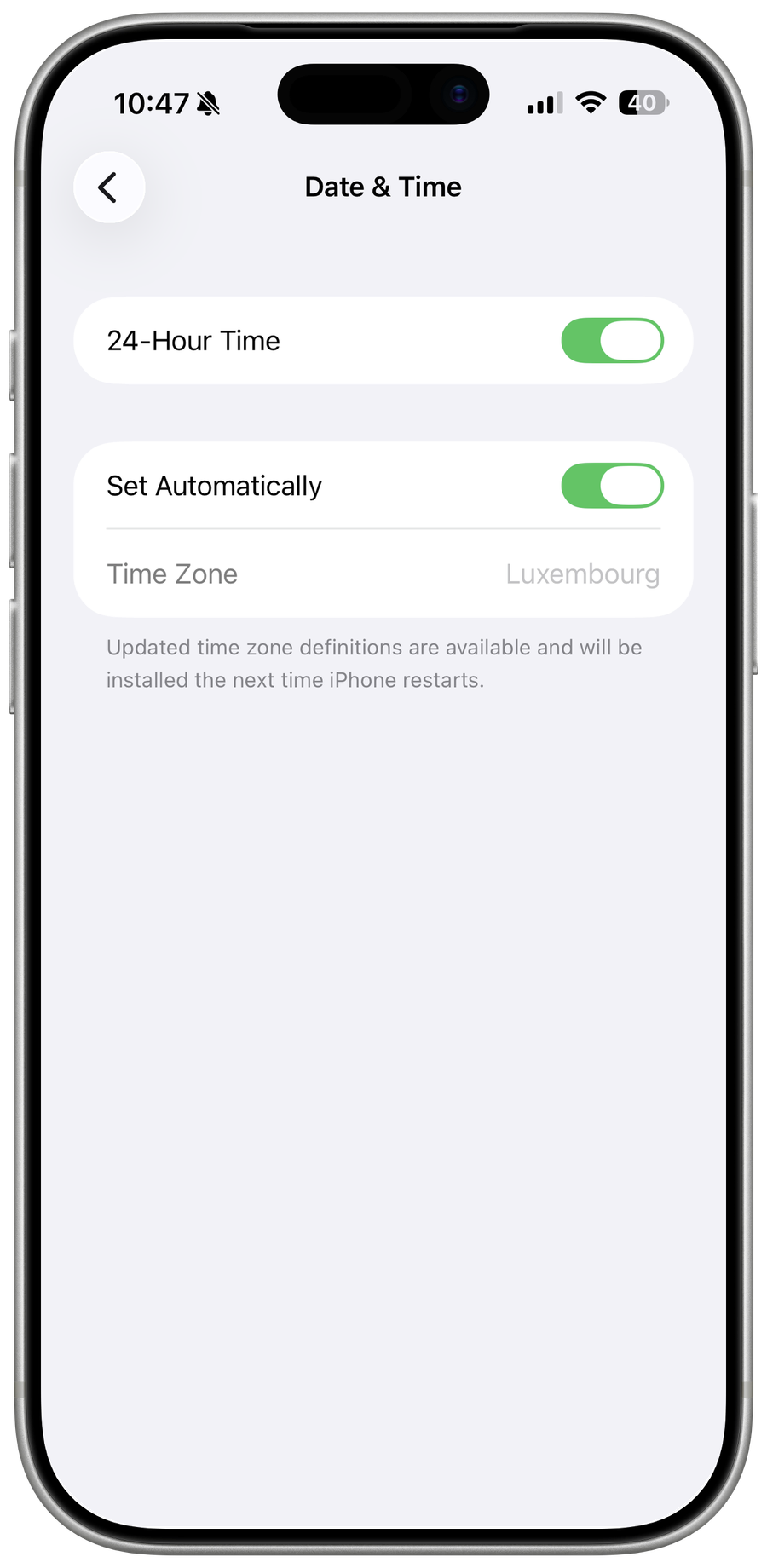
Open up your settings application. Under General, select Date & Time. In most cases, you should be able to enable or disable the Set Automatically option. This will set the time according to your time zone in case your device can locate you. If this option is greyed out, then you should, first of all, try to allow your device to use its current location to set the correct time zone.

Set iPhone Date & Time Settings Automatically

Open up your settings application. Under General, select Date & Time. In most cases, you should be able to enable or disable the Set Automatically option. This will set the time according to your time zone in case your device can locate you. If this option is greyed out, then you should, first of all, try to allow your device to use its current location to set the correct time zone.

iPhone Settings > General > Date & Time

Enable Time Zone Location Services

To do so, navigate to your main settings and tap on Privacy. Under Location Services, scroll down and select System Services. Make sure that the Setting Timezone option is enabled.

Privacy Settings > Location Services > System Services

Disable Screen Time Device Sharing

Prevent your devices from sharing screen time information across other iOS devices, such as your Apple Watch. Back in your settings, select Screen Time. Here, disable the Share Across Devices option.

iPhone Settings > Screen Time

Update & Restart iPhone

If this did not help you out, then an easy potential fix is to ensure that your iOS device is up to date. In your General settings, tap on Software Update. Download and install the latest update, in case one is available. This will also restart all processes running on your devices, which can fix the issue when you’re unable to change the date and time.

iPhone Settings > General > Software Update

Disable Screen Time & Parental Controls Restrictions

Any restrictions, such as Screen Time app limits or parental controls, can prevent you from changing your date and time. In your settings, head back to Screen Time.

iPhone Settings > Screen Time

Tap on App Limits, and make sure to delete any limit which could interfere with y…

Tap on App Limits, and make sure to delete any limit which could interfere with you accessing your settings.

Screen Time > App Limits > Delete Limit

In your Content & Privacy Restrictions, you should also ensure that nothing preve…

In your Content & Privacy Restrictions, you should also ensure that nothing prevents you from changing your date and time.

Disable Content & Privacy Restrictions

Video walkthrough

If it does not work

  • If the current interface differs, compare it with the recorded video walkthrough.