
iOS · iPhone & iPad
Fix No Sound or Distorted Speaker Audio on iPhone
Source-checked About 10 minutes
Answer
Check Silent mode and Focus, raise the correct volume, disconnect Bluetooth, clean speaker openings, and test whether the speaker needs service.
Separate speaker, Bluetooth, and app audio
Record the device, accessory, account or carrier state, software version, exact message, and whether a known-good comparison works. Avoid hardware opening, unofficial sensor repairs, generic profiles, or destructive resets. Begin by confirming this task-specific prerequisite: Turn off Silent mode for testing, raise volume during playback, and disconnect Bluetooth or AirPlay outputs.
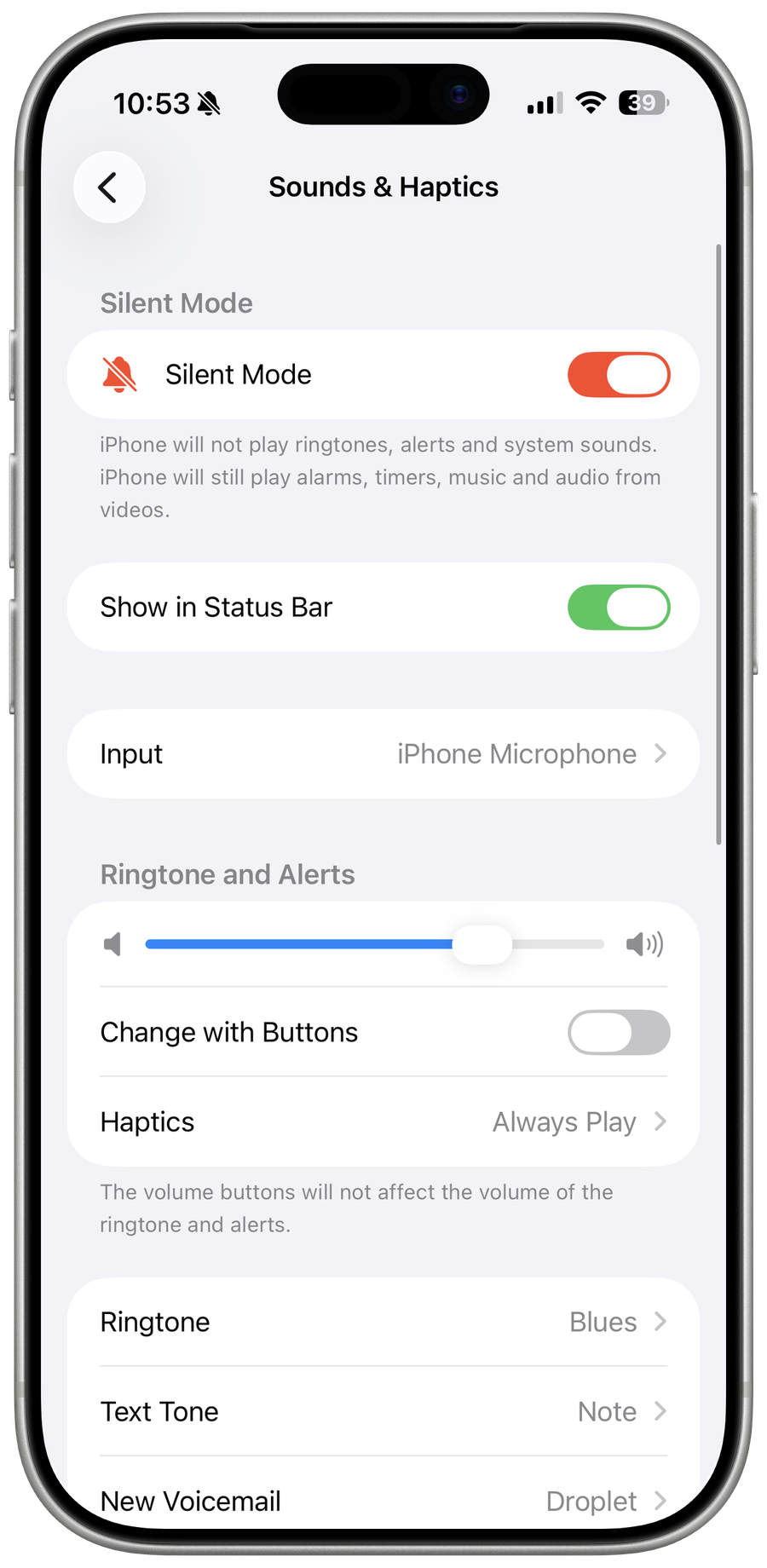
Check settings and route
Turn off Silent mode for testing, raise volume during playback, and disconnect Bluetooth or AirPlay outputs.
Inspect the speaker
Remove a case or film that blocks openings and gently clean dry debris without liquid or sharp tools.
Test several sounds
Try a ringtone, video, call speaker, and Voice Memos recording to identify input, receiver, or loudspeaker trouble.
Update or seek service
Restart and update iOS; if sound remains absent or distorted in every app, contact Apple for hardware service.
Test calls and media after restart
Repeat the intended action with a harmless test and confirm this final condition: Restart and update iOS; if sound remains absent or distorted in every app, contact Apple for hardware service. Reopen the relevant settings, destination, account, project, or output and compare it with the recorded starting state before deleting an original or relying on the change.
Arrange service for a speaker failure
If the speaker is silent or distorted in calls, media, and Apple’s sound tests after cleaning and restart, stop inserting objects or liquids into the openings and contact Apple for hardware diagnostics. Record whether headphones and Bluetooth audio still work.
Video walkthrough
If it does not work
- If “Fix No Sound or Distorted Speaker Audio on iPhone” remains unresolved, identify the first numbered step that produces a different result and preserve that screen, file, or message. Recheck the specific account, permission, storage, connection, source-media, or device prerequisite above, then follow only the matching Apple Support recovery path; do not combine unrelated resets, bypasses, unofficial installers, or third-party repair tools.
Sources and verification
Checked against official documentation on . Scope: iPhone & iPad.
Follow the linked first-party guidance if labels differ after a platform or app update.