
iOS · iPhone & iPad
Stop iCloud Photos From Syncing to an iPhone
Source-checked About 10 minutes
Answer
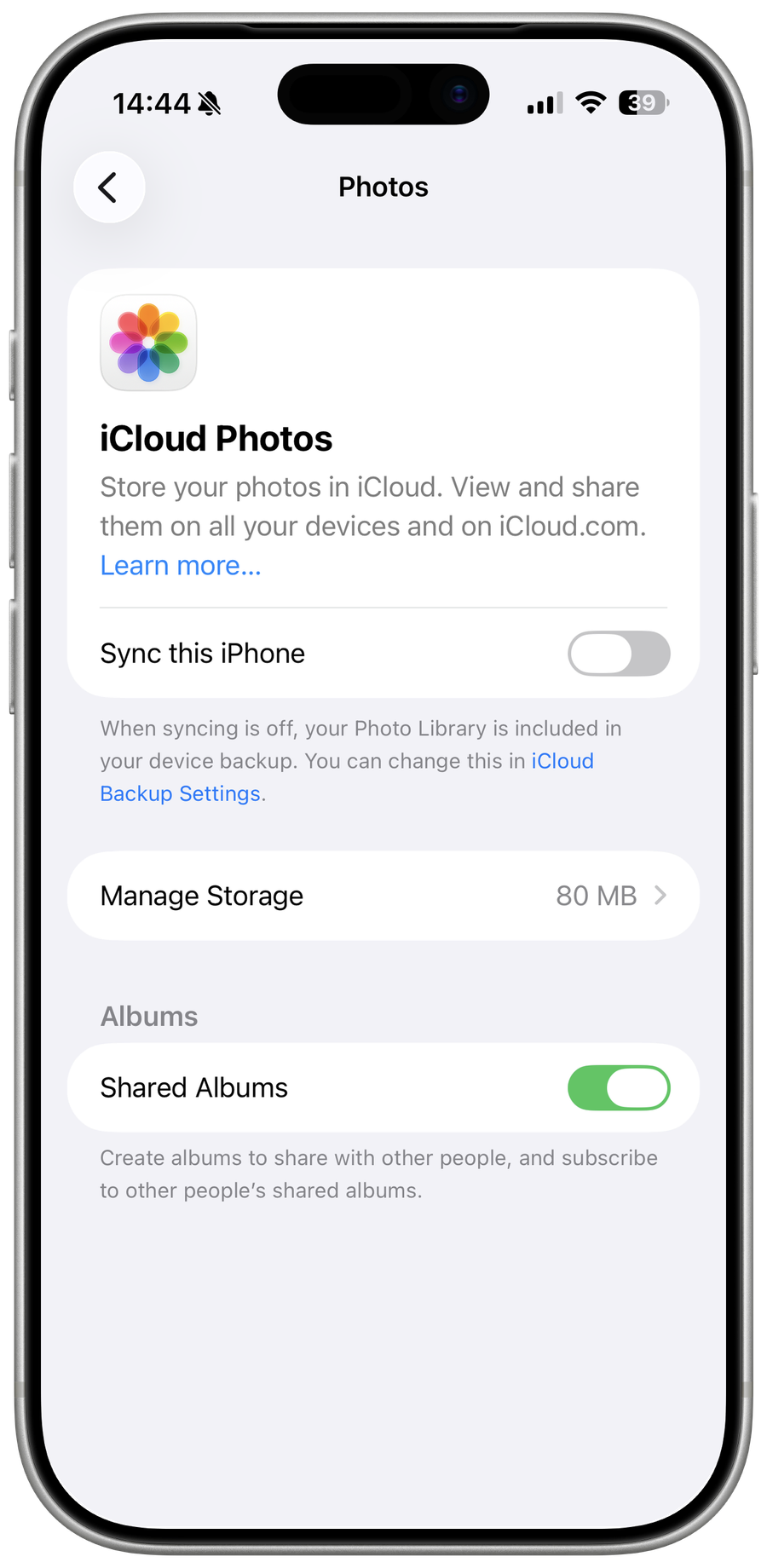
On the device you want to stop syncing, open Settings > your name > iCloud > Photos and turn off Sync this iPhone; read the storage prompt carefully.
Check what is stored on the iPhone
On the iPhone that should stop syncing, open Settings > your name > iCloud > Photos. Note whether Optimize iPhone Storage is enabled, because some full-resolution originals may exist only in iCloud.
Download originals when needed
If you want copies to remain on this iPhone and there is enough local storage, choose Download and Keep Originals and allow the download to finish before disabling sync.
Turn off iCloud Photos syncing
Open Settings > your name > iCloud > Photos and turn off Sync this iPhone.
Choose the storage outcome
Read the prompt carefully. Choose the option that retains downloaded photos if you need local copies; removing optimized copies from this iPhone does not delete the iCloud library.
Verify syncing stopped on this device
Take a harmless test photo on another synced device and confirm it no longer appears on this iPhone. Check iCloud.com to confirm the cloud library itself remains available.
Understand the limits and consequences
Turning off Sync this iPhone stops future iCloud Photos syncing on that device but prompts can remove optimized copies; it does not delete the iCloud library itself.
Turn syncing back on if needed
To resume the same iCloud library, return to Settings > your name > iCloud > Photos and enable Sync this iPhone. Allow time for the library to reconcile before deleting or reorganizing photos.
Video walkthrough
If it does not work
- If photos disappear unexpectedly, do not erase or sign out; reconnect, review the choice made at the storage prompt, inspect iCloud.com, and contact Apple before restore.
Sources and verification
Checked against official documentation on . Scope: iPhone & iPad.
Follow the linked first-party guidance if labels differ after a platform or app update.