
iOS · iPhone & iPad
Improve an iPhone Personal Hotspot Connection
Source-checked About 10 minutes
Answer
Check cellular performance and connected devices, keep them nearby, restart both, and use Maximize Compatibility only for connection problems.
Before you start
Check cellular signal and speed on the iPhone first, confirm the carrier plan permits Personal Hotspot, and note how many devices are connected. Hotspot performance cannot exceed the cellular connection and can fall with congestion, weak signal, distance, or compatibility mode.
Check the hotspot prerequisites
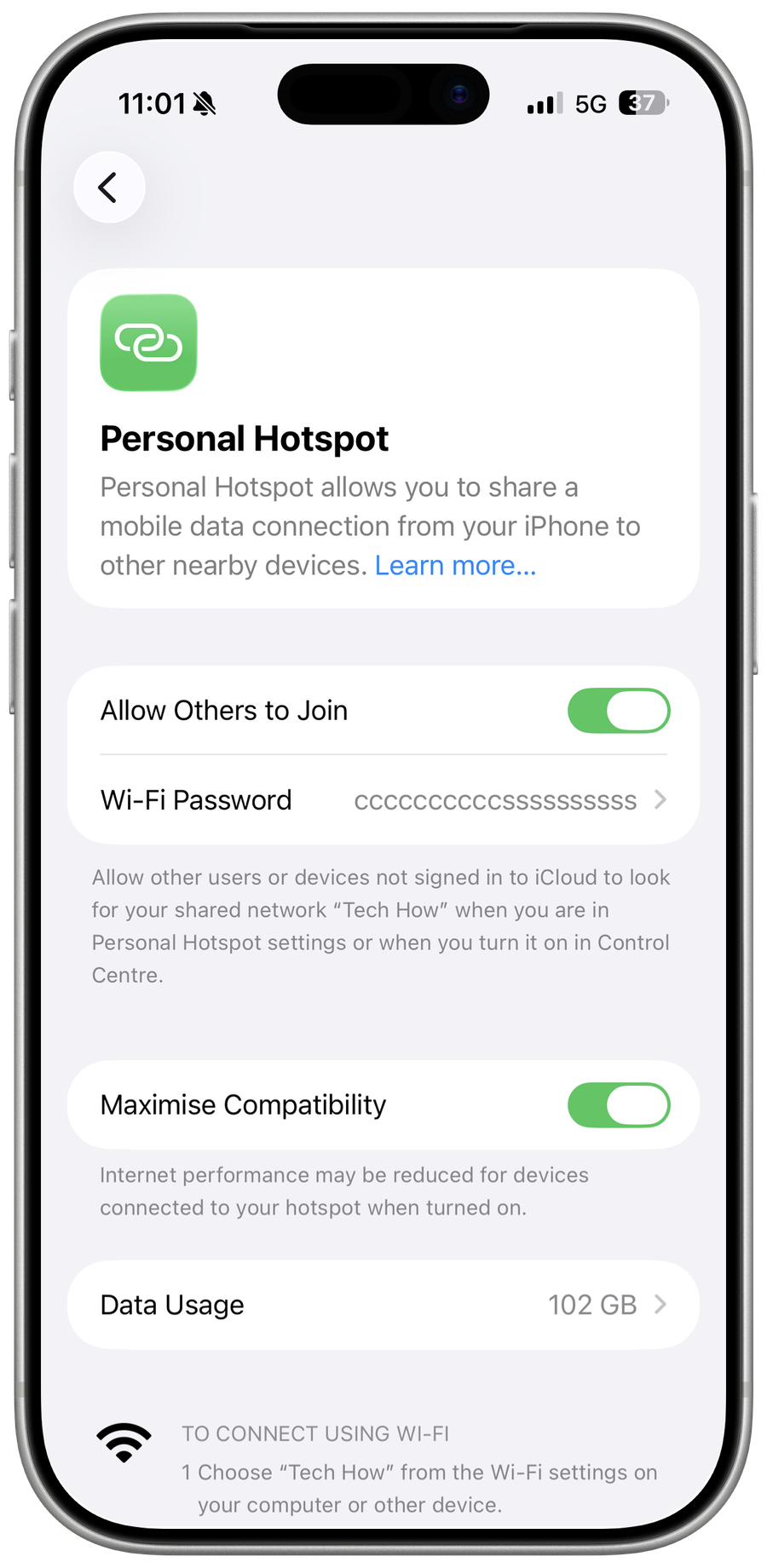
Confirm cellular data and Allow Others to Join are enabled and that your carrier plan includes Personal Hotspot. Use the displayed hotspot name and password, keep the devices nearby, and disconnect clients that are not needed for the test.
Reconnect nearby devices
Keep the devices close, restart both devices, and reconnect using the displayed hotspot name and password. Restart both devices and compare one download or call on the iPhone itself with the same task on the connected device.
Use compatibility only when needed
Turn on Maximize Compatibility only to resolve a connection issue, then compare performance before leaving it enabled. Use Maximize Compatibility only when a device cannot maintain the normal connection; Apple notes that it can reduce internet performance and Wi-Fi security.
Verify the result
Run the same real-world task twice with one client nearby, then check stability rather than relying on a single speed-test peak. Turn off Personal Hotspot when finished and review unknown connected devices.
Troubleshoot iPhone Personal Hotspot performance
If the iPhone itself has poor cellular service, contact the carrier. If only one client is slow, forget and rejoin from that device. If Personal Hotspot is missing, confirm the plan and carrier settings before resetting network settings.
Optional sponsored tool
The supported procedure above does not require this third-party product. This optional link is retained from the original tutorial; Tech How may earn a commission at no extra cost to you.
Video walkthrough
Sources and verification
Checked against official documentation on . Scope: iPhone & iPad.
Follow the linked first-party guidance if labels differ after a platform or app update.