iOS · iPhone & iPad

How To Fix “Screen Recording Not Available” Problem on iPhone

Original source date

Answer

First of all, open up your iPhone settings. From here, tap on Screen Time. In your Screen Time settings, select Content & Privacy Restrictions. If you’re using content and privacy restrictions, make sure that the Screen Recording option is set to Allow.

Disable Content & Privacy Restrictions

First of all, open up your iPhone settings. From here, tap on Screen Time.

iPhone Settings > Screen Time

In your Screen Time settings, select Content & Privacy Restrictions

In your Screen Time settings, select Content & Privacy Restrictions. If you’re using content and privacy restrictions, make sure that the Screen Recording option is set to Allow.

Screen Time > Content & Privacy Restricions

Disable CarPlay, AirPlay, Screen Share & Bluetooth

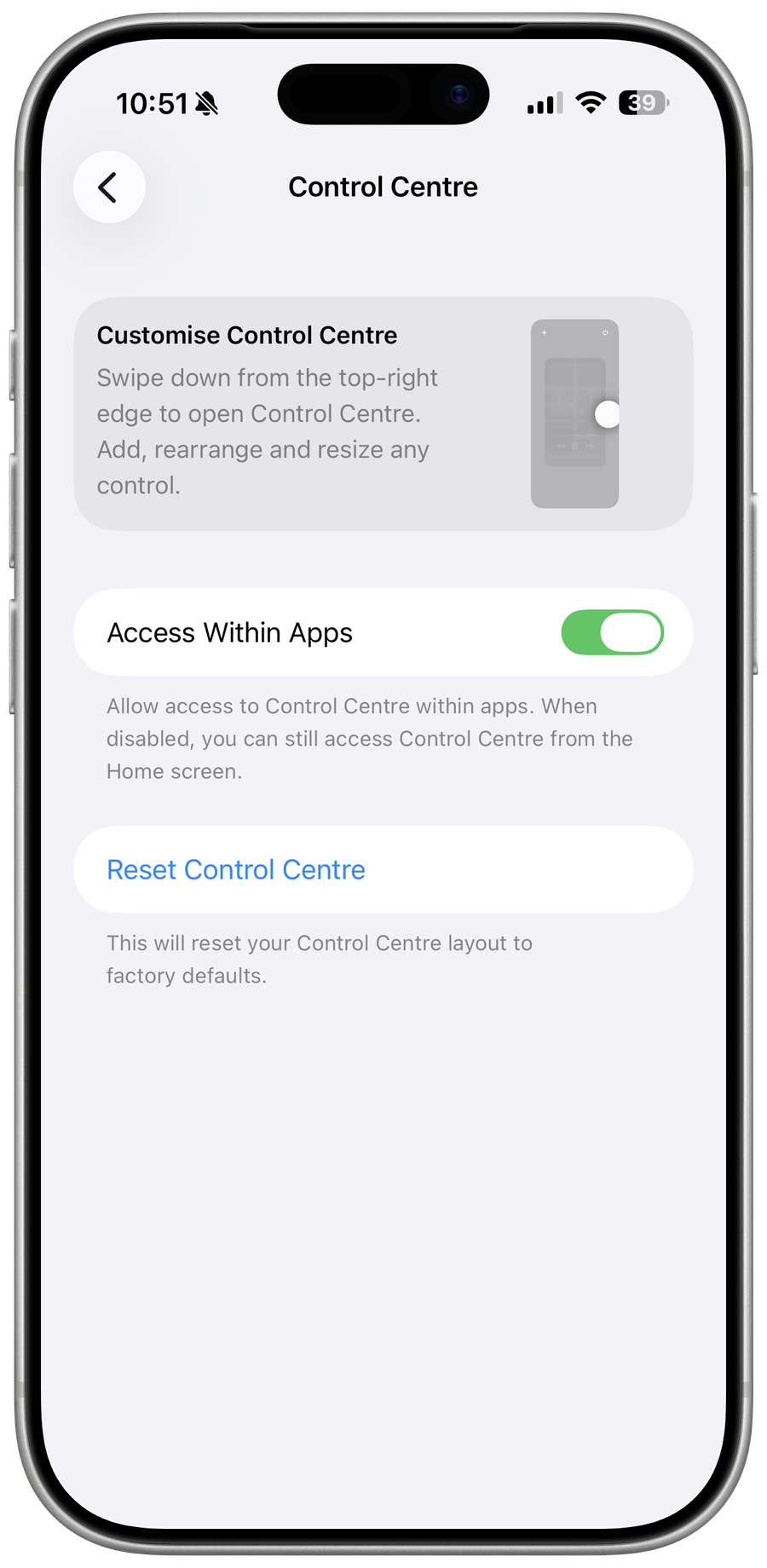
When this is done, ensure that you’re not using CarPlay, AirPlay, or Screen Share with your iPhone. Screen Recording will not work if your iPhone streams any media to another device. You should also disable Bluetooth to troubleshoot if any connected devices are preventing you from recording your screen.

iPhone Control Centre

Clear up iPhone Storage

Next, go to your iPhone Storage settings. It might take a few seconds to load your storage information, and you can preview if you have some available storage left for your screen recordings.

iPhone Settings > General > iPhone Storage

Make sure that you have at least 1GB of available storage

Make sure that you have at least 1GB of available storage. If you don’t want to uninstall apps, then you can follow the storage recommendations to clear up some space.

iPhone Storage
iPhone Storage

Update & Restart iPhone

Lastly, in your iPhone settings, navigate to the General section. Here, tap on Software Update. Make sure to download any update there might be available to you before restarting your device.

iPhone Settings > General > Software Update

Restarting your iPhone can in a lot of cases fix the screen recording problem you…

Restarting your iPhone can in a lot of cases fix the screen recording problem you're having.

Restart iPhone
Restart iPhone

Video walkthrough

If it does not work

  • What causes the "Screen Recording Not Available" error on iPhone?. There could be several reasons why you're encountering this error, including software bugs, outdated software, or compatibility issues with third-party applications.
  • Is it possible to resolve the "Screen Recording Not Available" problem without seeking technical support?. Definitely! There are several simple steps you can take to fix the issue on your own, without having to seek technical support.