
iOS · iPhone & iPad
Upload iPhone Photos and Videos to Google Drive
Source-checked About 10 minutes
Answer
In Google Drive, tap Add > File upload, choose Photos and Videos, allow selected or full Photos access, and wait for upload completion.
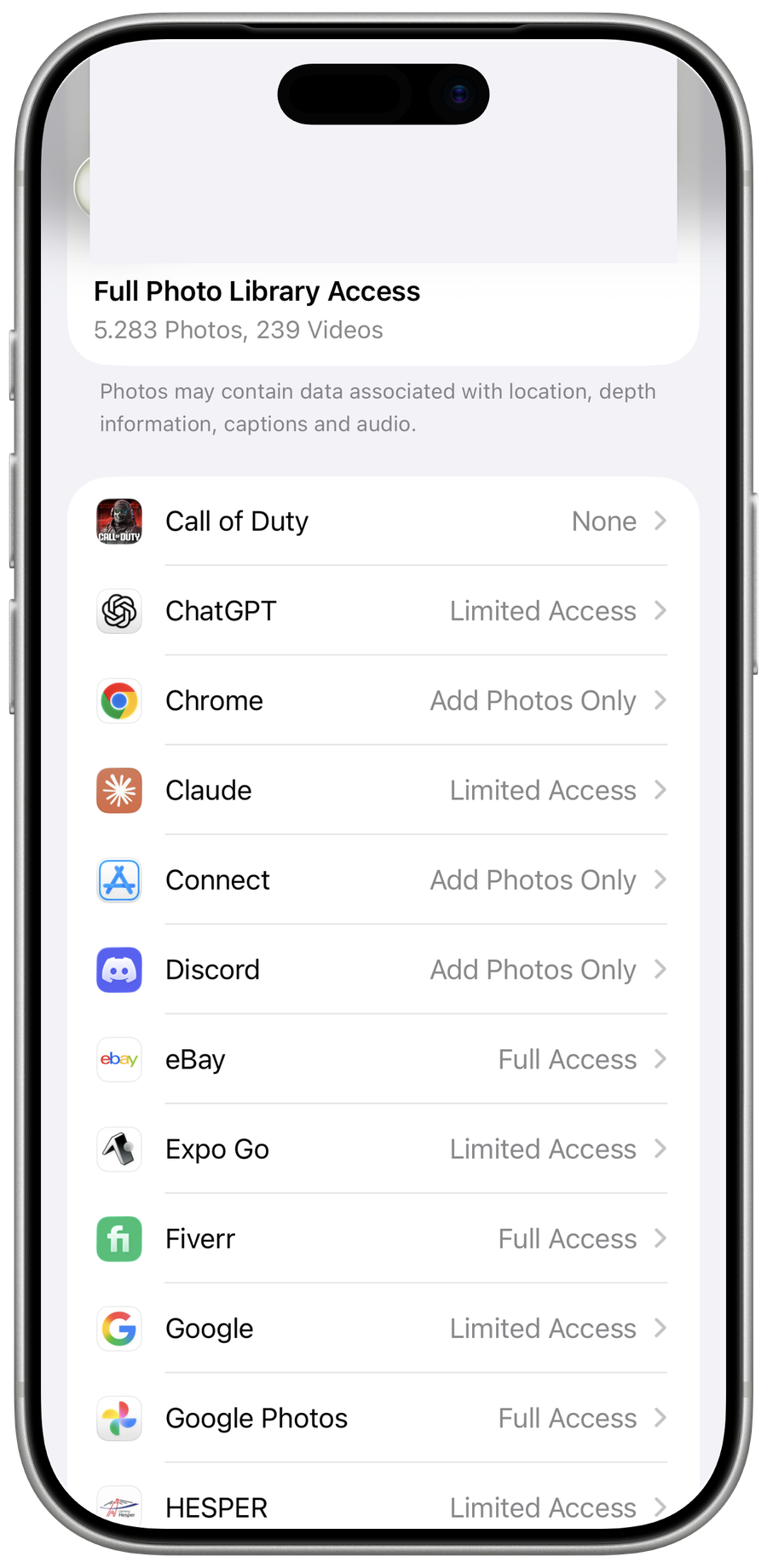
Check storage and access
Confirm the intended Google Account has Drive space and grant Google Drive access only to the photos you plan to upload.
Start the upload
Open Drive, tap Add > File upload > Photos and Videos, select items, and choose the destination folder.
Keep the transfer active
Use reliable Wi-Fi and power for large videos and keep the app available until progress completes.
Verify before deleting originals
Open the uploaded files from another device and confirm quality and duration; Drive upload is not the same as an iPhone Photos backup.
Video walkthrough
If it does not work
- If “Upload iPhone Photos and Videos to Google Drive” remains unresolved, identify which numbered step first produces a different result and preserve that screen or message. Recheck the account, permission, storage, connection, or device prerequisite described above, then follow only the matching Google Drive Help recovery path; do not combine unrelated resets, bypasses, or third-party repair tools.
Sources and verification
Checked against official documentation on . Scope: iPhone & iPad.
Follow the linked first-party guidance if labels differ after a platform or app update.