iOS · iPhone & iPad

How To Restore iPhone from iCloud Backup

Original source date

Answer

Open up your iPhone settings. Here, tap on your Apple ID name and ensure you are logged in with the correct Apple ID account. Next, tap on your iPhone or iPad in the device list below. You can proceed to enable your iCloud backup here.In addition, you have the option to back up your device now. This will allow you to restore your iPhone or other iOS device from your current restore point.

Apple ID Login & Device List

Open up your iPhone settings. Here, tap on your Apple ID name and ensure you are logged in with the correct Apple ID account. Next, tap on your iPhone or iPad in the device list below.

iPhone Settings > Apple ID > Your Device

You can proceed to enable your iCloud backup here.In addition, you have the optio…

You can proceed to enable your iCloud backup here.In addition, you have the option to back up your device now. This will allow you to restore your iPhone or other iOS device from your current restore point.

Device Info > Backup > iCloud Backup (Enable)

Manage iCloud Storage

To make sure that all of your essential data and files are being backed up, navigate back to your Apple ID settings and select iCloud. Here, you can enable or disable applications, photos, contacts, and other files from being backed up in your iCloud, but make sure you have enough available storage left. To reduce your storage requirement for a backup, tap on Manage Storage. Here, you can prevent old iMessage conversations, iMovie projects, and other files from being backed up.

iPhone Settings > Apple ID > iCloud > Manage Storage

Delete or Restore from old Backups

You can, in addition, delete old backups from your device in the Backups folder.

iCloud Storage > Info > Backups

Restore iPhone from iCloud Backup

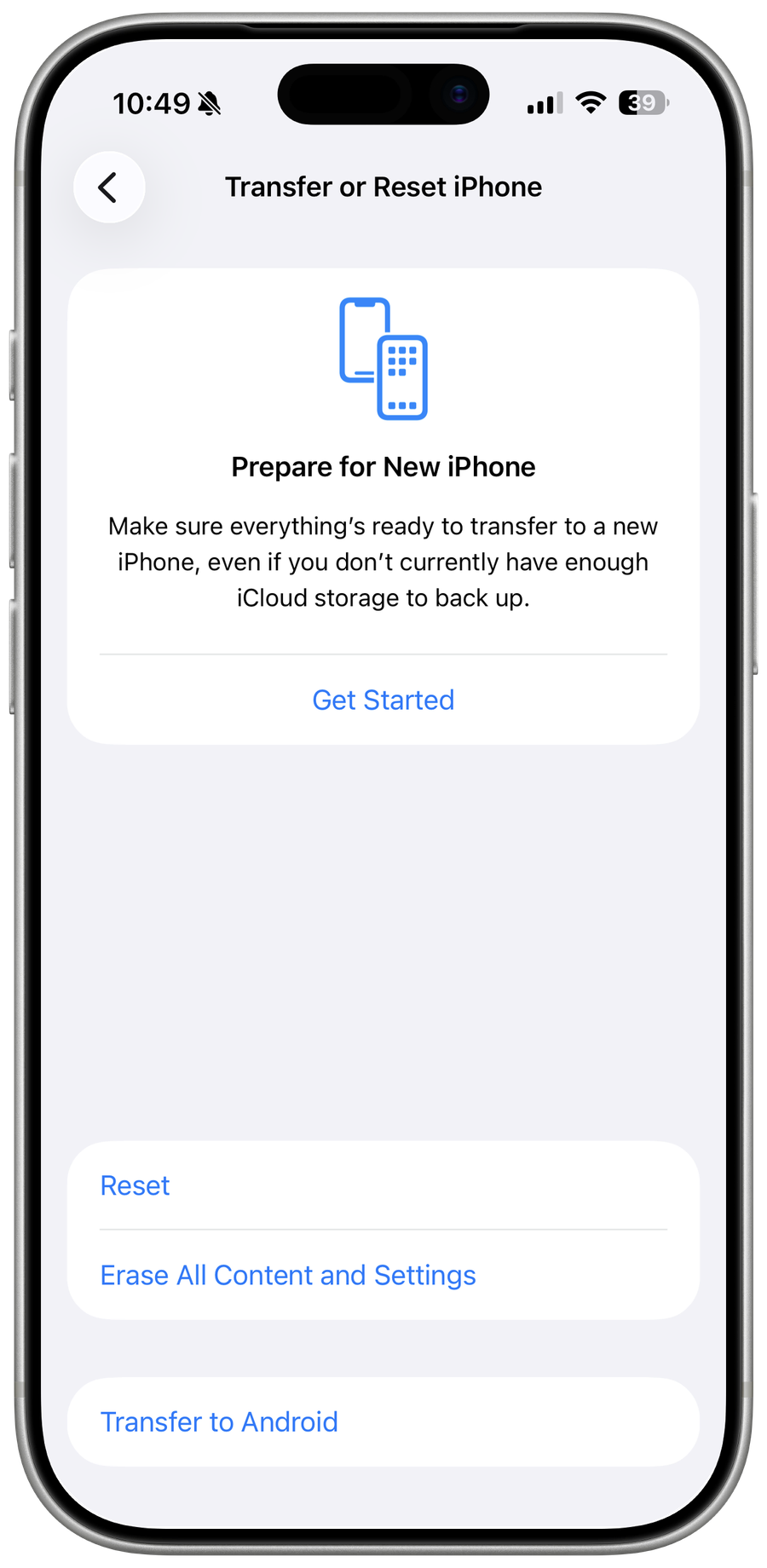
When all of this is done, you will have the option to back up your device when resetting your device. To do so, head back to your main settings and tap on General. Next, select Transfer or Reset iPhone and Erase All Content and Settings.

iPhone Settings > General > Transfer or Reset iPhone

You will be presented with a list of files and data you can erase on your device

You will be presented with a list of files and data you can erase on your device. After resetting your device, or when turning on a new iOS device, you can log back into your Apple ID account and restore your iPhone from the iCloud backup we just created.

Reset iPhone
Reset iPhone

Video walkthrough

If it does not work

  • What is an iCloud Backup and why is it important?. An iCloud Backup is a backup of all the data on your iPhone that is stored on Apple's servers. This includes your photos, videos, contacts, messages, and more. It's important to have an iCloud Backup as it helps you restore your data in case your device gets lost, damaged, or reset.
  • How do I check if I have an iCloud Backup?. You can check if you have an iCloud Backup by going to the Settings app on your iPhone, then tap on your Apple ID, and select iCloud. From there, you'll see a list of all the data and apps that are backed up to your iCloud account.
  • What do I need to restore my iPhone from an iCloud Backup?. To restore your iPhone from an iCloud Backup, you'll need an active internet connection, your Apple ID and password, and enough storage space on your device to store the backup.
  • Can I restore my iPhone from an iCloud Backup if I am using a different Apple ID?. No, you can't restore your iPhone from an iCloud Backup if you are using a different Apple ID. You'll need to sign in with the same Apple ID that was used to create the backup.