iOS · iPhone & iPad

iPhone Not Downloading Apps Easy Fix

Original source date

Answer

Open your AppStore and look up the app you’re trying to download. From here, scroll down to the Information section to preview the size requirement and compatibility with your device. If the application is compatible with your iPhone, it will say Works on this iPhone.

Application Compatibility Check

Open your AppStore and look up the app you’re trying to download. From here, scroll down to the Information section to preview the size requirement and compatibility with your device. If the application is compatible with your iPhone, it will say Works on this iPhone.

Lookup iPhone App > Compatibility

Switch To WiFi Download

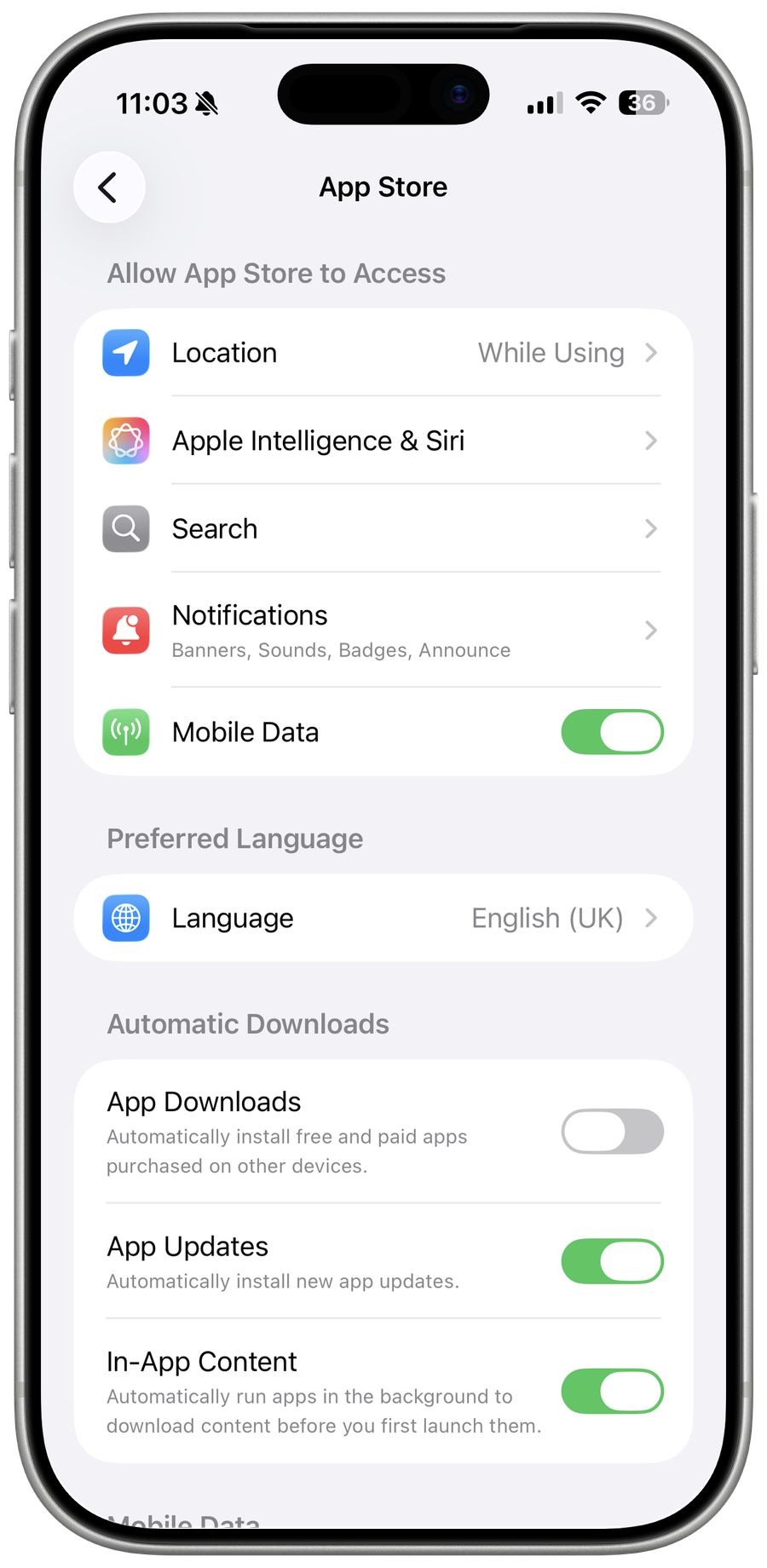
Depending on the application’s size, you must download the app using WiFi. In some cases, this limit can be 30 MB or 100 MB.

Download the app using a Wi-Fi connection

Ensure Enough iPhone Storage

Open up your settings application. From here, tap on General and navigate to your iPhone Storage settings. Preview if you have enough storage for the app you wish to download. We suggest offloading unused applications if you don’t have enough storage left. Your device will, in some cases, recommend deleting unused applications from your device, or you can go ahead and remove downloaded movies from your Netflix application for example.

iPhone Settings > General > iPhone Storage

Restart the App Download

After making sure that you have enough storage for the download, try to pause the download and tap on it to try re-downloading the application. In some cases, you will have to delete the app to re-download it again.

Cancel Download > Restart Download

Update the Payment & Shipping Settings

If the problem persists, make sure that you’re logged in with the correct Apple ID and that your payment method is working in case it’s a paid app. Back in your settings, tap on your Apple ID profile. Under Payment & Shipping, you can access your payment method and change it if necessary. Depending on which country you are logged in with, you might not have access to some apps which are not available in your AppStore by default. Ensure that the app you wish to download is showing up in your AppStore region.

iPhone Settings > Apple ID > Payment & Shipping

Set Date & Time Settings Automatically

Head back to your General settings and tap on Date & Time. Here, enable the Set Automatically option.

iPhone Settings > General > Date & Time

Test Network Connection

If you feel the problem could be related to your network connection, then use a speed testing site or application, such as Speedtest. Here, you can preview your average upload and download speed. If your download speed seems slow, then restart your router or modem in case you haven’t done this in a while and reduce the number of devices using the same network connection.

Test your iPhone’s Internet Speed

iOS Software Update

Ensure that your iOS version is up to date. In your General settings, tap on Software Update. Download and install the latest update. This will, in addition, restart your device, which will restart all processes and can in some cases, fix the issue when you’re unable to download an app on your iPhone or iPad.

iPhone Settings > General > Software Update

Video walkthrough

If it does not work

  • If the current interface differs, compare it with the recorded video walkthrough.