
iOS · iPhone & iPad
Fix Location Services or GPS Not Working on iPhone
Source-checked About 10 minutes
Answer
Turn on Location Services and Precise Location for the affected app, correct date and time, test with a clear view of the sky, then reset Location & Privacy if needed.
Check the app permission
Open Settings > Privacy & Security > Location Services, select the app, choose While Using or the required supported access, and enable Precise Location when exact positioning is needed.
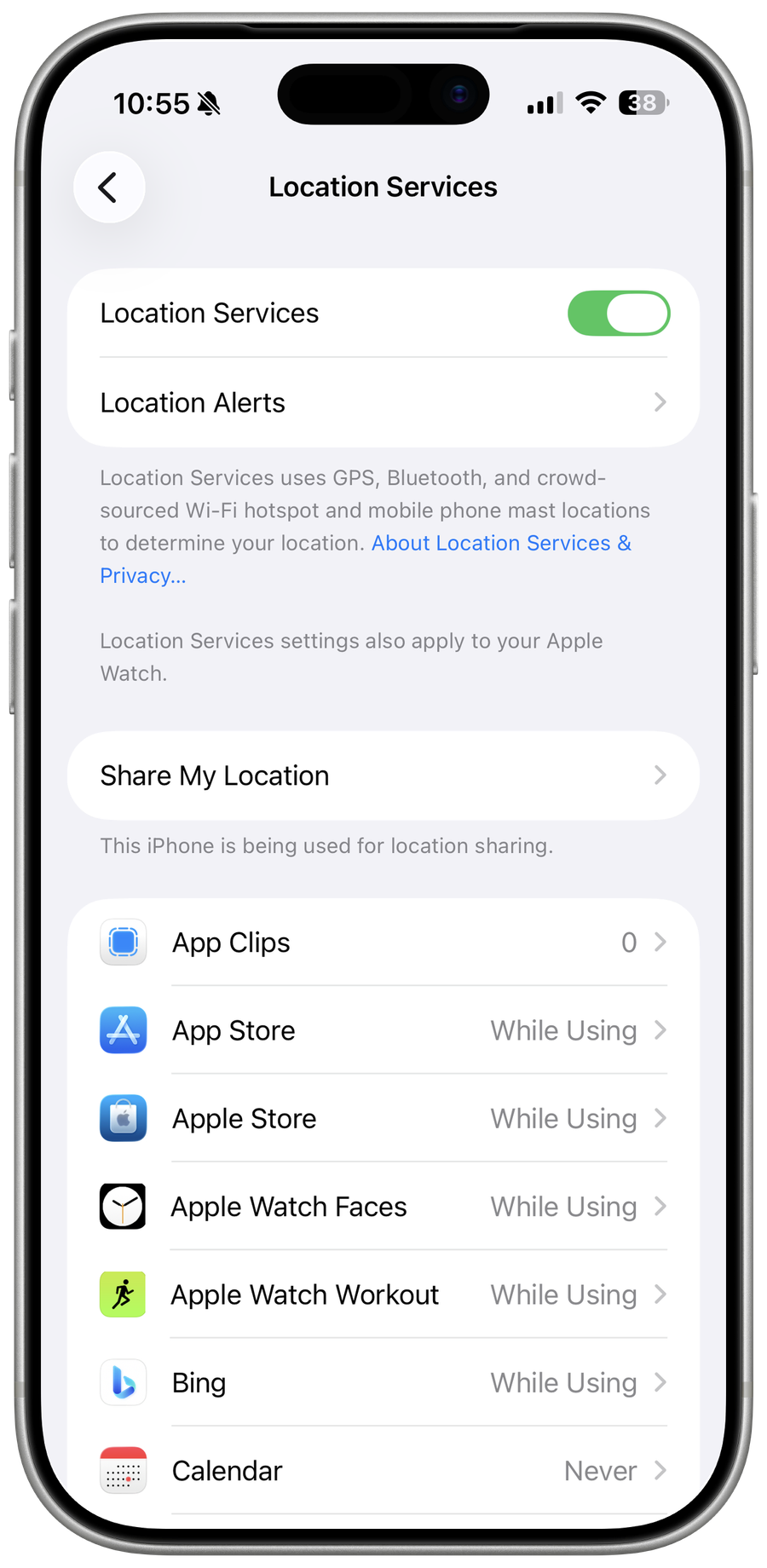
Test system location
Open Apple Maps outdoors with a clear view. GPS accuracy can take several minutes and buildings, roofs, or mountains can obstruct satellites.
Correct supporting signals
Set Date & Time automatically and keep Wi-Fi, Bluetooth, and cellular available because iPhone combines them with GPS.
Restart and update
Restart the iPhone, update iOS, and update the affected app.
Reset location permission
Use Settings > General > Transfer or Reset iPhone > Reset > Reset Location & Privacy, then grant permissions again. Contact Apple if all location apps remain inaccurate.
Video walkthrough
If it does not work
- If every location app remains inaccurate, preserve environment, permissions, model, and iOS version for Apple. Reset Location & Privacy only after understanding permission loss.
Sources and verification
Checked against official documentation on . Scope: iPhone & iPad.
Reviewed against the linked first-party guidance; interface labels can vary by current app, service, or operating-system version.