iOS · iPhone & iPad
How To Fix Instagram Camera Not Working on iPhone
Original source date
Answer
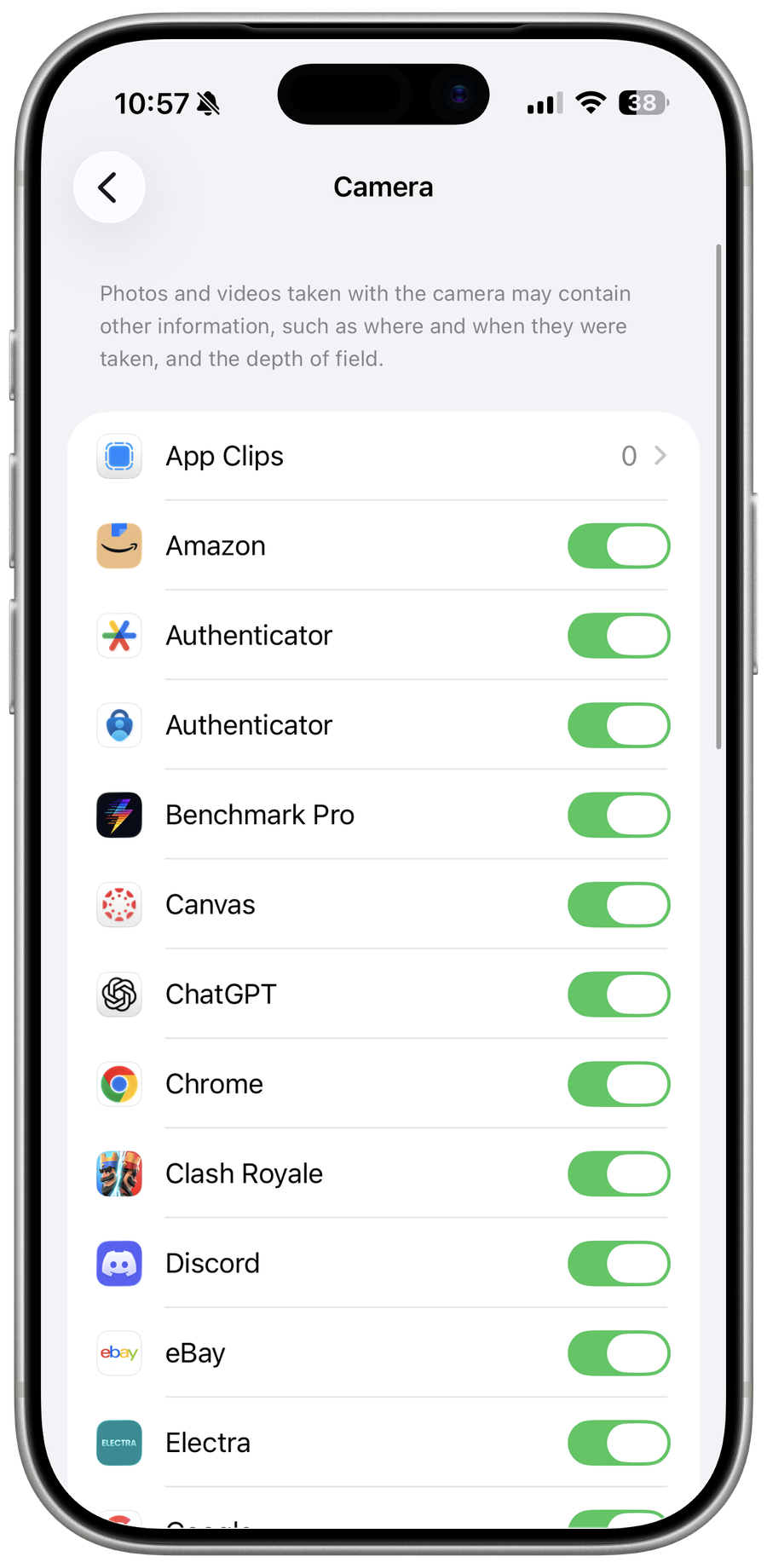
First, make sure to completely exit out of your Instagram application. Next, open up your settings application. Here, scroll down and tap on Privacy. In the Privacy section, tap on Camera and make sure that Instagram is enabled in this list. This will allow your Instagram application to use your iPhone’s camera the next time you open the app.
Enable Instagram Camera Access
First, make sure to completely exit out of your Instagram application. Next, open up your settings application. Here, scroll down and tap on Privacy.

In the Privacy section, tap on Camera and make sure that Instagram is enabled in…
In the Privacy section, tap on Camera and make sure that Instagram is enabled in this list. This will allow your Instagram application to use your iPhone’s camera the next time you open the app.

In some cases, content restrictions prevent you from allowing Instagram camera ac…
In some cases, content restrictions prevent you from allowing Instagram camera access, or there is an issue with the application where you have to clear the app’s cache to fix this problem. Back in your main settings, scroll down, and tap on Instagram to access some additional settings. Here, like before, make sure to toggle this Camera option on.

Disable Content & Privacy Restrictions
Next, scroll back up to access your Screen Time settings. In some cases, content and privacy restrictions can hinder the Instagram app from using your camera.

Make sure to completely disable Content & Privacy Restrictions using your passcod…
Make sure to completely disable Content & Privacy Restrictions using your passcode and then disable the Share Across Devices option. This will ensure that changes to these settings don’t apply to family devices or similar devices logged into your Apple ID.

Delete Instagram App Cache
Lastly, if nothing helped you out, this problem is related to the application or your current OS version. In your settings, navigate to the General section. Here, tap on iPhone Storage, which will take a couple of seconds to load your storage information. When this is done, look up Instagram. From here, select to Offload App. This will delete your app’s cache and it will reinstate your data. Alternatively, you can wholly reinstall the Instagram application using your App Store.

Reinstall Instagram Application
Tap and hold the app icon from your homescreen to delete it, and in your App Store select to download the app, which will ensure that it’s up to date.

Update & Restart iPhone
Lastly, head back to your General settings and tap on Software Update. Download and install the latest update in case one is available.

You can then proceed to restart your device, which will restart all processes and…
You can then proceed to restart your device, which will restart all processes and can fix the camera problem you are having for Instagram.

Video walkthrough
If it does not work
- Why is my Instagram camera not working on my iPhone?. There could be several reasons why your Instagram camera is not working on your iPhone, such as outdated software, network issues, a bug in the app or it’s related to your device settings.
- Why does clearing the cache and data fix the Instagram camera issue on my iPhone?. Clearing the cache and data of the Instagram app can resolve the camera issue because it removes any temporary files and data that may be causing the problem.
- Is it possible to fix the Instagram camera issue on my iPhone without uninstalling the app?. Yes, it is possible to fix the Instagram camera issue on your iPhone without uninstalling the app by trying the solutions mentioned in this article, such as updating the software, clearing the cache and data, or restarting your device.