iOS · iPhone & iPad
How To Fix iPhone Hotspot Not Working - Not Connecting
Original source date
Answer
Open up your settings application. You should, first of all, make sure that WiFi is enabled. Your hotspot will not turn on if WiFi is disabled in your settings. Next, tap on Mobile Data. Under “mobile data”, you should ensure that your primary carrier is enabled. Some cellular service plans don’t allow you to enable and use your mobile hotspot, so make sure to enable and disable your mobile data to see if this fixes your issue.
Enable WiFi
Open up your settings application. You should, first of all, make sure that WiFi is enabled. Your hotspot will not turn on if WiFi is disabled in your settings.

Enable Mobile Data
Next, tap on Mobile Data. Under “mobile data”, you should ensure that your primary carrier is enabled. Some cellular service plans don’t allow you to enable and use your mobile hotspot, so make sure to enable and disable your mobile data to see if this fixes your issue.

Enable Personal Hotspot
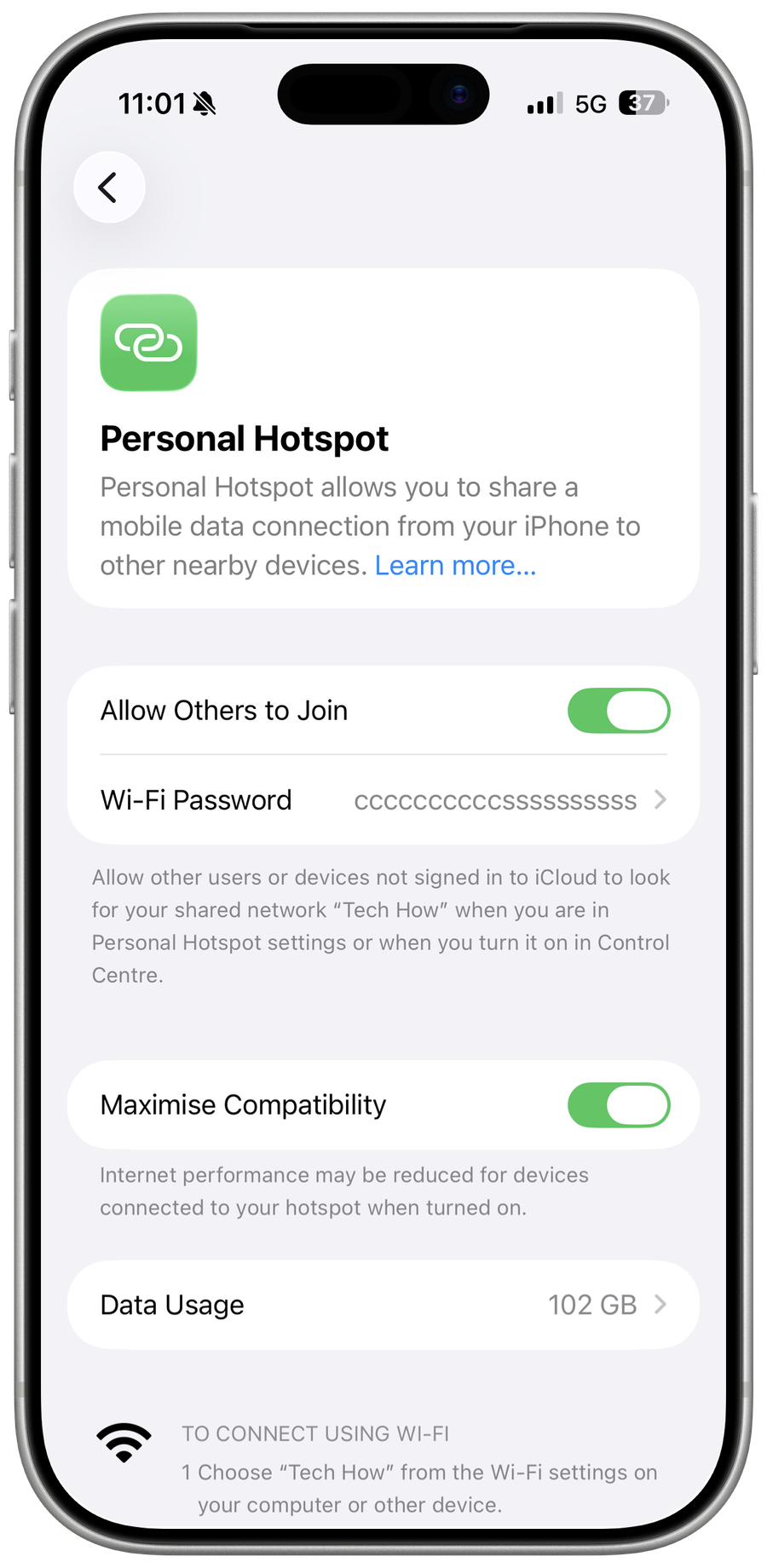
Back in your main settings, tap on Personal Hotspot. Enable your hotspot and set the Wi-Fi Password to something you can remember and enter on another device. When all of this is done, and your hotspot is still not reachable, the problem is related to your current network connection, device restrictions or ISP.

Test Network Connection
To test if this issue is related to your current network connection, you can visit a site on your favorite browser or use a speed testing site or application, such as Speedtest. Here, you can see your average download and upload speed.

Allow Mobile Data Changes
If your connection seems fine, head back to your settings application. Here, tap on Screen Time.

In your Content & Privacy Restrictions, make sure that you allow Mobile Data Changes
In your Content & Privacy Restrictions, make sure that you allow Mobile Data Changes. Or you can disable content & privacy restrictions altogether.

Update & Restart iOS Device
Lastly, make sure that your iPhone is running the latest iOS version. In your General settings, tap on Software Update. Here, select to download and install the latest update before restarting your device. Restarting your iPhone or iPad will restart all processes which will in most cases fix hotspot connection problems.

Video walkthrough
If it does not work
- What causes the iPhone hotspot to stop working?. There could be several reasons why your iPhone hotspot is not working. Some of the most common reasons include software bugs, network issues, outdated firmware, and incorrect settings.
- Can I fix the iPhone hotspot issue myself?. Yes, you can! With the help of this article, you will be able to fix the issue on your own. However, if the problem persists, it's best to seek professional help.
- Is it necessary to update my iPhone's software to fix the hotspot issue?. Updating your iPhone's software to the latest version can often help resolve any bugs and network issues. However, it's not a guarantee that updating your software will fix the hotspot issue.
- Can a faulty SIM card cause the iPhone hotspot to stop working?. Yes, a faulty SIM card can cause the iPhone hotspot to stop working. If your hotspot is not working, it's always a good idea to check if your SIM card is working properly.
- Can I still use my iPhone if the hotspot is not working?. Yes, you can still use your iPhone even if the hotspot is not working. However, you will not be able to share your internet connection with other devices.