
iOS · iPhone & iPad
Reduce Documents and Data Storage on iPhone Safely
Source-checked About 10 minutes
Answer
Review iPhone Storage by app, remove downloads or caches inside the app, offload when appropriate, and delete an app only after protecting local data.
Identify the app using space
Open Settings > General > iPhone Storage and compare App Size with Documents & Data.
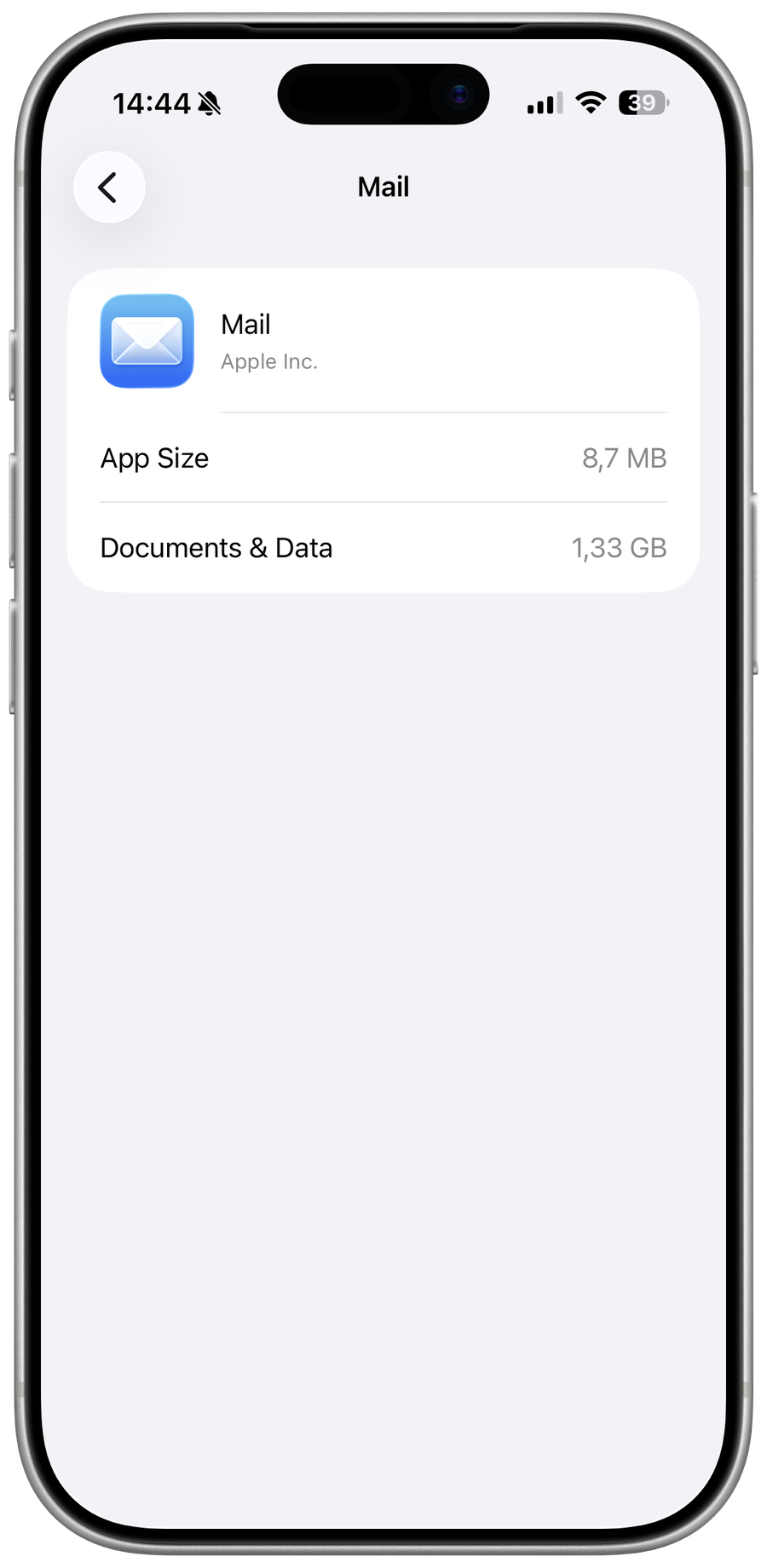
Clean inside the app
Remove offline downloads, attachments, projects, or cache using the app's own controls when available.
Choose offload or delete carefully
Offload keeps documents while removing the app; Delete App removes its local documents and data too.
Verify sync and backups
Confirm important projects are exported or synced before deletion; reinstalling cannot recover unsynced local files.
Video walkthrough
If it does not work
- If “Reduce Documents and Data Storage on iPhone Safely” remains unresolved, identify which numbered step first produces a different result and preserve that screen or message. Recheck the account, permission, storage, connection, or device prerequisite described above, then follow only the matching Apple Support recovery path; do not combine unrelated resets, bypasses, or third-party repair tools.
Sources and verification
Checked against official documentation on . Scope: iPhone & iPad.
Reviewed against the linked first-party guidance; interface labels can vary by current app, service, or operating-system version.