
iOS · iPhone & iPad
Fix iPhone Bluetooth Not Connecting or Finding Devices
Source-checked About 10 minutes
Answer
Charge and place the accessory in pairing mode, disconnect it from other devices, forget and pair it again, then isolate hardware or compatibility.
Prepare the accessory
Charge it, move it close, place it in discoverable mode, and disconnect it from another phone or computer.
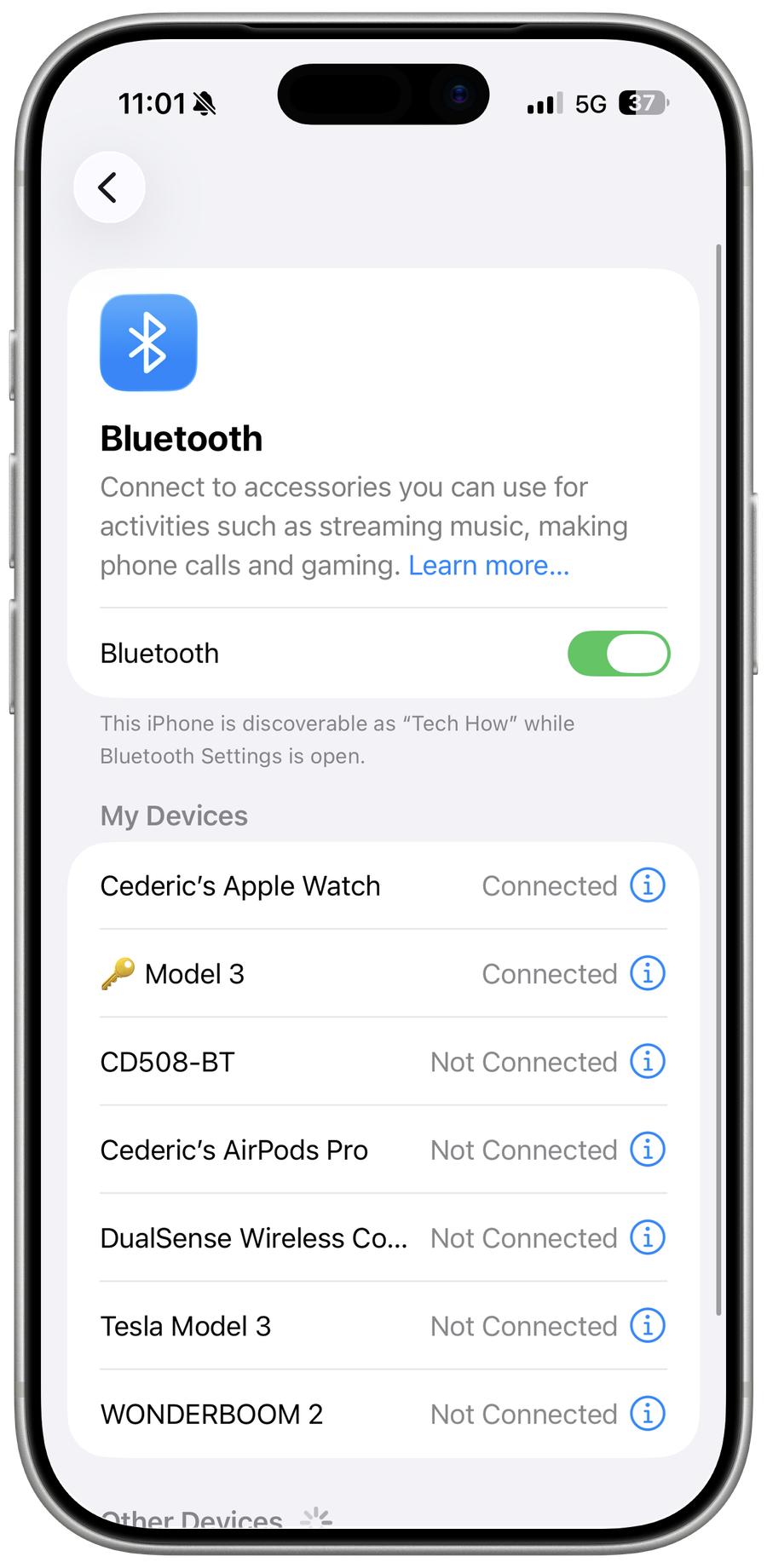
Reconnect Bluetooth
Toggle Bluetooth in Settings, restart both devices, then forget and pair the accessory again.
Check compatibility and limits
Confirm the accessory supports iPhone and its current firmware; some devices require the maker's app or pair with only one host.
Isolate the failure
Test another accessory. Contact the accessory maker if one device fails, or Apple if no Bluetooth device can connect.
Video walkthrough
If it does not work
- If “Fix iPhone Bluetooth Not Connecting or Finding Devices” remains unresolved, identify which numbered step first produces a different result and preserve that screen or message. Recheck the account, permission, storage, connection, or device prerequisite described above, then follow only the matching Apple Support recovery path; do not combine unrelated resets, bypasses, or third-party repair tools.
Sources and verification
Checked against official documentation on . Scope: iPhone & iPad.
Reviewed against the linked first-party guidance; interface labels can vary by current app, service, or operating-system version.