
iOS · iPhone & iPad
Troubleshoot an iPhone or iPad App That Closes Unexpectedly
Source-checked About 10 minutes
Answer
Force-close and reopen the app, update the app and iOS, restart the device, and contact the app developer if the problem continues. Do not delete app data before checking whether it is backed up.
Close and reopen the app
Open the app switcher, close the affected app, then launch it again.
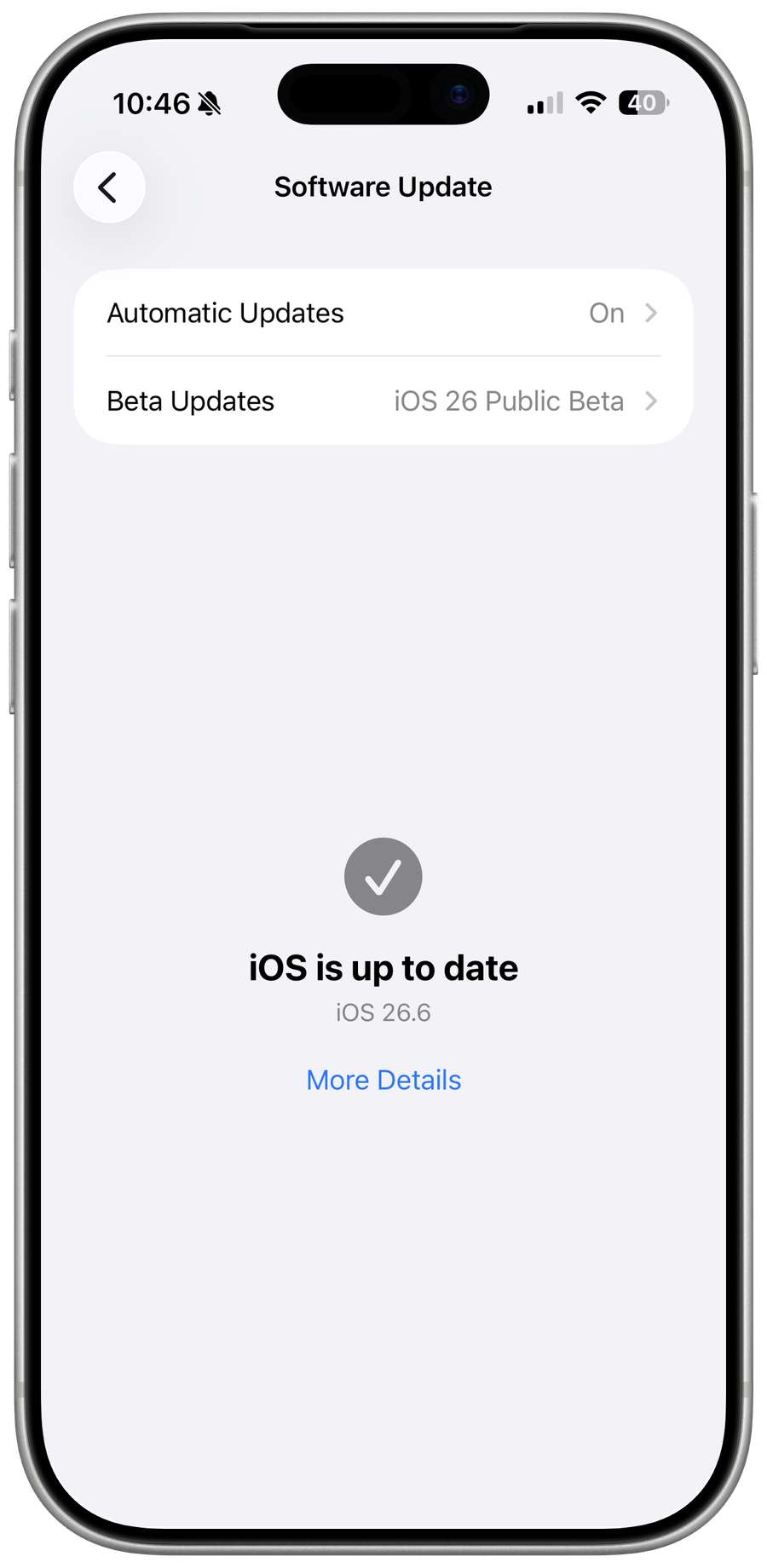
Update the app and iOS
Use the App Store and Software Update to install available updates.
Restart and contact the developer
Restart the device; if the app still closes, check the developer’s support path before deleting its data.
Verify the result
Open the app and repeat the original action after each change, confirming saved account data and local content remain available.
Video walkthrough
If it does not work
- If only that app crashes after update and restart, preserve its version and symptom and contact the developer. Delete and redownload only after confirming local data recovery.
Sources and verification
Checked against official documentation on . Scope: iPhone & iPad.
Reviewed against the linked first-party guidance; interface labels can vary by current app, service, or operating-system version.