
Windows 11 · Windows
Pair Bluetooth headphones with Windows
Source-checked About 10 minutes
Answer
Put the headphones in pairing mode, add them from Bluetooth settings, then select them as the audio output device.
Check the starting state
Before changing Bluetooth headphones, charge the headphones, place only the intended device in pairing mode, note any existing pairing, and confirm Windows Bluetooth is available. Keep the current state, exact message, and any recent change available so each result can be compared.
Choose the supported path
Distinguish first pairing, reconnecting a saved device, output selection, and Bluetooth audio-profile choice before removing pairings or drivers.
Prepare the headphones
Charge the headphones and place them in pairing mode using the maker's instructions.
Turn on Bluetooth
Open Settings > Bluetooth & devices and turn Bluetooth on.
Add the device
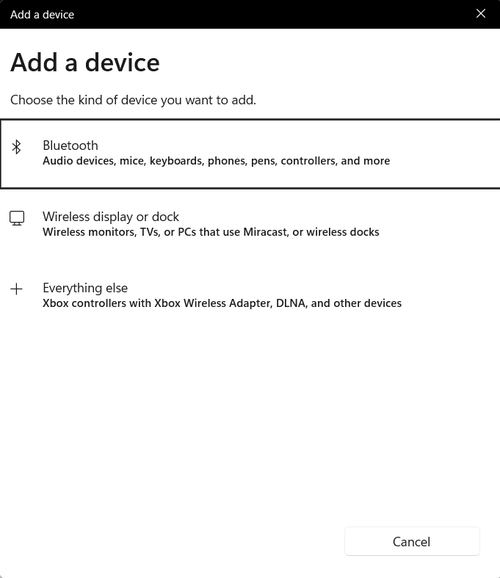
Choose Add device > Bluetooth, select the headphones, and complete any confirmation.
Select audio output
Open Quick Settings or Settings > System > Sound and choose the headphones as the output device.
Verify the result
Power the headphones off and on, confirm they reconnect, then play a left-right audio test through the selected Windows output.
Troubleshoot Bluetooth headphones
If the device never advertises, only a hands-free profile appears, duplicate pairings return, or Windows has no Bluetooth adapter, stop broad resets and return to the last known state. Preserve the exact error, versions, device or account scope, and failed step before using the linked official support channel.
Video walkthrough
Sources and verification
Checked against official documentation on . Scope: Windows.
Follow the linked first-party guidance if labels differ after a platform or app update.