Windows 11 · Windows

How To Fix No Sound in Google Chrome on PC

Original source date

Answer

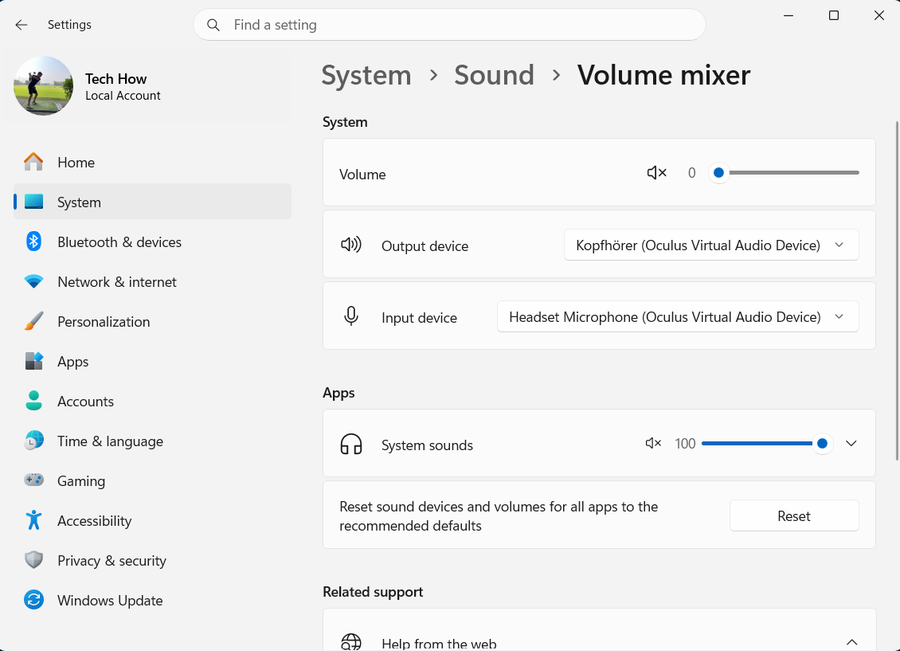
First, close your Chrome browser and prevent it from running in the background. Open your system tray, right-click the Google Chrome icon, and select Exit. When this is done, open up your Windows settings. Under System, click on Sound. Here, make sure that the correct device is selected.

Exit Google Chrome Browser

First, close your Chrome browser and prevent it from running in the background. Open your system tray, right-click the Google Chrome icon, and select Exit.

System Tray > Chrome > Exit

Windows Sound Settings

When this is done, open up your Windows settings. Under System, click on Sound. Here, make sure that the correct device is selected.

Windows Settings > System > Sound

When clicking on it, you can adjust the volume sliders and change the audio forma…

When clicking on it, you can adjust the volume sliders and change the audio format, which should be set to 48’000 or 44’100 Hz, whichever is higher and available. You also have the option to test your sound output device from here. This will show you if the problem is related to the Chrome browser or the device itself. If you hear a sound and your device is not faulty, the problem is most likely related to Windows or Chrome settings.

System Settings > Sound > Device Properties

Make sure to disable audio enhancements below

Make sure to disable audio enhancements below.

Disable Audio Enhancements

To prevent Chrome from using any other audio device, I’d suggest simply going thr…

To prevent Chrome from using any other audio device, I’d suggest simply going through all other devices and clicking on Don’t Allow. This will fix the issue if Windows changes your default Chrome device.

To prevent Chrome from using any other audio device, I’d suggest simply going thr…

Troubleshoot Common Sound Problems

Back in your Sound settings, scroll down, and click on Troubleshoot common sound problems for Output devices. It will take a moment to scan and apply some changes to settings to fix common sound issues. This can sometimes help fix sound issues for Windows and 3rd party applications.

Troubleshoot common sound problems for output devices

Disable Chrome Extensions

You can then open your Google Chrome browser and test if the problem has been resolved. If the problem persists, click on the extension’s icon and select Manage Extensions.

Google Chrome > Manage Extensions

Disable all extensions which have access to your sound output device, which can c…

Disable all extensions which have access to your sound output device, which can change your volume or mute your devices. You can re-enable each after finding the culprit to your audio problem.

Disable Browser Extensions

Google Chrome Site Settings

Navigate to your Google Chrome settings.

Chrome Settings > Privacy & Security > Site Settings

Here, navigate to Privacy and security > Site Settings > Sound

Here, navigate to Privacy and security > Site Settings > Sound. Make sure to enable the Sites can play sound option. Also, ensure that the site is not blacklisted in your Customized behaviors options below.

Privacy & Security > Sound

Clear Recent Chrome Cookies & Site Data

If this did not help you, then clear your recent browser history and cache. While in your settings, look up Cookies and click on Clear browsing data. Here, clear your Cookies and other site data, as well as Cached images and files for the last 7 days.

Clear browsing data
Clear browsing data

Update Windows Operating System

Lastly, make sure that you’re running the latest Windows version. In your Windows settings, navigate to the Windows Update section. Here, make sure to download the latest update before restarting your PC to install the updates.

Windows Settings > Windows Update

Video walkthrough

If it does not work

  • Why is there no sound in Google Chrome on my PC?. There are several reasons why you might be experiencing no sound in Chrome. Some common causes include outdated drivers, incorrect audio settings, and compatibility issues with other software or hardware.
  • What should I do if I can hear sound in other programs but not in Chrome?. If you're able to hear sound in other programs but not in Chrome, the issue is likely with the browser itself. Try clearing your cache and cookies, disabling any extensions that might be interfering, or reinstalling Chrome.
  • Can compatibility issues with other software cause no sound in Chrome?. Yes, compatibility issues with other software can definitely cause no sound in Chrome. For example, if you have a conflicting audio program running in the background, it could be interfering with Chrome's ability to play sound.