
iOS · iPhone & iPad
Fix 'Mic Has Been Disabled' or Voice Chat Not Working in Free Fire
Source-checked About 10 minutes
Answer
Enable Voice Chat and Microphone in Free Fire, allow device microphone permission, choose Team or All channel, and test without Bluetooth or competing apps.
Prepare the correct account, device, project, or session
Confirm the official Free Fire app, bound account, device requirements, region, game mode, connection, available storage and RAM, and exact error before clearing data. Protect guest progress and make one change at a time. Do not use modified clients, device-spoofing, emulator-detection bypasses, macros, VPN promises, or unofficial optimizers that can risk the account or fair-play enforcement.
Enable in-game voice
Open Free Fire Settings > Audio and enable Voice Chat and Microphone, then choose the correct Team or All channel.
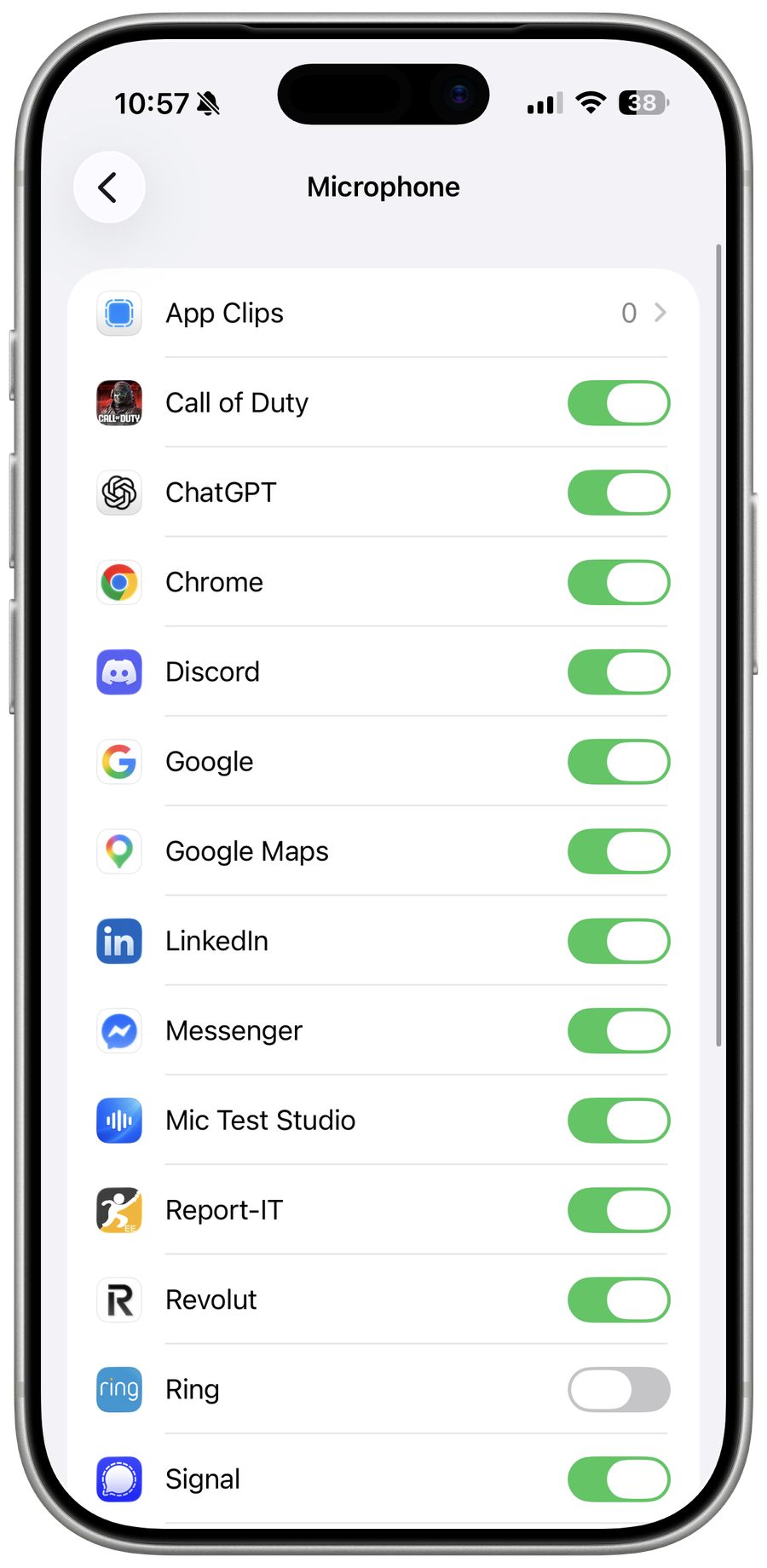
Allow device permission
On iPhone use Privacy & Security > Microphone; on Android use App permissions, then restart the game.
Test the audio route
Unmute the match mic icon, disconnect Bluetooth or earphones, and close other apps using the microphone.
Check network and mode
Voice requires a stable connection and is most relevant in Duo or Squad; update or reinstall only after protecting account access.
Verify the result
Join a trusted Duo or Squad and verify Team or All channel, microphone icon, input clarity, Bluetooth route, privacy, and connection.
Video walkthrough
If it does not work
- If permission and in-game controls are correct, test without Bluetooth and competing apps. Protect the account before reinstalling and never share voice or login codes.
Sources and verification
Checked against official documentation on . Scope: iPhone & iPad.
Reviewed against the linked first-party guidance; interface labels can vary by current app, service, or operating-system version.