
iOS · iPhone & iPad
Fix Free Fire 'Insufficient Device Memory' Errors
Source-checked About 10 minutes
Answer
Check the device meets Garena's requirements, free storage and RAM, close background apps, lower graphics, and reinstall only after binding and protecting the account.
Prepare the correct account, device, project, or session
Confirm the official Free Fire app, bound account, device requirements, region, game mode, connection, available storage and RAM, and exact error before clearing data. Protect guest progress and make one change at a time. Do not use modified clients, device-spoofing, emulator-detection bypasses, macros, VPN promises, or unofficial optimizers that can risk the account or fair-play enforcement.
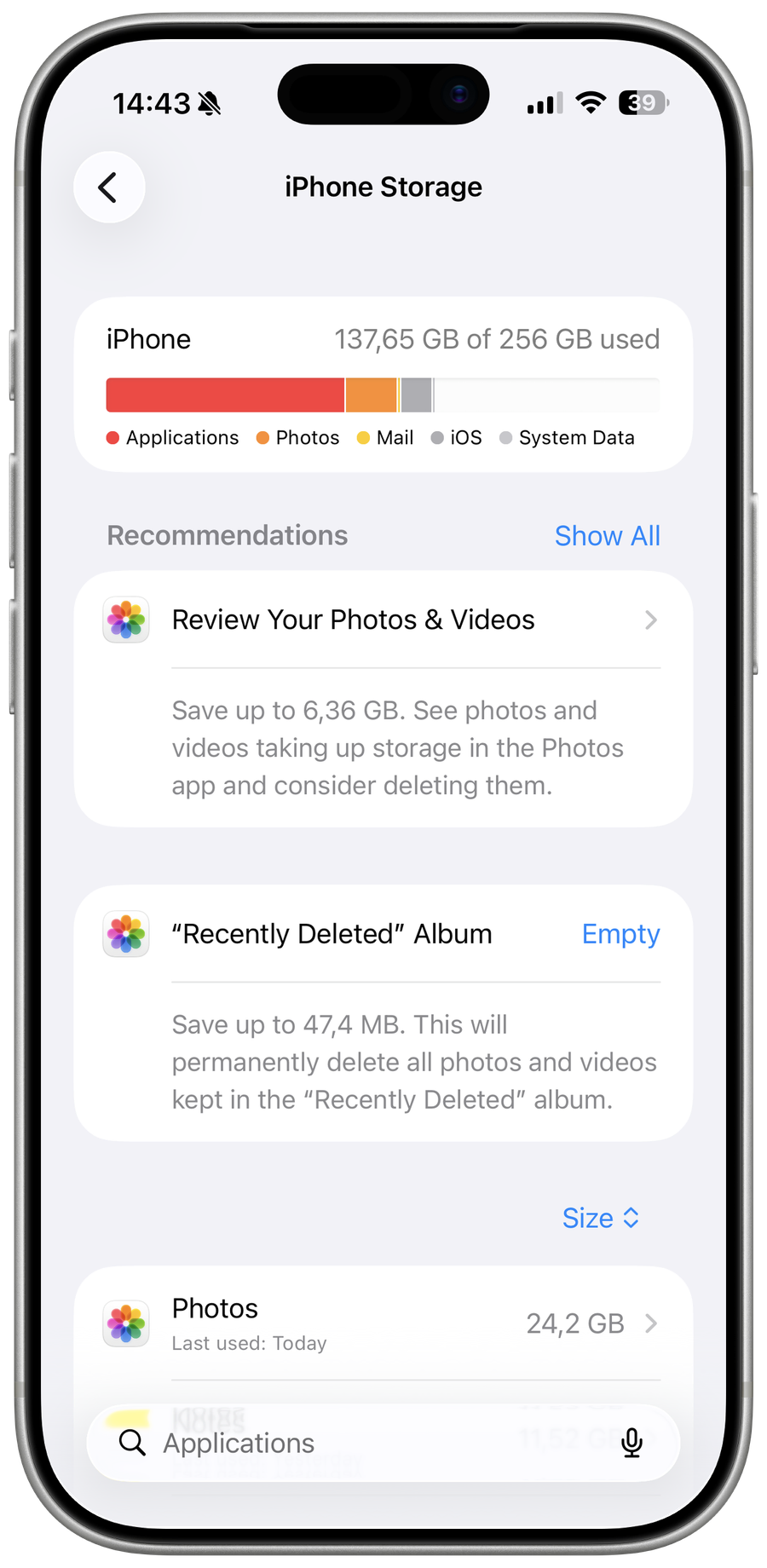
Check storage versus memory
Free storage holds game files; RAM is working memory. The alert and device specifications determine which resource is short.
Meet current requirements
Compare the device, OS, RAM, and storage with Garena's current minimum and recommended requirements.
Free supported resources
Close background apps, restart, remove unneeded downloads, keep free storage, and lower graphics settings.
Protect the account before reinstalling
Bind the Free Fire account and confirm login recovery before deleting app data or reinstalling; guest progress can be lost.
Verify the result
Relaunch and enter a match, verifying storage headroom, RAM stability, textures, loading, and the bound account's progress.
Video walkthrough
If it does not work
- If requirements are not met, lower supported settings or use a compatible device. Reinstall only after confirming account binding; guest progress may be lost.
Sources and verification
Checked against official documentation on . Scope: iPhone & iPad.
Reviewed against the linked first-party guidance; interface labels can vary by current app, service, or operating-system version.