
Gaming · Platform not recorded
Valorant - Boost FPS & Overall Performance
Original source date
Answer
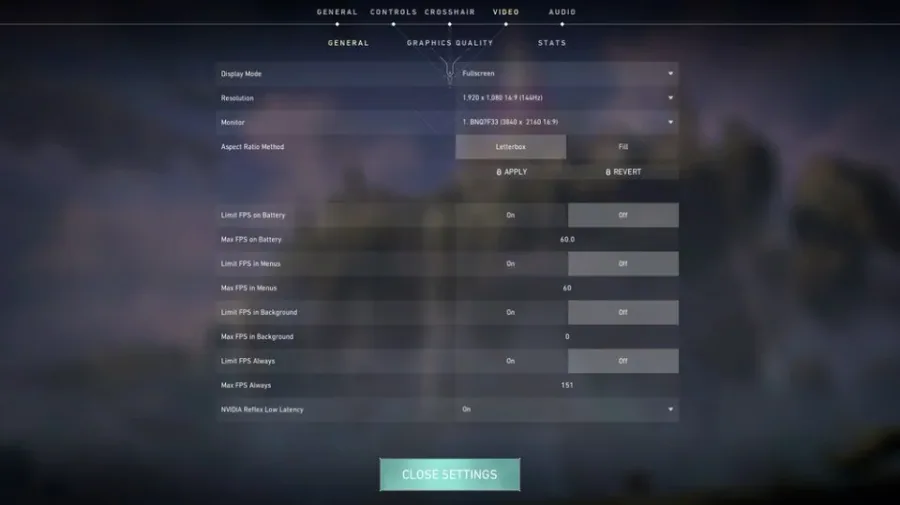
Changing your Valorant settings usually makes the most significant performance improvement for low to mid-end systems. Open up your settings, and make changes according to your system’s specifications. Most of the setting changes showcased apply to low-end PCs. If you experience performance issues while using the recommended system requirements, follow the next steps. Navigate to your Video settings and set the resolution to your native monitor resolution and set the window mode to Fullscreen. For low-end systems, incapable of running Valorant with these settings, you should consider lowering the resolution even more, to around 1600x900. Limit all your FPS values to an amount above your screen refresh rate.For 60 hz monitors set it to: > 60 FPSFor 144 hz monitors set it to: > 144 FPSFor 240 hz monitors set it to: > 240 FPS; For 60 hz monitors set it to: > 60 FPS; For 144 hz monitors set it to: > 144 FPS; For 240 hz monitors set it to: > 240 FPS
Optimize your Valorant In-Game Settings
Changing your Valorant settings usually makes the most significant performance improvement for low to mid-end systems. Open up your settings, and make changes according to your system’s specifications. Most of the setting changes showcased apply to low-end PCs. If you experience performance issues while using the recommended system requirements, follow the next steps. Navigate to your Video settings and set the resolution to your native monitor resolution and set the window mode to Fullscreen. For low-end systems, incapable of running Valorant with these settings, you should consider lowering the resolution even more, to around 1600x900. Limit all your FPS values to an amount above your screen refresh rate.For 60 hz monitors set it to: > 60 FPSFor 144 hz monitors set it to: > 144 FPSFor 240 hz monitors set it to: > 240 FPS; For 60 hz monitors set it to: > 60 FPS; For 144 hz monitors set it to: > 144 FPS; For 240 hz monitors set it to: > 240 FPS
The next settings in the Graphics Quality section will depend on your system’s ha…
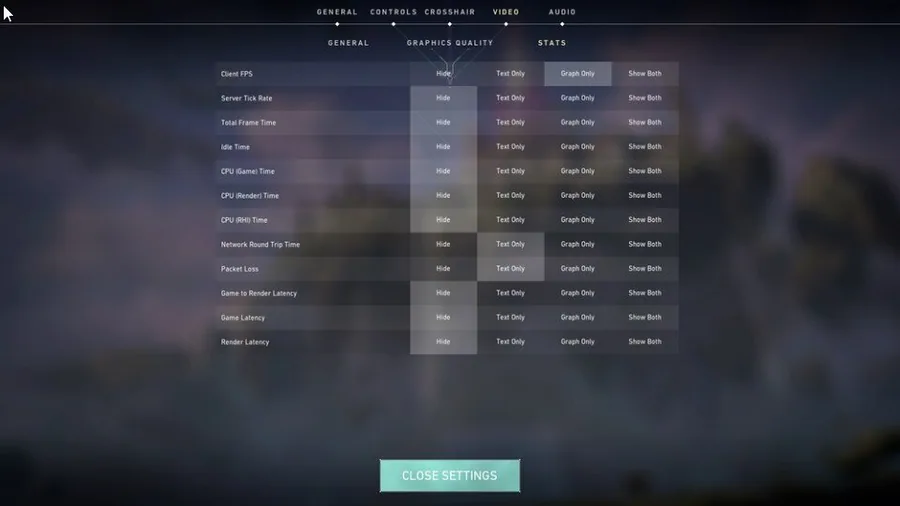
The next settings in the Graphics Quality section will depend on your system’s hardware, and will be set for low-end PC’s. Make sure to increase these in case you have some frames to spare: Set Quality Settings (Material, Texture, Detail) to Medium/Low; Turn off VSync; Turn off Anti-Aliasing; Set Anisotropic Filtering to 1x - 8x depending on PC performance; Turn off Improve Clarity; Turn off Enhanced Gun Skin Visuals; Turn off Distortion; Turn off Shadows In the Stats section, enable the following indicators: Client FPS; Network Round trip Time; Packet Loss The performance and network stats allow you to troubleshoot and optimize your settings while in-game.
Change the Valorant Process Priority
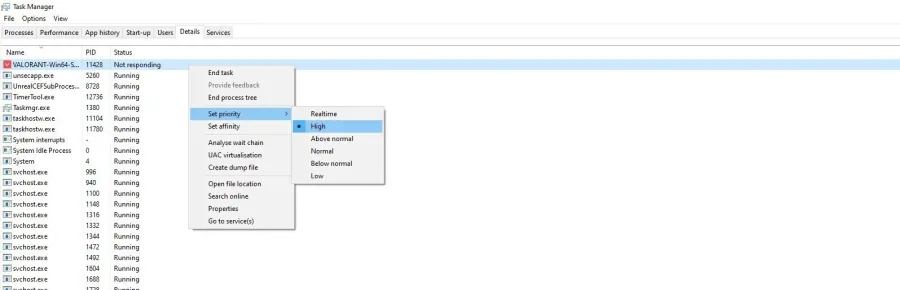
To further increase your Valorant performance on your PC, we will change the application’s priority compared to other programs running in the background. Right-click your taskbar to open up your Task Manager. In the Processes tab, right-click the Valorant.exe process and select go to details. In the Details tab, the application should be highlighted. Right-click the game process and set the priority to high.
Update Graphics Card Driver
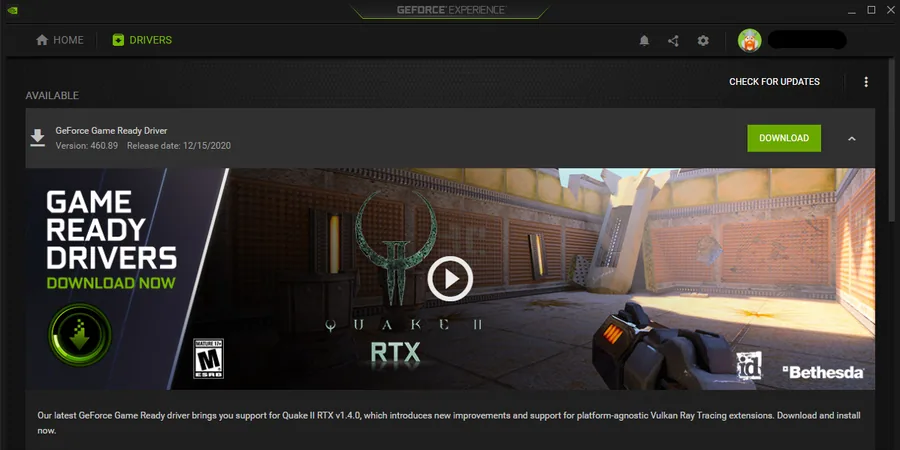
NVIDIA graphics cards can utilize the GeForce Experience application. Click here to download the application to your system. When the download is completed, open up the application, and in the Drivers tab select Download. This will download and install the latest GPU update and should take a few minutes to complete.
Update Operating System
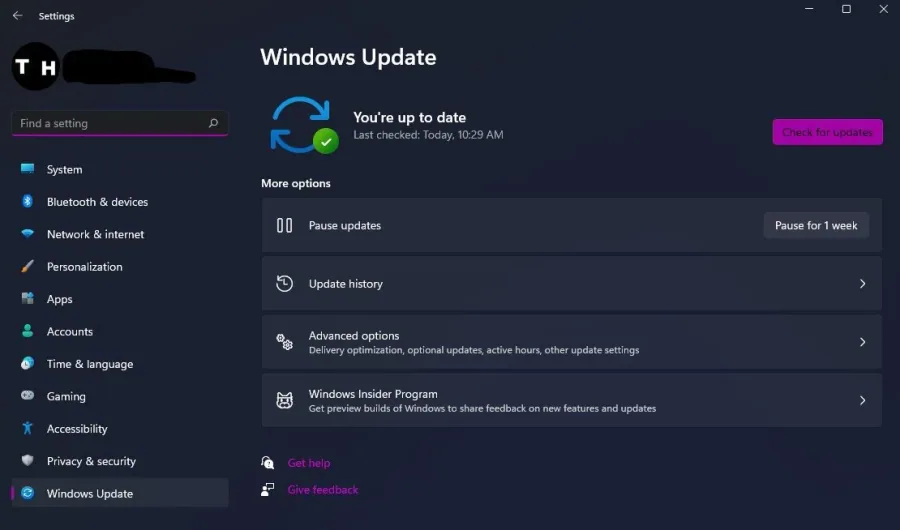
To optimize your system for performance, you should ensure your operating system is up to date. Search for Update in your taskbar search. In your Check for updates system settings window, download the latest update and restart your PC after that the download is completed. This will, in any case help you with performance issues.
Disable Windows Game Bar Recording
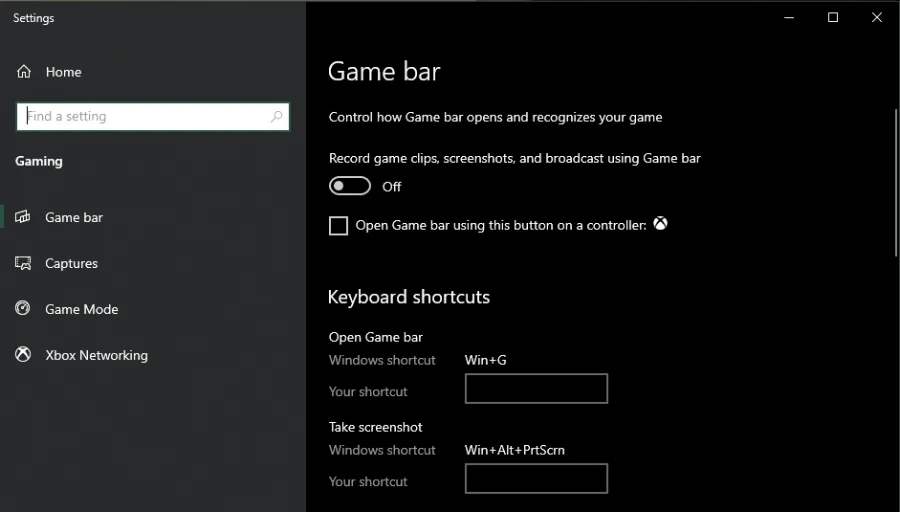
Some native Windows 10 settings can reduce your overall performance while playing Valorant. Disable the Game Bar recording option, as it continuously records your gameplay and audio. In your taskbar search, enter: Game Bar to open up the game bar system settings. Uncheck the recording option. In the Captures tab, make sure to additionally disable the background recording option. These settings will only reduce your performance. If you want to record your gameplay, then we suggest using OBS Studio, or an external capture card if you lack performance.
Optimize NVIDIA Control Panel Options for Valorant
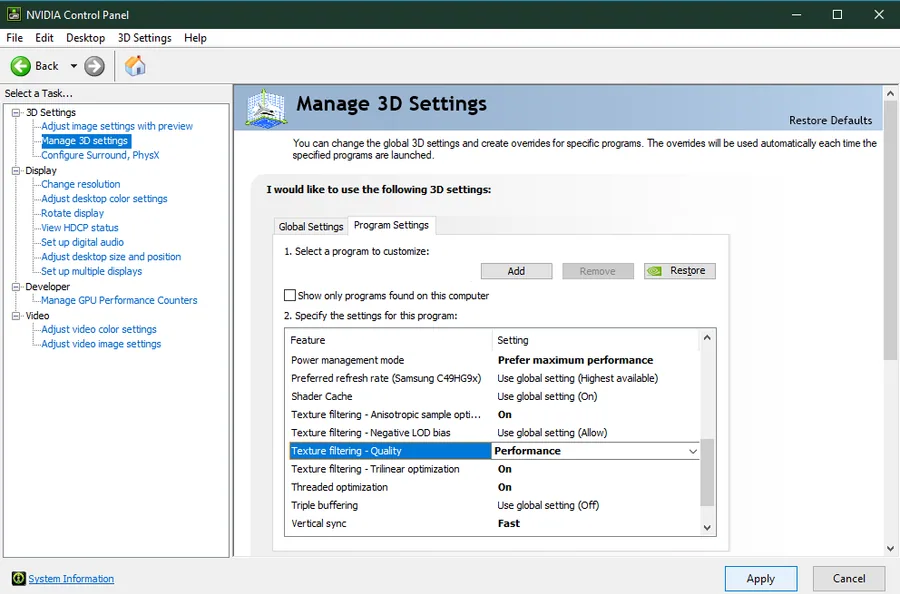
Making changes to your NVIDIA control panel can be essential. Change a few options in your NVIDIA control panel to improve the Valorant game performance on your system. To open your NVIDIA control panel, right-click your desktop and select NVIDIA Control Panel. In your control panel, navigate to Manage 3D Settings > Program Settings.
Change the Valorant Graphics Preference
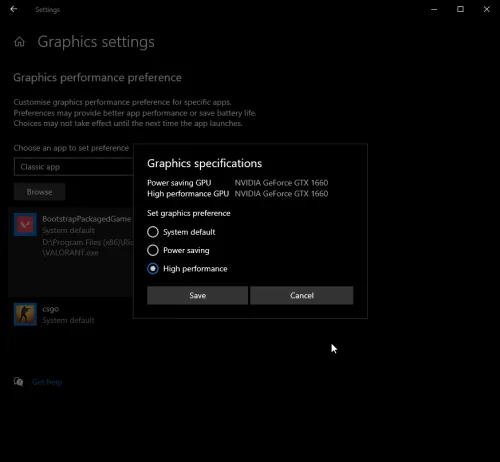
Windows 10 allows you to utilize power user settings, such as your graphics settings. To change your graphics settings, enter Graphics Settings in your taskbar search to open up your native settings.
Delete the Windows Temporary Files
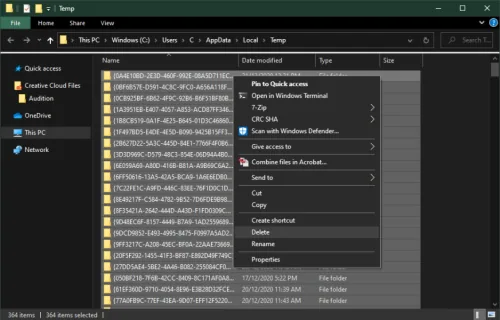
Your hard-drive might be cluttered with unwanted files. These files will induce lag if not removed properly. You can delete your temporary files manually or use PC cleanup programs, such as CCleaner. These applications are usually the best choice as they will automatically keep your hard-drive clean for you. To manually delete your temporary files, enter %temp% in your taskbar search and hit enter. A new folder will open up. Make sure to delete the content of your temporary files folder. It can sometimes take a couple of minutes if you haven’t done this before. Some files will most likely stay in your temp folder, as these are still in use by your programs. To thoroughly delete these files, you should also make sure to empty your recycle bin.
Video walkthrough
If it does not work
- If the current interface differs, compare it with the recorded video walkthrough.