
Gaming · Windows
Fortnite - Fix Textures Not Loading & Rendering on Windows 11
Original source date
Answer
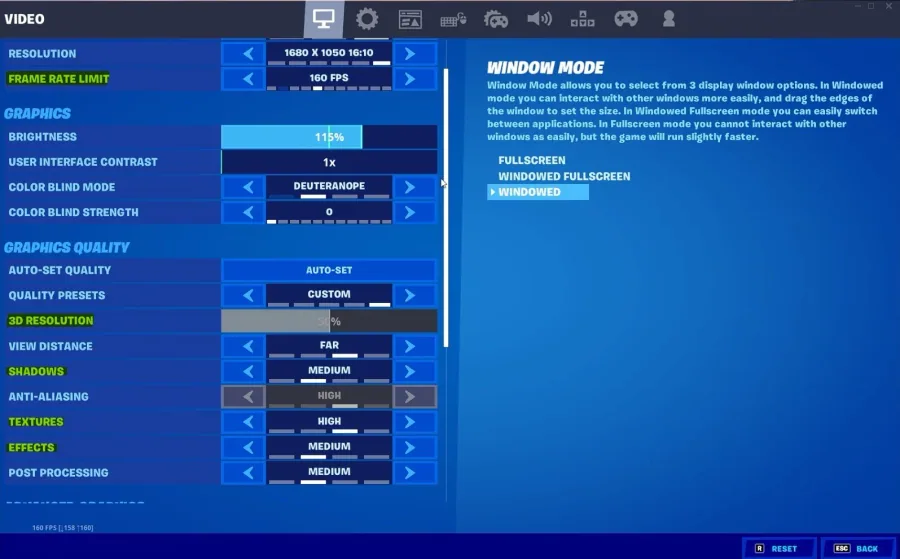
Open Fortnite and navigate to your Video settings. Ensure not to set your Framerate Limit to unlimited, as this could induce lag and result in textures not being rendered while in-game. Set it to a value above your screen's refresh rate, but below the maximum FPS (frame rate) you can get. You may want to reduce your 3D resolution option to around 80% in your Graphics Quality settings. This will reduce the game's visual quality, but it will be playable again. Reduce your Shadows option, as well as your Textures and Effects.
Adjust the Fortnite Video Settings
Open Fortnite and navigate to your Video settings. Ensure not to set your Framerate Limit to unlimited, as this could induce lag and result in textures not being rendered while in-game. Set it to a value above your screen's refresh rate, but below the maximum FPS (frame rate) you can get. You may want to reduce your 3D resolution option to around 80% in your Graphics Quality settings. This will reduce the game's visual quality, but it will be playable again. Reduce your Shadows option, as well as your Textures and Effects.
Update Video Card Driver
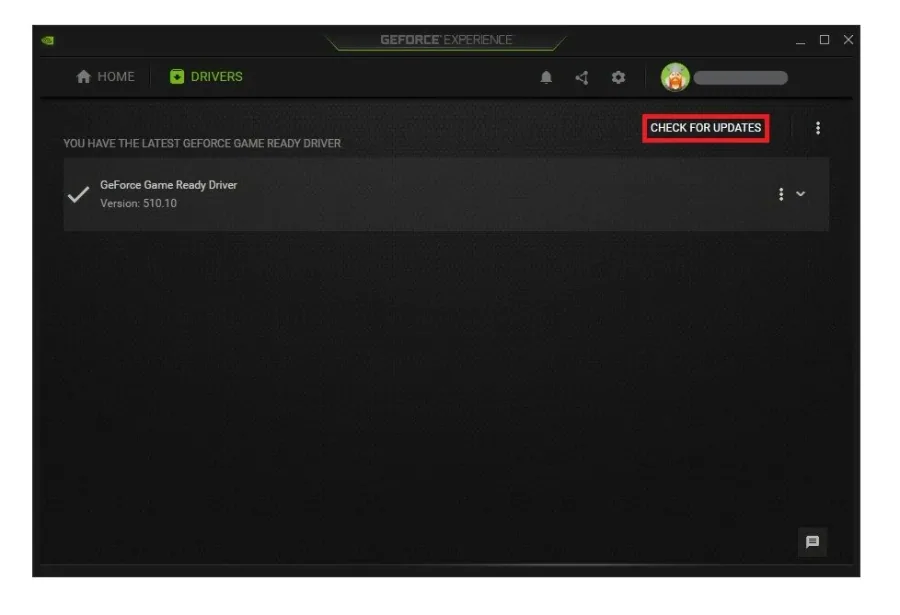
After applying your changes, make sure to close Fortnite. Ensure your graphics card driver is up to date. We suggest using the GeForce Experience application for an NVIDIA GPU, but you can also use the AMD driver suite. In the Drivers tab, click on Download, and the application will automatically download and install the latest driver. Repeat this step a few times a year to ensure you get the most out of your hardware.
Optimal Fortnite Settings for your PC
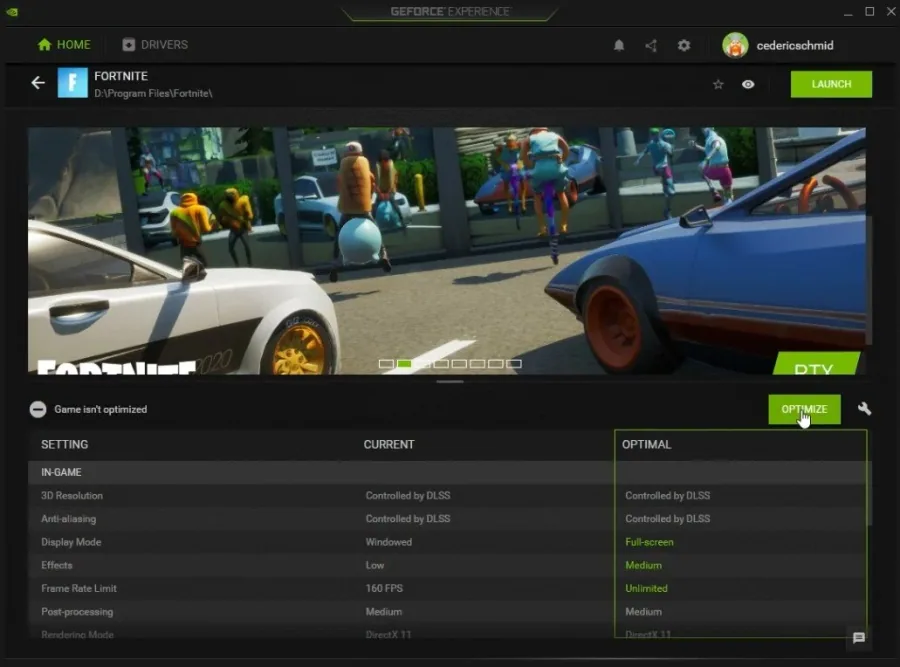
In the Home tab, you can access individual game settings, which can be changed using the GeForce Experience application. Simply select Details for Fortnite. Depending on your hardware, you will be presented with current in-game settings and the optimal settings suggestion. When selecting Optimize, GeForce Experience will apply the recommended settings to the game. You also have the option to use custom settings when selecting this wrench icon. Use the slider system to reduce some options and change your display resolution and display mode, if you are using an abnormal screen resolution. When navigating to your GeForce Settings, disable the In-Game Overlay in your General settings tab, as application overlays often cause performance issues.
Windows Operating System Update
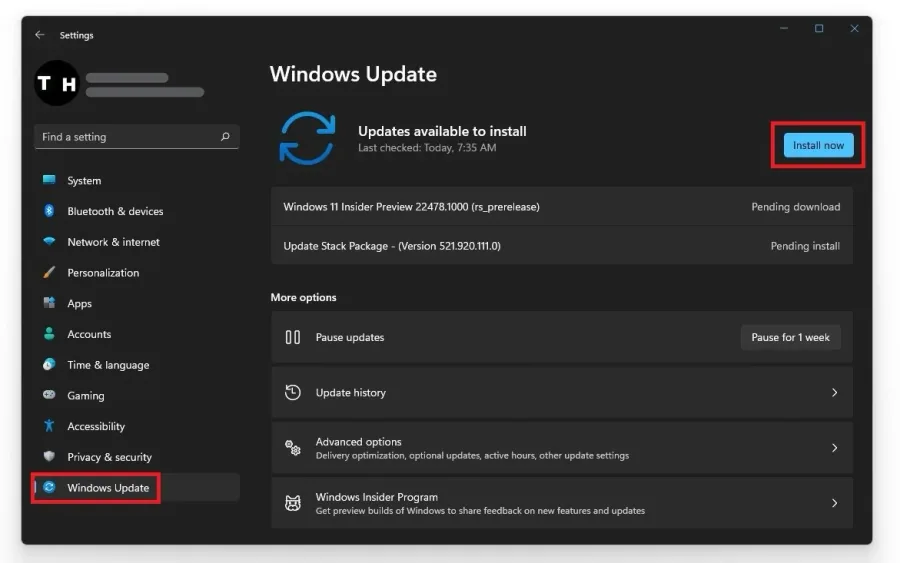
Search for Update in your start menu search to get to your Windows Update Settings. Check for recent Updates, and if an update is available to you, download it before restarting your PC, which will install the update for you. As a last resort, you must reinstall Fortnite to your SSD, if you have enough storage left.
Video walkthrough
If it does not work
- If the current interface differs, compare it with the recorded video walkthrough.