
Gaming · Windows
How To Fix Fortnite Not Launching & Crashing on Startup On Windows 10
Original source date
Answer
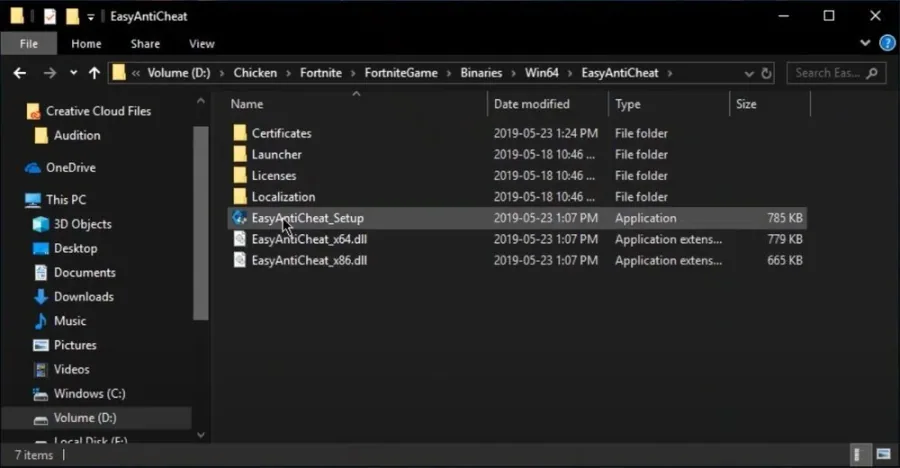
Open up your file explorer and navigate to the drive you saved Fortnite on. Navigate to: Program Files > Fortnite > FortniteGame > Binaries > Win64 > EasyAntiCheat. Open the EasyAntiCheat application as an administrator. When the program opens up, select Fortnite in the drop-down menu and select Repair Service.
Repair Easy Anti Cheat for Fortnite
Open up your file explorer and navigate to the drive you saved Fortnite on. Navigate to: Program Files > Fortnite > FortniteGame > Binaries > Win64 > EasyAntiCheat. Open the EasyAntiCheat application as an administrator. When the program opens up, select Fortnite in the drop-down menu and select Repair Service.
Verify the Fortnite Game Files
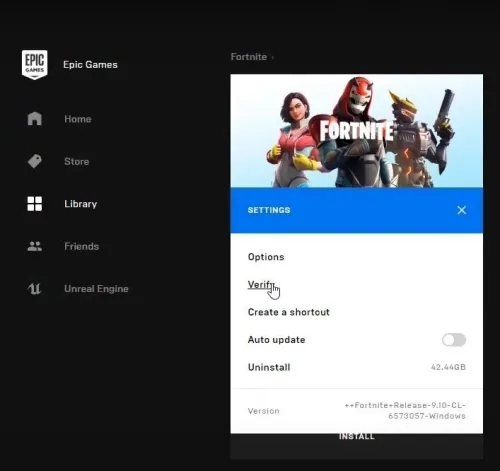
In your Epic Games launcher, go to your game library, select Fortnite, and click on Verify.
Update Operating System
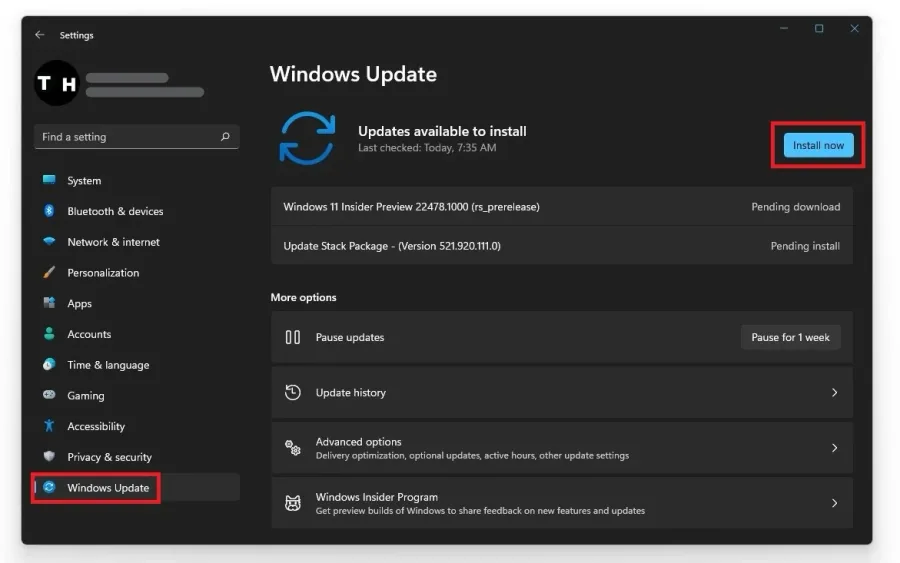
To optimize your system for performance, you should make sure that your operating system is up to date. Simply search for Update in your taskbar search. In your Check for updates system settings window, make sure to download the latest update and make sure to restart your PC after that the download is completed. This will help you with launch and crash issues for Fortnite on your Windows PC.
Ensure the Correct Operating System Type
Right-click your Windows desktop icon in your taskbar and navigate to System. Here you can find information about your system. Ensure your system type is a 64-bit operating system utilized by a 64-based processor. If you can, reinstall Fortnite on your SSD to get faster loading times, which can also prevent Fortnite crashes on startup.
Video walkthrough
If it does not work
- If the current interface differs, compare it with the recorded video walkthrough.