
Windows 11 · Windows
Find a Saved Wi-Fi Password in Windows 11
Source-checked About 10 minutes
Answer
Open the connected network's properties and select Show beside Wi-Fi network password. You can also view saved networks you are authorized to access.
Open the current Wi-Fi properties
On a Windows PC authorized to use the network, open Settings > Network & internet and select Properties for the current Wi-Fi connection.
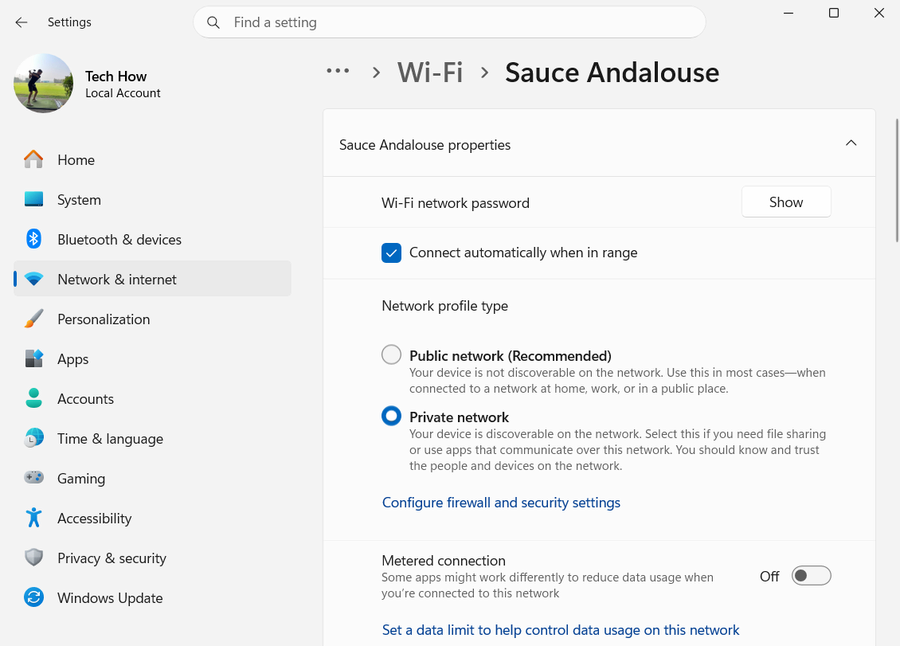
Reveal the password
Next to Wi-Fi network password, select Show and complete any Windows security prompt.
Check another saved network
Open Wi-Fi > Manage known networks, choose the authorized network and select Show beside its password when available.
Protect the credential
Do not reveal, copy or share a network password without the network owner's permission. Prefer the displayed QR code for trusted guests when available.
Video walkthrough
If it does not work
- If Show is unavailable, install current Windows updates and confirm the PC has a saved profile for that network. Managed-device policy can restrict password display.
- If another device cannot connect, scan the displayed QR code or enter the password exactly; do not change the router password merely because one device retained an old profile.
Sources and verification
Checked against official documentation on . Scope: Windows.
Follow the linked first-party guidance if labels differ after a platform update.