
Windows 11 · Windows
Equalize Sound Output in Windows When Supported
Source-checked About 3 minutes
Answer
Windows 11 does not provide one universal graphic equalizer for every PC. Open the active output device's Audio enhancements first; if its driver exposes an equalizer, adjust it there or in the PC or audio-device maker's app. If no equalizer appears, use the playback app's own EQ.
Play a reference track
Play a familiar recording at a moderate volume. Keep the same app, output device, track, and volume while comparing changes.
Open the active output device
Open Start > Settings > System > Sound. Under Output, select the speakers or headphones that are currently playing sound.
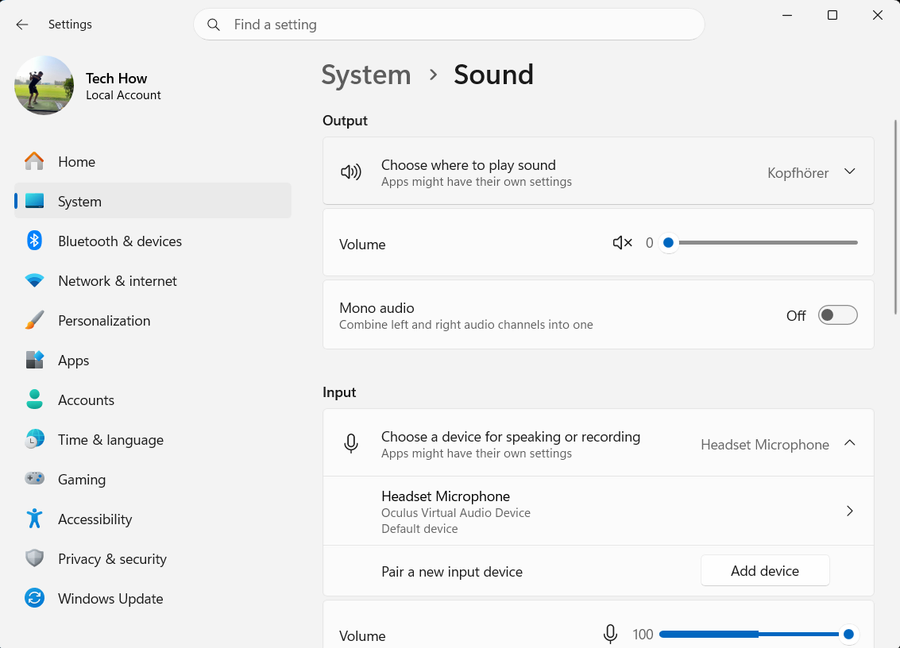
Check Audio enhancements
Find Audio enhancements on the output-device page. If the menu offers device effects, enable the supported option and open any linked device-control panel; the exact controls depend on the driver.
Adjust an available equalizer carefully
If an Equalizer appears, begin with a flat preset and make small changes. Replay the same section and reduce boosted bands if the sound clips or distorts.
Use the device maker's supported app when needed
If Windows shows no equalizer, open the audio app supplied for the exact PC, motherboard, headset, or speakers. Use its EQ only when the device maker documents support for that model.
Use an app equalizer as a limited alternative
If the hardware exposes no EQ, use the music or video player's own equalizer. Expect that setting to affect only playback inside that app.
Verify the result
Replay the same reference track and confirm the intended output sounds clearer without clipping or a large loudness jump. Return the EQ to flat or turn Audio enhancements off if quality becomes worse.
Video walkthrough
If it does not work
- If Audio enhancements is absent, check Windows Update first, then the exact PC or audio-device manufacturer's support page for its supported driver. Do not use a generic driver updater.
- If changes affect only one app, that app's own EQ is active. Use the device or manufacturer control for broader output only when it is available.
- If enabling enhancements causes crackling or distortion, set Audio enhancements to Off and retest the same track.
Sources and verification
Checked against official documentation on . Scope: Windows.
Microsoft documents the output-device and Audio enhancements path, but the available effects depend on the installed audio driver and hardware.