
Windows 11 · Windows
Fix ‘A Driver Cannot Load on This Device’ for ene.sys in Windows 11
Source-checked About 10 minutes
Answer
Windows is blocking an incompatible driver through Memory Integrity. Update the app or device that installed ene.sys from its manufacturer, or remove it if no compatible driver exists.
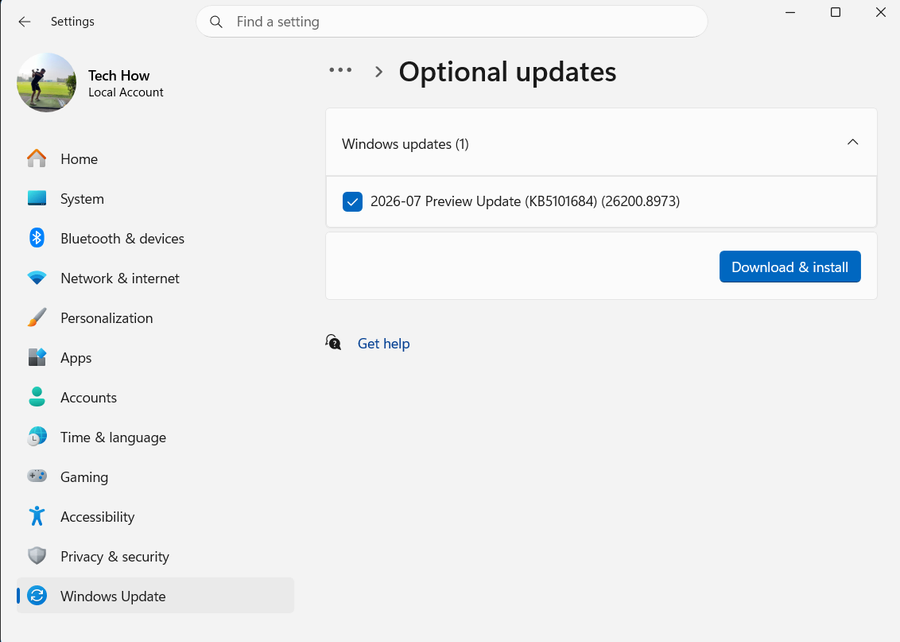
Check Windows Update for a compatible driver
Install Windows updates and check Optional updates for a compatible driver.
Update the utility that installed ene.sys
Identify the lighting, motherboard, or peripheral utility that installed ene.sys and install its current version from the manufacturer.
Remove the incompatible utility if necessary
If no compatible driver exists, uninstall the related app or device software.
Keep Memory Integrity enabled
Avoid turning off Memory Integrity unless you understand and accept the security reduction described by Microsoft.
Restart and verify
Restart Windows and confirm the ene.sys warning no longer appears while Memory Integrity remains on. Test the related lighting, motherboard, or peripheral feature once.
Video walkthrough
If it does not work
- If Windows still blocks ene.sys, record the incompatible-driver entry and identify the exact device or utility that installed it. Update or remove that vendor component through its supported package; do not turn off Memory integrity permanently or download a replacement driver from an archive site.
Sources and verification
Checked against official documentation on . Scope: Windows.
Follow the linked first-party guidance if labels differ after a platform update.