
Windows 11 · Windows
Can You Disable the Windows 11 Login Password and Lock Screen?
Source-checked About 10 minutes
Answer
Windows does not provide one supported switch that disables both the lock screen and all sign-in security. To stop typing a Microsoft-account password, set up Windows Hello and enable Hello-only sign-in. To change prompts after sleep, use Accounts > Sign-in options > Additional settings. Windows Hello still verifies your identity.
Open Sign-in options
Press Windows + I, select Accounts, then Sign-in options. You should see the face, fingerprint, PIN, security-key, or password methods supported by this PC, followed by Additional settings.
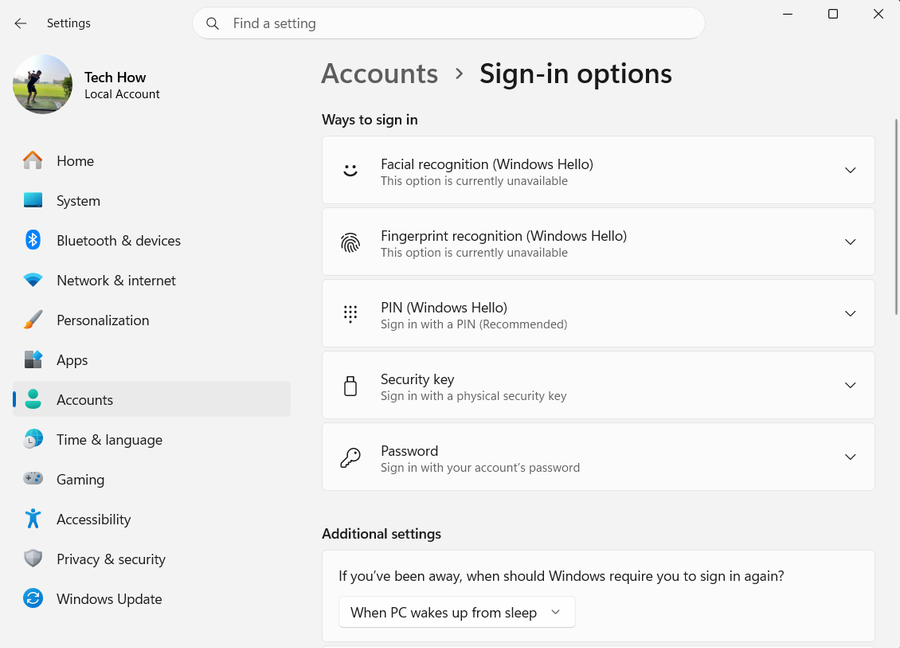
Choose the setting that matches your goal
Use a Windows Hello method if you want to stop typing the account password. Use the If you've been away control if you only want to change prompts after sleep. Neither choice removes the security purpose of the lock screen.
Set up Windows Hello first
Under Ways to sign in, open a PIN, Fingerprint recognition, or Facial recognition option supported by the PC, select Set up, and finish the verification prompts. Confirm Windows shows that method as configured.
Enable Hello-only sign-in for a Microsoft account
Under Additional settings, turn on For improved security, only allow Windows Hello sign-in for Microsoft accounts on this device. This option is for Microsoft accounts, not local accounts. The password choice is hidden at the next device sign-in, but face, fingerprint, or PIN is still required.
Change prompts after sleep separately
Open If you've been away, when should Windows require you to sign in again? and choose the available timing that fits this device. A work or school policy can disable this menu.
Keep the security boundary clear
Personalization > Lock screen changes appearance and status content; it does not provide a supported no-security switch. Do not use registry changes or tools that store your password for automatic sign-in.
Verify both behaviors
Press Windows + L and confirm the configured Windows Hello method unlocks the PC. Then put the PC to sleep, wake it after the selected interval, and confirm the sign-in prompt matches the reauthentication setting.
Video walkthrough
If it does not work
- If Hello-only sign-in is missing, confirm Windows is using a Microsoft account; Microsoft does not offer that switch for local accounts.
- If the If you've been away menu is disabled, a device security policy controls it; contact the administrator on work or school hardware.
- If a Hello method fails, select Sign-in options on the sign-in screen and use another configured method or Microsoft's supported PIN reset path.
- Do not restore registry or automatic-password-storage workarounds as troubleshooting.
Sources and verification
Checked against official documentation on . Scope: Windows.
Follow the linked first-party guidance if labels differ after a platform update.