
Windows 11 · Windows
How To Disable GamebarPresenceWriter on PC - Reduce CPU & RAM Usage
Original source date
Answer
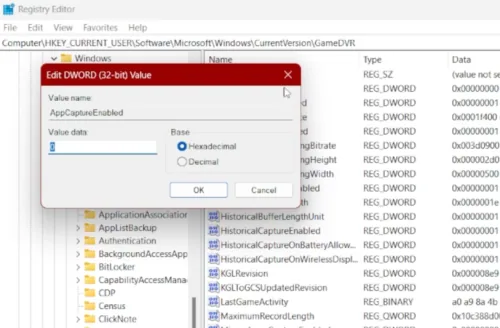
The GameBar Presence Writer is known to cause a variety of performance issues including hogging bandwidth, escalating CPU usage, excessive memory consumption, framerate drops, and game speed slowdowns. By disabling it through the Registry Editor, you can reclaim those precious resources for a smoother gaming experience. Access Registry Editor:Click on the Start menu and type regedit in the search box to open the Registry Editor application.; Click on the Start menu and type regedit in the search box to open the Registry Editor application.; Navigate to GameDVR Settings:Once in the Registry Editor, follow this path: HKEY_CURRENT_USER\Software\Microsoft\Windows\CurrentVersion\GameDVR.Locate AppCaptureEnabled, double-click on it, and change its value to 0.; Once in the Registry Editor, follow this path: HKEY_CURRENT_USER\Software\Microsoft\Windows\CurrentVersion\GameDVR.; Locate AppCaptureEnabled, double-click on it, and change its value to 0.; Proceed to GameConfigStore:Now, navigate to HKEY_CURRENT_USER\System\GameConfigStore.Find GameDVR_Enabled, double-click it, and set its value to 0.; Now, navigate to HKEY_CURRENT_USER\System\GameConfigStore.; Find GameDVR_Enabled, double-click it, and set its value to 0. Following these steps will effectively disable the GameBar Presence Writer, alleviating the noted issues and paving the way for an optimized gaming session.
Disable GameBar Presence Writer via Registry Editor
The GameBar Presence Writer is known to cause a variety of performance issues including hogging bandwidth, escalating CPU usage, excessive memory consumption, framerate drops, and game speed slowdowns. By disabling it through the Registry Editor, you can reclaim those precious resources for a smoother gaming experience. Access Registry Editor:Click on the Start menu and type regedit in the search box to open the Registry Editor application.; Click on the Start menu and type regedit in the search box to open the Registry Editor application.; Navigate to GameDVR Settings:Once in the Registry Editor, follow this path: HKEY_CURRENT_USER\Software\Microsoft\Windows\CurrentVersion\GameDVR.Locate AppCaptureEnabled, double-click on it, and change its value to 0.; Once in the Registry Editor, follow this path: HKEY_CURRENT_USER\Software\Microsoft\Windows\CurrentVersion\GameDVR.; Locate AppCaptureEnabled, double-click on it, and change its value to 0.; Proceed to GameConfigStore:Now, navigate to HKEY_CURRENT_USER\System\GameConfigStore.Find GameDVR_Enabled, double-click it, and set its value to 0.; Now, navigate to HKEY_CURRENT_USER\System\GameConfigStore.; Find GameDVR_Enabled, double-click it, and set its value to 0. Following these steps will effectively disable the GameBar Presence Writer, alleviating the noted issues and paving the way for an optimized gaming session.
Disable GameBar Presence Writer Via Settings :gear:
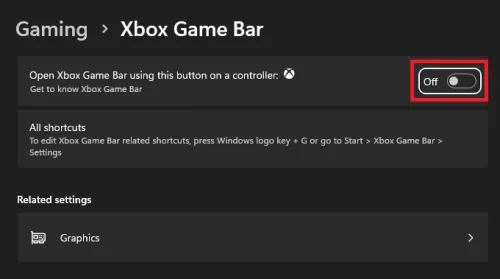
If diving into the Registry Editor isn't quite your speed, there's an alternative route through the Windows settings to disable the Game Bar, which in turn, disables the GameBar Presence Writer. This method is straightforward and can contribute to lowering the CPU and memory usage, enhancing your gaming escapades. Access Gaming Settings:Click on the Start menu, select the Settings gear icon, and then venture into the Gaming section.; Click on the Start menu, select the Settings gear icon, and then venture into the Gaming section.; Tackle Game Bar Settings:In the left pane, click on Game Bar.Find and toggle off the option labeled as Record game clips, screenshots, and broadcast using Game bar.; In the left pane, click on Game Bar.; Find and toggle off the option labeled as Record game clips, screenshots, and broadcast using Game bar.; Disable Game Mode:On the left panel, click on Game Mode.Toggle the Game Mode option to OFF.; On the left panel, click on Game Mode.; Toggle the Game Mode option to OFF. With these simple adjustments, you've successfully put the GameBar Presence Writer to rest, potentially freeing up system resources for a more seamless gaming experience.
Enhance PC Gaming Performance with PassFab FixUWin
Disabling the GamebarPresenceWriter is a great step towards improving your PC's gaming performance by reducing CPU and RAM usage. For further system optimization, consider PassFab's FixUWin application. This tool is adept at diagnosing and fixing over 200 Windows-related issues that can affect your gaming experience, including system lags and memory problems. Whether you're dealing with high CPU usage, system glitches, or optimizing your PC for better gaming performance, FixUWin offers a comprehensive solution to keep your gaming sessions smooth and uninterrupted.
Affiliate Disclosure: This content includes affiliate links
Affiliate Disclosure: This content includes affiliate links. By opting for PassFab's FixUWin through these links, you're not only enhancing your PC's gaming performance but also supporting our website at no extra cost to you.
Video walkthrough
If it does not work
- What is GameBar Presence Writer and why would I want to disable it?. GameBar Presence Writer is an executable process associated with the Game Bar feature in Windows 10/11, used for recording Xbox gameplay. Disabling it can help reduce CPU and RAM usage, leading to smoother gaming performance.
- How can I disable GameBar Presence Writer via Registry Editor?. To disable it via Registry Editor, search for "regedit" in the start menu, navigate to HKEY_CURRENT_USER\Software\Microsoft\Windows\CurrentVersion\GameDVR, set "AppCaptureEnabled" value to “0”, and in HKEY_CURRENT_USER\System\GameConfigStore, set "GameDVR_Enabled" value to “0”.
- Is there an alternative method to disable GameBar Presence Writer?. Yes, you can disable it via Windows Settings by going to the Gaming section, under the Game Bar tab, deactivate the “Record game clips, screenshots, and broadcast using Game bar” option, and turn OFF the Game Mode.
- Will disabling GameBar Presence Writer affect my game recordings?. Yes, disabling GameBar Presence Writer will prevent you from recording your gameplay through the Game Bar feature on Windows.
- Is it reversible if I disable GameBar Presence Writer and wish to enable it again?. Absolutely, you can reverse the process by following the same steps and toggling the settings back to their original state.