
iOS · iPhone & iPad
Remove iPhone Photos Without Deleting iCloud Copies
Source-checked About 10 minutes
Answer
To keep cloud copies, turn off Sync this iPhone for iCloud Photos and choose Remove from iPhone. Do not delete in Photos while sync is on.
Understand what not to do
Do not select photos in the Photos app and delete them while iCloud Photos is syncing. iCloud Photos maintains one synchronized library, so a deletion normally propagates to iCloud and other devices signed in to that library. This tutorial removes synchronized copies from one iPhone instead.
Verify that iCloud contains the originals
Before changing sync, sign in at iCloud.com/photos or check another trusted synced device and confirm recent photos and videos are present. Let pending uploads finish on Wi-Fi and power. Keep a separate backup of irreplaceable items; synchronization alone is not a complete backup strategy.
Choose whether to keep local originals
Open Settings > your name > iCloud > Photos. If you want full-resolution files to remain on the iPhone, choose Download and Keep Originals and wait for downloading to complete before disabling sync. If the goal is to free device storage, do not choose this option.
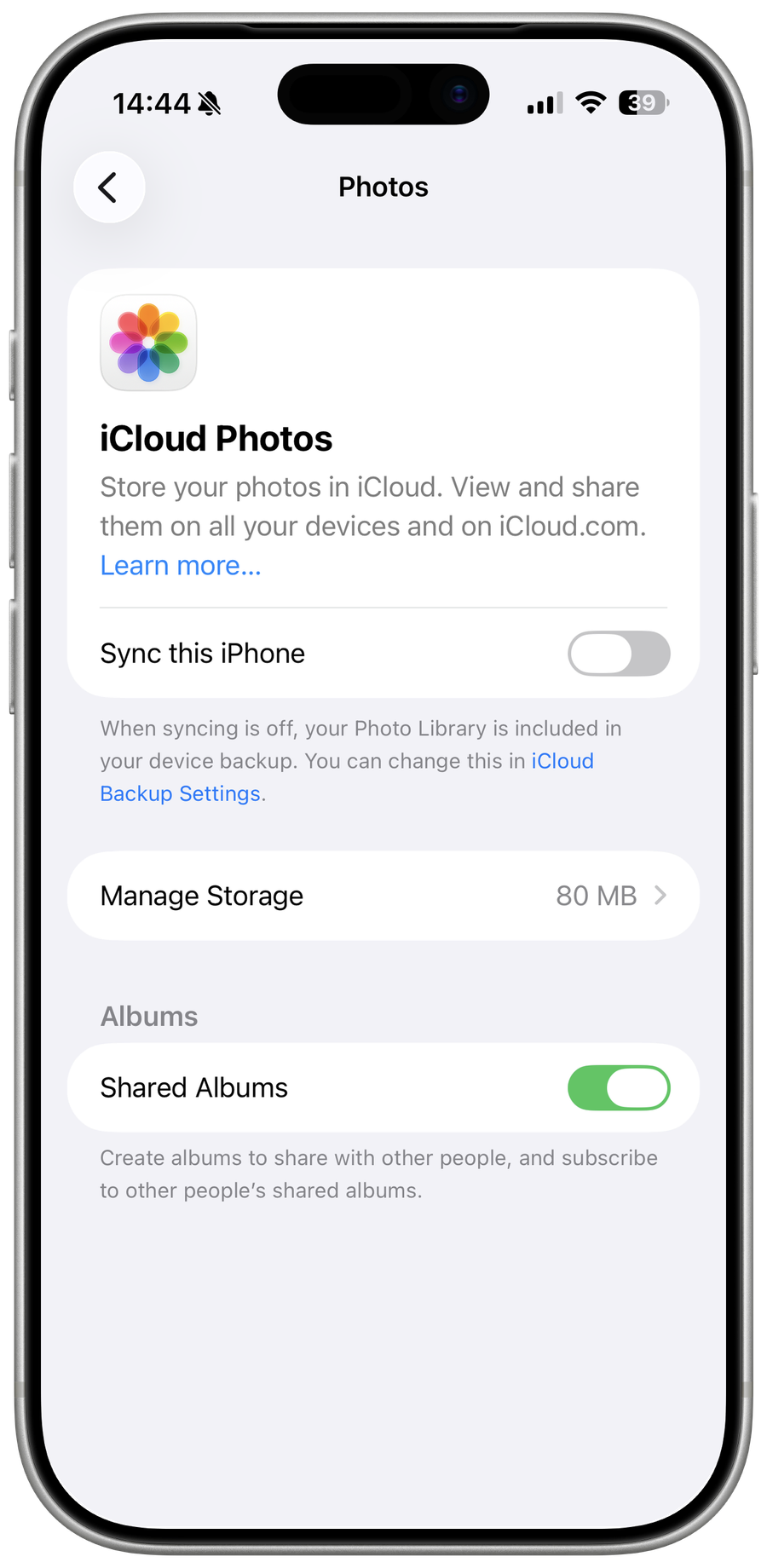
Turn off syncing for this iPhone
In the same Photos settings, turn off Sync this iPhone. Read the confirmation carefully. Choose Remove from iPhone only when the verified iCloud copies should remain online and the synchronized local copies should be removed from this device.
Allow removal to finish
Keep the iPhone connected as the Photos library updates. The exact storage recovery can take time and may not equal the full library size because optimized thumbnails, edits, shared items, and unrelated photos can remain. Do not delete cloud items merely to force the storage display to refresh.
Verify both locations
Open Photos on the iPhone and confirm the intended local change, then check iCloud.com/photos again to make sure the cloud library remains intact. If you turn Sync this iPhone on later, the iCloud library can download or optimize on the phone again.
Video walkthrough
If it does not work
- If Remove from iPhone is not offered, confirm the iCloud library has finished uploading and consult Apple's current turn-off guidance before deleting anything.
- If cloud photos disappear, stop making changes and check Recently Deleted and another synced device immediately.
Sources and verification
Checked against official documentation on . Scope: iPhone & iPad.
Follow the linked first-party guidance if labels differ after a platform or app update.