
Gaming · Platform not recorded
Dead By Daylight - How To Change Display Resolution / Use Custom Resolution
Original source date
Answer
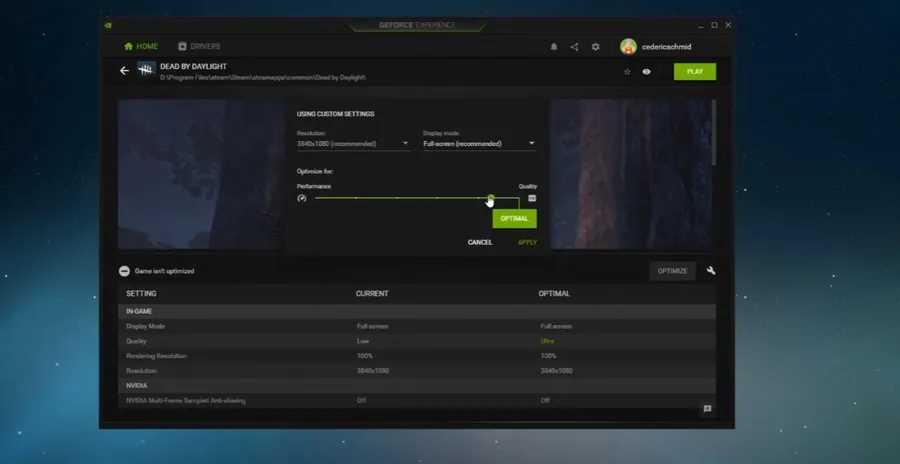
As you’re unable to change your display resolution options in the in-game settings, we suggest to use the GeForce Experience application in case you're using an NVIDIA graphics card. In the Home tab, select Details for Dead by Daylight. Select the wrench icon, which will enable you to change the resolution, Display Mode, and a few additional performance changes below if you want to use the slider system.
Use the Geforce Experience Application
As you’re unable to change your display resolution options in the in-game settings, we suggest to use the GeForce Experience application in case you're using an NVIDIA graphics card. In the Home tab, select Details for Dead by Daylight. Select the wrench icon, which will enable you to change the resolution, Display Mode, and a few additional performance changes below if you want to use the slider system.
Change the Dead by Daylight Config File
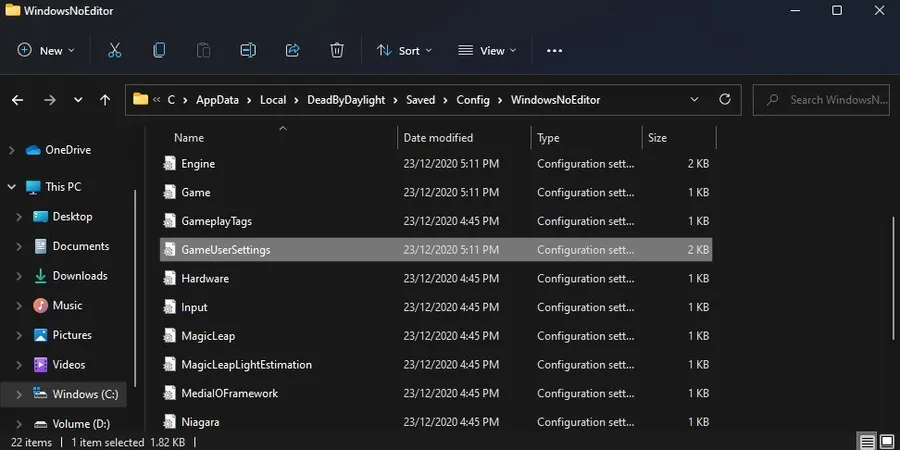
If you’re not using an NVIDIA graphics card, or if you want to use a custom display resolution, close this application, and in your taskbar search, enter %appdata% and hit enter. Your file explorer will open up. Navigate to: AppData > Local > DeadByDaylight > Saved > Config > WindowsNoEditor. In the folder, open the GameUserSettings file with a text editor like Notepad.
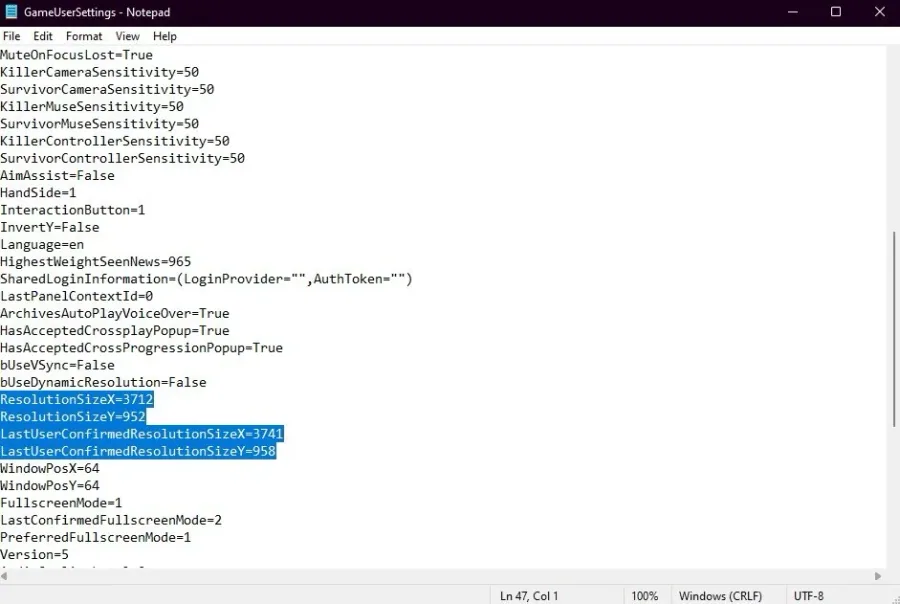
Scroll down until you find the Resolution Size X, Resolution Size Y and the last…
Scroll down until you find the Resolution Size X, Resolution Size Y and the last user-confirmed resolution size options below. Set these options to the width and height of your preferred resolution. Don’t forget to apply your changes.
Video walkthrough
If it does not work
- If the current interface differs, compare it with the recorded video walkthrough.