
Windows 11 · Windows
Fix ‘A D3D11-Compatible GPU Is Required’ on Windows
Source-checked About 10 minutes
Answer
Open `dxdiag` and check the game's active Display tab for Feature Levels. If `11_0` is absent, that adapter cannot run a game that requires Direct3D feature level 11_0; installing DirectX or copied DLLs will not add the hardware feature. If `11_0` is present, update the correct GPU driver, make the game use that GPU on multi-GPU PCs, and repair the game's own prerequisites.
Confirm the game's requirement
Check the game publisher's minimum requirements and record the exact game and error. The generic message often names feature level 11_0, but a specific game can require a newer feature level, GPU, driver, or Windows build.
Check Direct3D feature levels
Press Windows + R, type `dxdiag`, and press Enter. Open each Display tab because a PC can have more than one GPU. Under Drivers, find Feature Levels. The adapter intended for the game must list the publisher's required level; for the common error, look for `11_0` or higher. The DirectX Version on the System tab is not the same test.
Stop if the feature level is absent
If `dxdiag` shows Microsoft Basic Display Adapter, install the correct graphics driver before judging the hardware. If the real adapter is shown and still lacks the required feature level, software repairs cannot add it; the supported resolution is a GPU or PC that meets the game's requirements.
Install the correct graphics driver
Use the GPU name on the dxdiag Display tab to identify the device. For laptops and other manufacturer-configured PCs, check the PC maker's support page first. Otherwise use the official NVIDIA, AMD, or Intel driver page as the game publisher directs. Install the stable driver for that exact adapter and restart Windows.
Choose the capable GPU on multi-GPU PCs
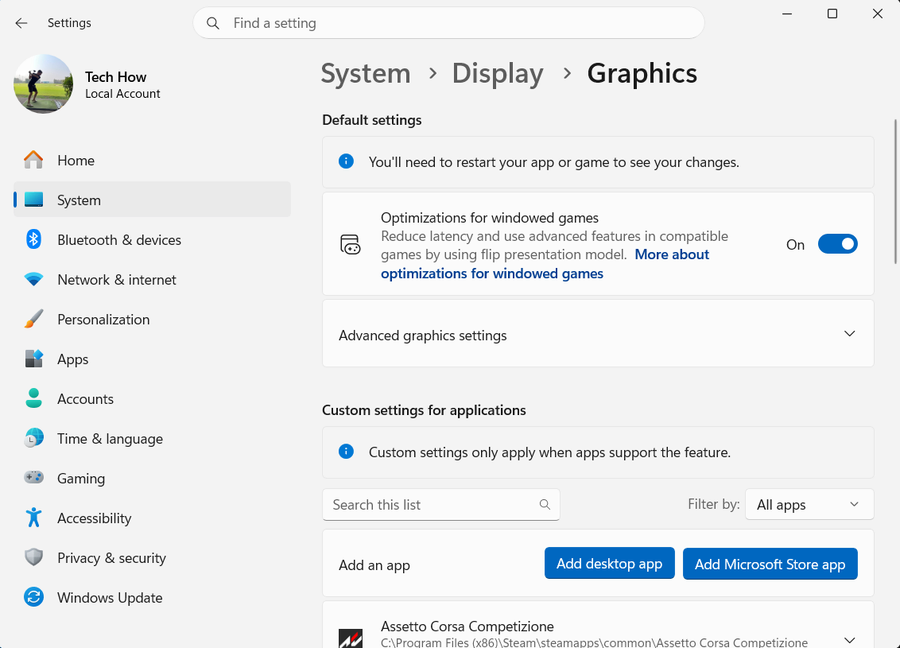
If the PC has more than one GPU, open Settings > System > Display > Graphics. Select or add the game, choose Options > High performance > Save, then fully close and restart the game. This setting does not help a single-GPU PC or make unsupported hardware compatible.
Repair the game's own files
Use the launcher's Verify or Repair command. If the game or engine supplies a prerequisite installer, run that publisher-provided package. Do not download a DLL or use another game's launch flag; those steps cannot create a missing GPU feature.
Verify with the same game
Run `dxdiag` again to confirm the intended adapter and feature level, then fully close and relaunch the affected game. Success means the same game reaches its normal start screen without the D3D11 message.
Video walkthrough
If it does not work
- If dxdiag shows Microsoft Basic Display Adapter, the full GPU driver is missing; install it from the PC or GPU manufacturer before judging compatibility.
- If dxdiag has several Display tabs, check all of them, then assign the game to the capable adapter in Windows Graphics settings and restart it.
- If the required feature level is present and only one game fails, compare that game's exact GPU, VRAM, OS, and prerequisite requirements instead of reinstalling Windows DirectX components.
- If the hardware is below the requirement, no registry key, launch flag, copied DLL, or DirectX web installer can create the missing feature level.
Sources and verification
Checked against official documentation on . Scope: Windows.
Follow the linked first-party guidance if labels differ after a platform update.