
Gaming · Platform not recorded
CSGO - How To Fix Input Lag (Delay)
Original source date
Answer
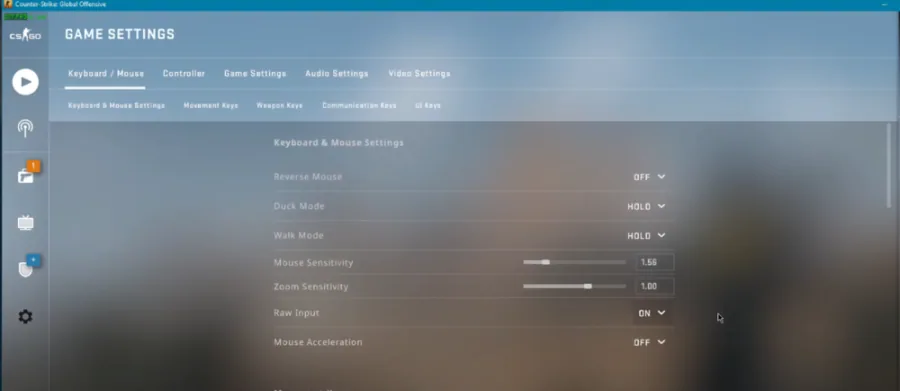
Adjusting the in-game settings of CSGO can help reduce input lag and improve your gaming experience. Along with setting Raw Input to ON and Mouse Acceleration to OFF, there are other settings you can modify to help with input lag. For example, setting the Mouse Polling Rate to 1000 Hz can improve your mouse's responsiveness. Additionally, lowering the Graphics Settings can also help reduce input lag. Turning off V-Sync and Anti-Aliasing can help improve your frame rate and reduce input lag.
Adjust the CSGO In-Game Settings
Adjusting the in-game settings of CSGO can help reduce input lag and improve your gaming experience. Along with setting Raw Input to ON and Mouse Acceleration to OFF, there are other settings you can modify to help with input lag. For example, setting the Mouse Polling Rate to 1000 Hz can improve your mouse's responsiveness. Additionally, lowering the Graphics Settings can also help reduce input lag. Turning off V-Sync and Anti-Aliasing can help improve your frame rate and reduce input lag.
Change your Keyboard Properties
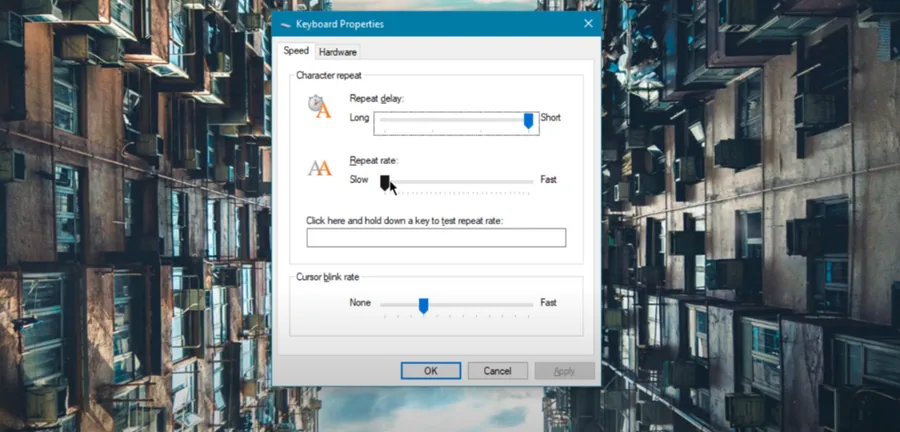
To further reduce input lag in CSGO, you can also adjust the settings in the keyboard control panel. In the Repeat delay option, set it to Short to ensure a quicker response time when keys are pressed. Additionally, you can set the Repeat rate to Slow, which will slow down how fast a key repeats when held down. These adjustments can help with input lag in CSGO by ensuring that the keyboard input is processed faster and more accurately.
Update your Peripheral Drivers
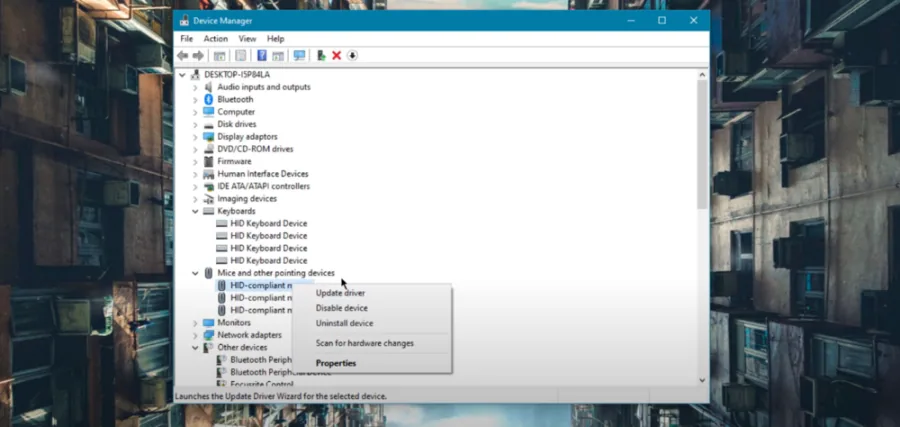
Updating your peripheral drivers can also help fix input lag in CSGO. To do this, first, open up your Device Manager by searching for it in your Taskbar search. Next, expand the Keyboards and Mice and other pointing devices section. Right-click on the peripheral you are usually using, and select Update Driver. Updating drivers can also be done manually. You can go to the manufacturer's website and look for the latest drivers for your device. For example, if you are using a Logitech mouse, you can go to their website and search for the latest drivers for your specific model. Make sure to download and install the correct drivers for your device and operating system.
Video walkthrough
If it does not work
- If the current interface differs, compare it with the recorded video walkthrough.