
Gaming · Platform not recorded
CSGO - How To Fix Mic Not Working & Audio Issues
Original source date
Answer
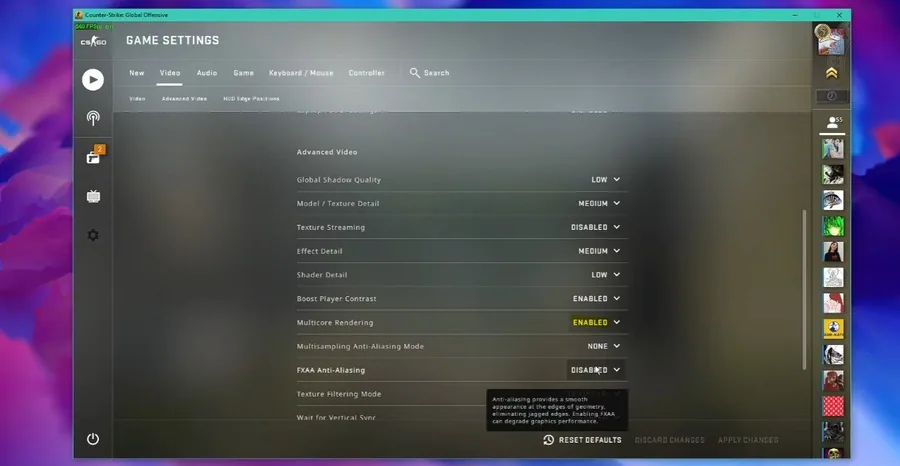
Open up CSGO and navigate to your Video settings. Make sure that the Multicore Rendering option is enabled. This can help prevent audio delay caused by using up too many resources to run the game. You should also consider capping your framerate. I will leave the launch option in the description to cap your FPS to a specific value.
Adjust the CSGO In-Game Settings
Open up CSGO and navigate to your Video settings. Make sure that the Multicore Rendering option is enabled. This can help prevent audio delay caused by using up too many resources to run the game. You should also consider capping your framerate. I will leave the launch option in the description to cap your FPS to a specific value.
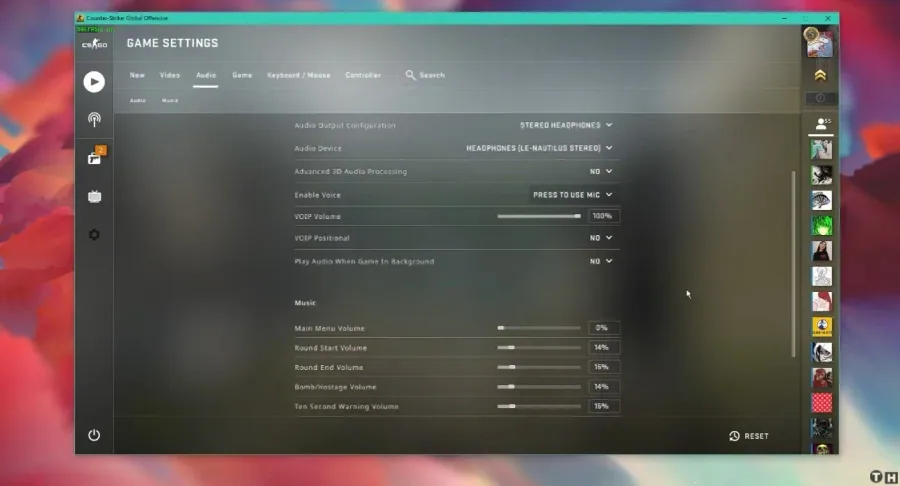
In your Audio settings, ensure your Master volume is not muted
In your Audio settings, ensure your Master volume is not muted. Set the Audio output configuration option to the audio output you use. For headphones, use Stereo Headphones. Set the Audio Device to your default audio input device, such as your external microphone. Disable advanced 3D audio processing to diagnose compatibility issues with your device. Use the Press to use mic option to enable your voice. Set the Volume of Voice Over option to 100%, disable Volume of voice over, and the other settings can be set to your liking.
Optimize the Windows Sound Settings
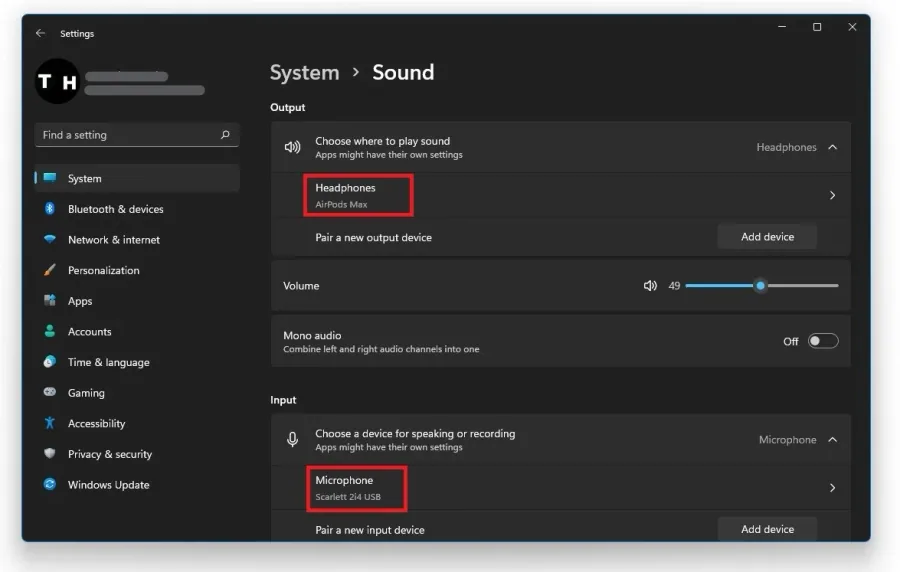
Right-click the sound icon in your taskbar and select Open Sound Settings. Make sure to set the output and input device to your main device.
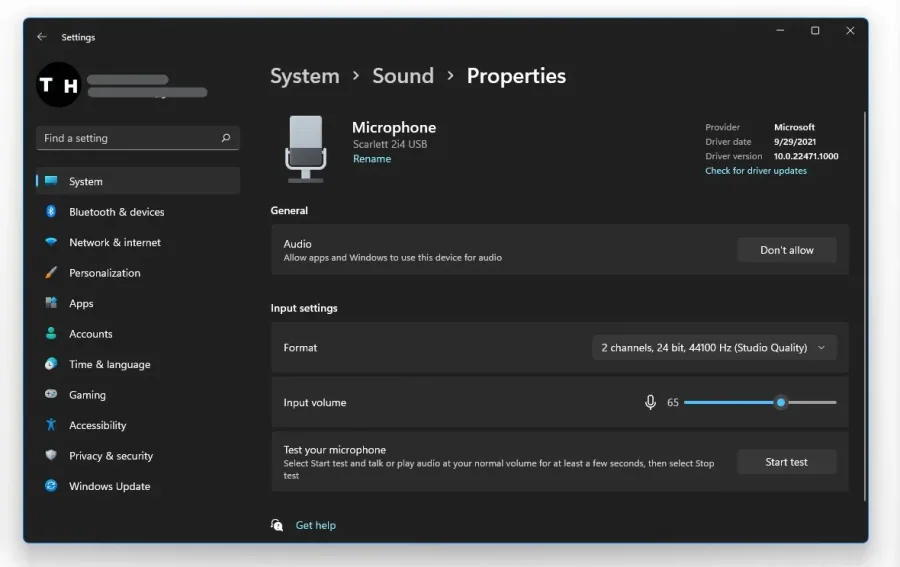
Under Manage Sound Devices, you can select to test or disable your devices
Under Manage Sound Devices, you can select to test or disable your devices. This is essential to troubleshoot any hardware issues. Also, testing your device with another source, such as a video on YouTube will help you determine where the issue is coming from.
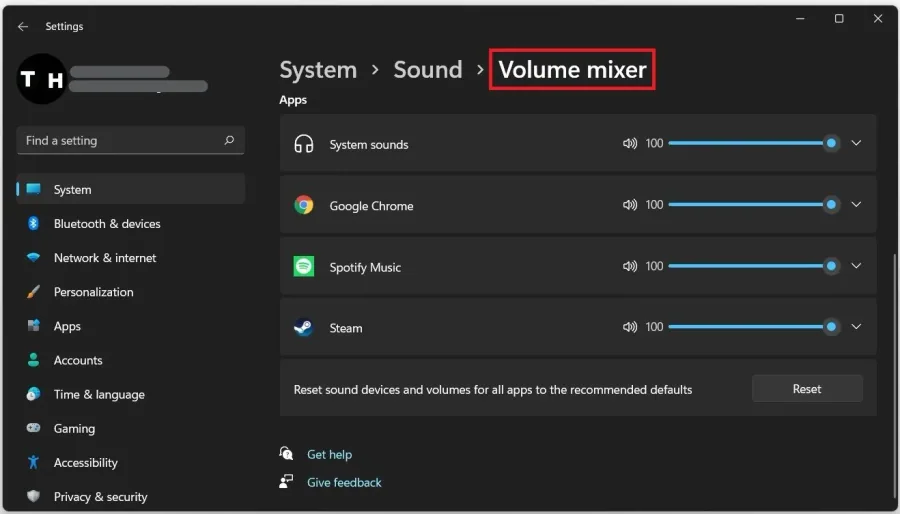
In your Advanced Sound Settings, you can assign the input and output devices for…
In your Advanced Sound Settings, you can assign the input and output devices for each application, as well as changing the volume.
Update your Audio Device Drivers
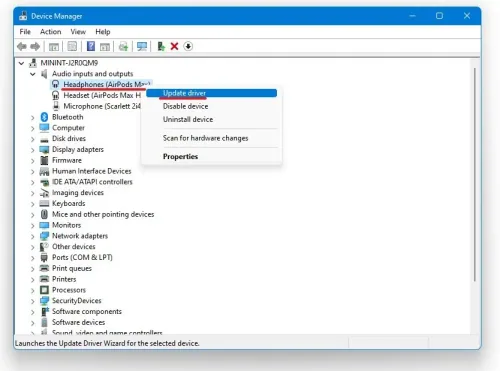
Search for Device Manager in your taskbar search to open it up. In this window, expand Audio inputs and outputs.nRight-click the output sound device you prefer to use, select Update Driver, and make sure to Search automatically for updated driver software. This will take a minute to ensure your device’s driver is up to date.
Verify the Integrity of CSGO Game Files
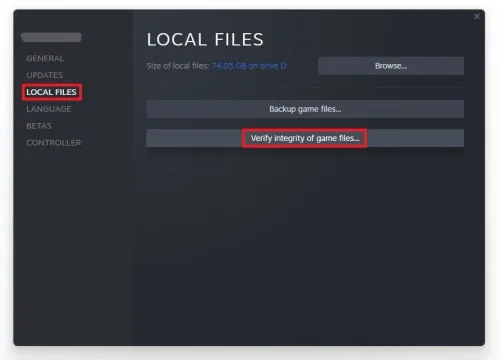
When this is done, and the issue persists, your game files might be corrupted. Open up your Steam library. Right-click CSGO and navigate to Properties. On the window, in the Local files tab, select to verify the integrity of your game files. Redownloading and replacing any missing or corrupted game files will take a minute.
To use launch options, add them in the General tab
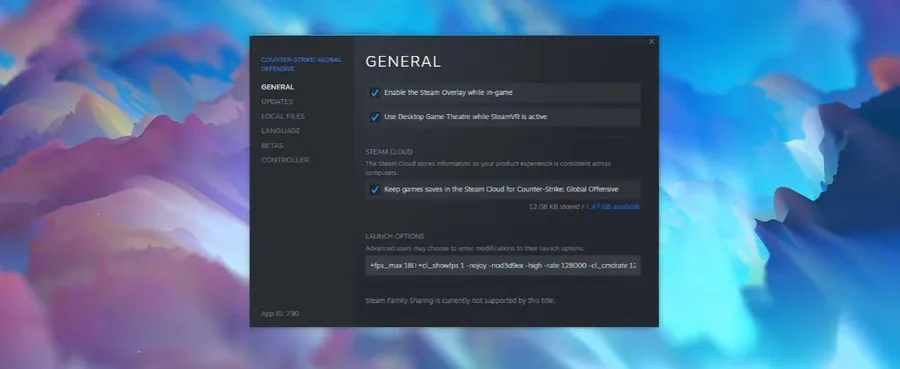
To use launch options, add them in the General tab. These commands, including the FPS cap, will be applied every time you launch the game. If you still have audio issues, your hardware might be faulty. Ensure that your input and output device works fine with other applications on your system.
Video walkthrough
If it does not work
- If the current interface differs, compare it with the recorded video walkthrough.